Your PC Isn’t Being Offered the Latest Update — Here’s Why
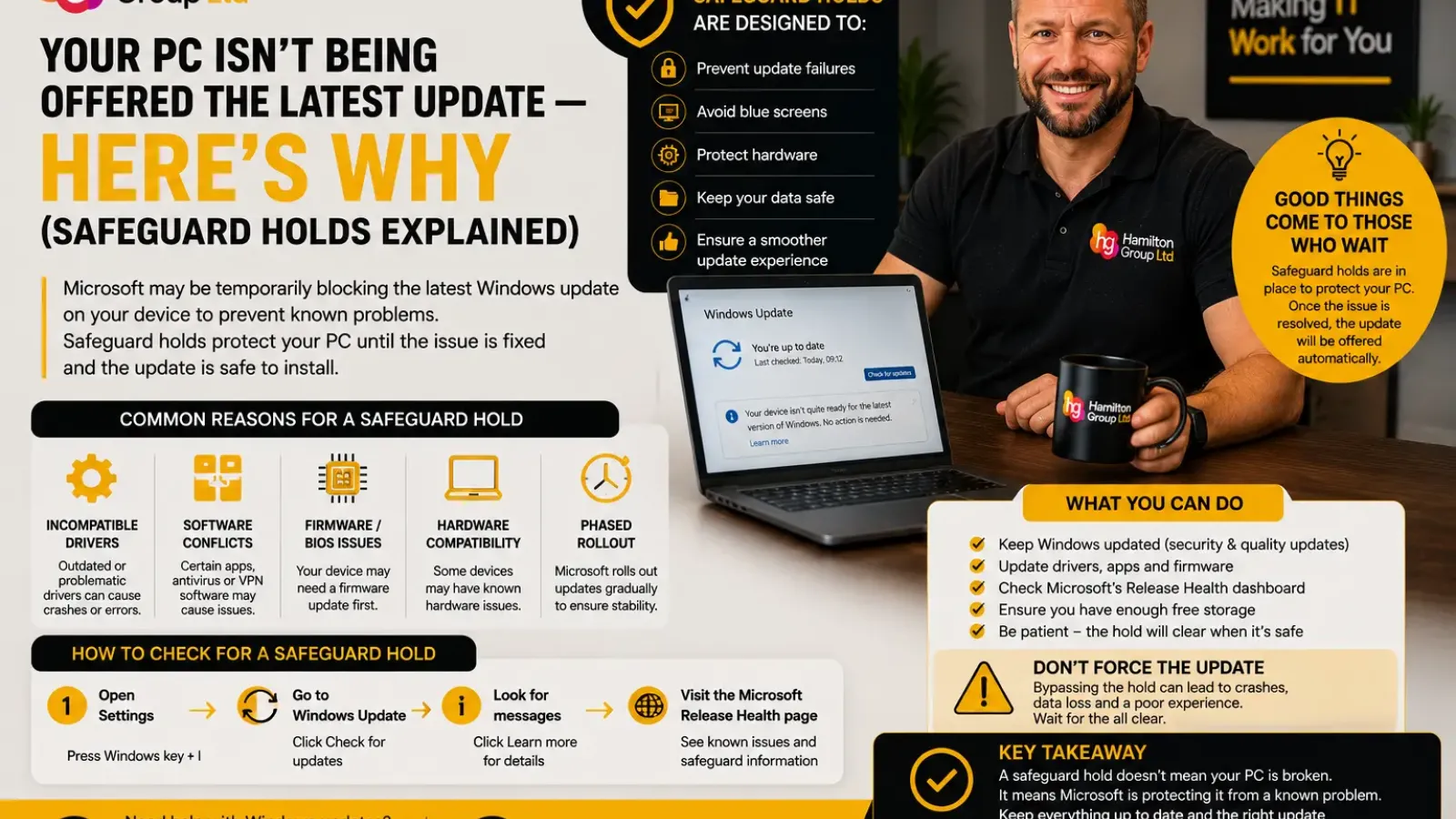
You open Windows Update, select Check for updates, and expect to see the latest Windows feature update.
Instead, Windows tells you that your device is up to date, even though you know a newer version is available. Another computer in the office may already have received it, while yours continues to wait.
This does not necessarily mean Windows Update is broken.
Microsoft may have deliberately prevented the update from being offered to your device because it has detected a known compatibility risk. This temporary block is called a safeguard hold.
Safeguard holds are designed to stop devices from installing a feature update that could cause crashes, failed installations, broken drivers, application problems or a poor overall experience. Once Microsoft, the hardware manufacturer or the software vendor has fixed and verified the issue, the hold can be removed and the update offered again.
Here is what safeguard holds mean, how to tell whether one is affecting your PC and why forcing the update is usually a bad idea.
What Is a Safeguard Hold?
A safeguard hold is a compatibility block applied to a Windows device.
Microsoft uses information about the device’s hardware, drivers, applications and configuration to determine whether a new Windows feature update is likely to cause a known problem.
When an affected combination is detected, Windows Update temporarily withholds the new version.
Examples might include:
- An incompatible display driver
- Faulty audio-driver software
- A VPN or security application
- Disk-encryption software
- A gaming anti-cheat driver
- A specialist business application
- A docking-station driver
- A printer or scanner utility
- Firmware that needs updating
- A known blue-screen risk
- An application that stops working after the upgrade
The safeguard is applied to the affected devices rather than withdrawing the update from everyone.
This explains why two apparently identical computers may receive a feature update at different times.
Why Does Microsoft Use Safeguard Holds?
Feature updates change far more than routine monthly security patches.
They can introduce changes to:
- The Windows kernel
- Device drivers
- Security controls
- Authentication
- Networking
- Storage
- Graphics
- Power management
- Application compatibility
- Firmware interactions
Although Microsoft tests feature updates extensively, the Windows hardware and software ecosystem is enormous.
Problems may become apparent only when an update reaches devices using a particular driver, application version or hardware configuration.
A safeguard hold limits the number of affected users while the issue is investigated and resolved.
Microsoft describes safeguard holds as a way of protecting devices from a failed or poor update experience.
Does a Safeguard Hold Mean Your PC Is Incompatible?
Not necessarily.
There is an important difference between a PC that does not meet the hardware requirements and one that is temporarily blocked.
Permanently ineligible hardware
A device may not meet the minimum requirements for a particular Windows release.
This could involve:
- Unsupported processor
- Missing TPM support
- Secure Boot limitations
- Insufficient memory
- Insufficient storage
- Unsupported system architecture
That is a hardware-eligibility problem.
Temporary safeguard hold
The computer may fully meet the hardware requirements but have a driver, application or configuration associated with a known issue.
Once that specific issue is resolved, the same device may become eligible without any hardware replacement.
A safeguard hold is therefore usually temporary.
What Will Windows Update Show?
The exact message varies.
Windows Update may say:
- The update is on its way
- Your device is not quite ready
- No action is needed
- A newer Windows version is available for compatible devices
- Microsoft is working on a compatibility issue
- The device will be offered the update when it is ready
There may also be a Learn more link.
Microsoft provides a device-specific safeguard information page in some situations. Selecting Learn more may show a customised summary of the known issue preventing the upgrade.
In other cases, Windows Update may simply report that the device is current without clearly identifying the hold.
How to Check Whether a Safeguard Hold Is Affecting You
Start with:
Settings > Windows Update
Select Check for updates and read the message carefully.
Look for references to:
- Compatibility
- Your device not being ready
- A known issue
- A safeguard hold
- A Learn more link
- An update being offered later
You should also check Microsoft’s Windows Release Health pages, which publish current information about supported Windows versions, known issues and applicable safeguards.
For business-managed devices, your IT platform may provide additional information about compatibility risks and safeguard identifiers.
Common Reasons an Update Is Being Withheld
An Incompatible Driver
Drivers allow Windows to communicate with hardware.
A feature update may expose a defect in an older driver, resulting in:
- Blue screens
- Missing audio
- Display problems
- Wi-Fi failures
- Sleep and wake issues
- External monitors not working
- Installation rollbacks
Microsoft has previously applied safeguard holds to devices using specific affected display drivers until the corrected driver was installed.
Updating the driver from Windows Update or the device manufacturer may resolve the problem.
An Application Compatibility Problem
Software that interacts deeply with Windows may block an update.
This commonly includes:
- Antivirus products
- VPN software
- Virtualisation tools
- Start-menu replacements
- Encryption software
- Backup applications
- Gaming anti-cheat systems
- Specialist business software
An application may work perfectly on the current Windows version but cause serious problems after the upgrade.
Updating or removing the affected application may allow the hold to clear.
Firmware or BIOS Issues
The device manufacturer may need to release a BIOS, UEFI or firmware update before the new Windows version can be installed safely.
Firmware problems can affect:
- Security features
- Power management
- Storage controllers
- USB-C and Thunderbolt
- Docking stations
- Sleep and wake
- Processor behaviour
Check the manufacturer’s support tools or website for approved updates.
Hardware-Specific Problems
Some holds target a particular combination of hardware and software.
For example, a problem may occur only on:
- One laptop model
- A specific processor generation
- Devices with a certain audio controller
- Machines using one storage driver
- Systems connected to a particular accessory
This is why another PC with the same edition of Windows may receive the update earlier.
Microsoft Is Still Phasing the Rollout
Not every delayed update is caused by a safeguard hold.
Microsoft often releases feature updates gradually.
The update may initially be offered to devices that are expected to have the smoothest experience before being expanded to a wider range of hardware.
A device may therefore be waiting because:
- The rollout has not yet reached it
- The administrator has deferred the update
- The device is managed by company policy
- Required monthly updates are missing
- A restart is pending
- The device has not recently checked in
- The update is paused
A gradual rollout and a safeguard hold can appear similar from the user’s perspective.
Why You Should Not Force the Update
When users realise a newer version exists, they may attempt to bypass Windows Update using:
- Installation Assistant
- Media Creation Tool
- An ISO file
- Registry changes
- Command-line switches
- Third-party update utilities
This may work technically, but it can also bypass the protection Microsoft deliberately applied.
Possible consequences include:
- A failed installation
- Endless restart loops
- Blue-screen errors
- Loss of audio or networking
- Broken business software
- Encryption recovery prompts
- Missing drivers
- Poor performance
- An unstable Windows installation
- The need to roll back or rebuild the PC
Microsoft’s guidance for compatibility blocks has historically warned users not to force an upgrade until the relevant driver or software problem has been resolved.
A safeguard hold is not an obstacle to defeat. It is a warning that Microsoft has evidence the update may not be safe for that device yet.
Can Businesses Override Safeguard Holds?
Microsoft provides mechanisms that can allow managed organisations to opt out of certain safeguard holds.
However, this is intended for experienced IT teams that have tested the affected hardware and applications and accept the resulting risk.
Microsoft warns that safeguard holds exist to protect devices from known compatibility problems. The update is normally offered again only after a fix has been issued and verified.
Overriding a safeguard may be considered in a controlled test environment, but it should not normally be used to force an entire business estate onto the latest version.
A safer approach is to:
- Identify the affected devices.
- Find the relevant driver or application.
- Apply the vendor’s fix.
- Test the update on a pilot device.
- Wait for the hold to clear.
- Deploy the feature update in phases.
How Long Does a Safeguard Hold Last?
There is no fixed duration.
A hold remains in place until the underlying issue is resolved and the solution has been validated.
That might involve:
- Microsoft releasing a Windows update
- A manufacturer publishing a driver
- A software vendor updating its application
- A firmware patch becoming available
- Microsoft confirming that the risk no longer applies
After a hold is removed, it can still take time for Windows Update to refresh the device’s eligibility. Microsoft notes in some compatibility cases that the update may take up to 48 hours to appear, assuming no other safeguards apply.
Restarting the computer and checking for updates again may help, but repeatedly pressing the button every few minutes will not accelerate Microsoft’s rollout.
What Should You Do While You Wait?
Install Current Windows Updates
Continue installing routine security and quality updates for your existing Windows version.
A safeguard hold usually blocks the feature update, not every Windows update.
Keeping the current version fully patched may also install a fix that helps remove the hold.
Update Drivers
Check:
Settings > Windows Update > Advanced options > Optional updates
Review available driver updates.
You should also use the computer manufacturer’s approved update tool where appropriate.
Avoid downloading random drivers from unofficial websites.
Update Installed Applications
Pay particular attention to software that operates close to the operating system, including:
- Endpoint protection
- VPN clients
- Backup software
- Virtual machines
- Disk encryption
- Audio tools
- Hardware-management utilities
- Gaming anti-cheat software
- Remote-access applications
Restart the computer after installing important updates.
Update the BIOS or Firmware
Check whether the manufacturer offers an approved BIOS, UEFI or firmware update for the device.
Before updating firmware:
- Connect the laptop to mains power
- Suspend encryption only when instructed
- Record the BitLocker recovery key
- Close all applications
- Do not interrupt the update
Firmware updates should be deployed carefully across business devices.
Remove Unused Legacy Software
Old utilities and drivers can remain installed long after the original hardware has been removed.
Examples include:
- Printer software
- Old VPN clients
- Previous antivirus products
- Docking-station utilities
- Outdated audio drivers
- Start-menu replacements
- Legacy remote-access tools
Use the developer’s official uninstaller where possible.
Check for a Pending Restart
Some compatibility fixes do not become active until Windows restarts.
Go to:
Settings > Windows Update
Complete any required restart before checking again.
What If There Is No Safeguard Message?
A missing update can have other causes.
Check whether:
- Updates are paused
- The device is connected to a metered network
- A restart is pending
- The PC has sufficient storage
- Windows Update is working
- The organisation has deferred feature updates
- The device is targeted to remain on its current release
- The new version has not yet reached general availability for that device
- The hardware is permanently ineligible
- The device has stopped reporting to management
On a business PC, feature-update policies may intentionally lock the device to a particular supported Windows release until the IT team approves a newer one. Microsoft Intune supports policies that target specific feature-update versions and control rollout timing.
Should You Use PC Health Check?
PC Health Check can help confirm whether a computer meets certain basic Windows hardware requirements.
However, passing a hardware check does not guarantee that a feature update will be offered immediately.
The device may still be affected by:
- A safeguard hold
- A rollout delay
- An incompatible driver
- Company update policy
- Missing prerequisite updates
- A temporary Windows Update problem
Think of hardware eligibility and update readiness as separate checks.
Safeguard Holds on Business Devices
Safeguard holds are particularly valuable in business environments.
A failed feature update on one home PC is inconvenient. A failed update across 100 business laptops can create:
- Widespread downtime
- Large numbers of support calls
- Lost productivity
- Broken applications
- Security-software failures
- Remote-access problems
- Rollback work
- Emergency rebuilds
Managed update platforms can help IT teams identify devices that are blocked and monitor compatibility before wider deployment.
Microsoft provides compatibility reporting in Intune to help organisations identify application and driver risks associated with Windows updates.
How Businesses Should Manage Feature Updates
A professional feature-update process should include:
Maintain an Accurate Device Inventory
Record:
- Device model
- Windows version
- OS build
- Driver versions
- Firmware version
- Installed applications
- Update status
- Safeguard information
- Last contact date
Use a Pilot Group
Test the new version on a representative selection of devices before broader deployment.
Include users with:
- Critical applications
- Specialist hardware
- VPN access
- External monitors
- Docks
- Printers
- Remote-working requirements
Investigate Blocked Devices
Do not treat every blocked PC as a general Windows Update fault.
Compare blocked and successful devices to identify differences in:
- Drivers
- Application versions
- Firmware
- Hardware models
- Security tools
- Update policies
Deploy in Phases
Once testing is successful, expand the deployment gradually.
This limits disruption if a problem appears after the initial pilot.
Verify the Outcome
After upgrading, confirm that:
- Security software is running
- Encryption remains active
- Backups continue
- Business applications open
- Printers work
- VPN access functions
- Devices report to management
- Updates continue successfully
When Should You Seek Professional Help?
Further investigation is recommended when:
- The PC has been blocked for an unusually long time
- Windows Update provides no useful explanation
- Several identical devices are affected
- A critical business application may be responsible
- Driver or firmware updates repeatedly fail
- The device is approaching the end of support
- The organisation needs to meet a compliance deadline
- The update is required for security or application support
- Devices are managed remotely
- You are considering overriding the hold
An IT provider can compare device configurations, identify the safeguard reason and determine whether to wait, remediate or replace the affected computer.
Safeguard Holds: The Key Points
A safeguard hold means Microsoft has identified a known or likely compatibility risk.
It does not usually mean:
- Your PC is broken
- Windows Update has failed
- The update will never arrive
- The hardware must be replaced immediately
It does mean that forcing the update may expose the device to a problem Microsoft is actively trying to prevent.
The safest response is to keep the current Windows version patched, update drivers and applications, monitor Microsoft’s release-health information and allow the hold to clear once the underlying issue is fixed.
How Hamilton Group Can Help
When a feature update is missing, the cause may be a safeguard hold, a driver conflict, a management policy or a genuine Windows Update fault.
Hamilton Group can help businesses identify the reason and take the correct next step without forcing risky upgrades.
Our team can assist with:
- Safeguard-hold investigations
- Windows compatibility reporting
- Driver and firmware updates
- Application testing
- Windows feature-update planning
- Intune update policies
- Pilot deployments
- Failed upgrade remediation
- Update compliance monitoring
- Hardware replacement planning
We can also manage updates across office and remote devices, ensuring they move to supported Windows versions in a controlled and reliable way.
To arrange a Windows update and compatibility review, call Hamilton Group on 0330 043 0069 or visit hgmssp.com.