Windows Update Stuck at 0%? Seven Fixes That Actually Work
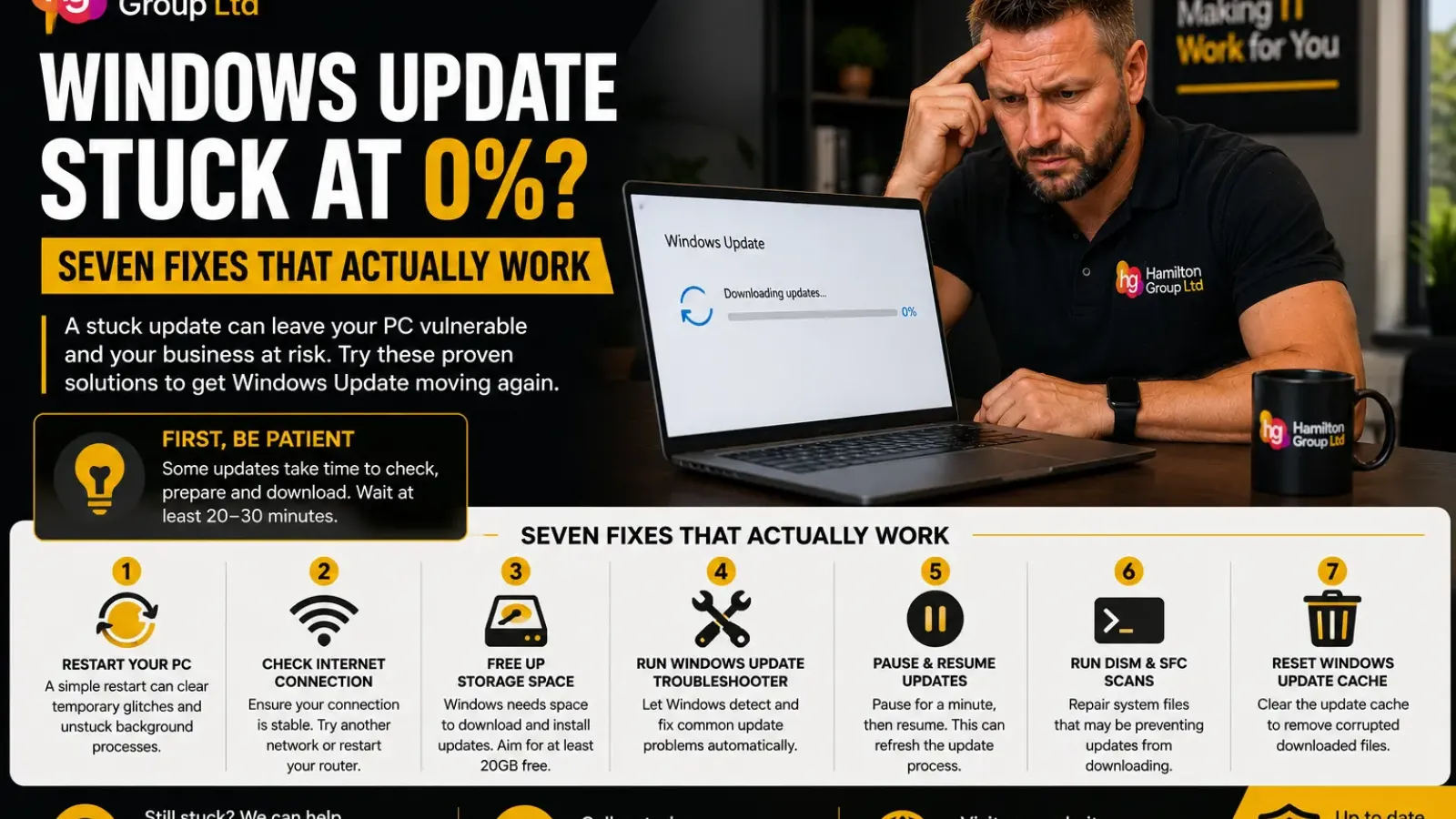
You open Windows Update, select Check for updates, and the download sits stubbornly at 0%.
Nothing appears to be happening. The percentage does not move, the computer may feel slower than usual, and restarting Windows Update simply brings you back to the same screen.
A stalled update does not always mean Windows is broken. The computer may still be checking the update, preparing files, verifying available storage or waiting for another installation to finish. However, when it remains at 0% for an extended period, there is usually an underlying problem worth investigating.
Common causes include an unreliable internet connection, insufficient storage, damaged update files, stopped Windows services, corrupted system components or interference from security and network software.
Here are seven practical fixes that can get Windows Update moving again.
Before You Start: Is It Really Stuck?
Windows Update does not always display progress accurately.
An update may remain at 0% while Windows is:
- Checking the update package
- Creating a restore point
- Preparing installation files
- Scanning the existing Windows installation
- Waiting for another update to complete
- Verifying available disk space
- Communicating with Microsoft’s update servers
Before making changes, leave the device connected to power and the internet for at least 20 to 30 minutes.
Larger feature updates can take considerably longer, particularly on older computers or devices with slower storage.
Open Task Manager by pressing:
Ctrl + Shift + Esc
Check whether there is activity under:
- CPU
- Disk
- Network
Processes associated with Windows Update may include:
- Service Host
- Windows Modules Installer
- Windows Update
- Delivery Optimisation
- Antimalware Service Executable
If disk or network activity is continuing, Windows may still be working even though the progress indicator has not changed.
If the update remains at 0% for an hour with no meaningful activity, begin the following troubleshooting steps.
Fix 1: Restart the Computer Properly
It sounds basic, but a complete restart resolves a surprising number of Windows Update problems.
Windows may be waiting for a previous update, installer or background process to finish. Restarting clears temporary states and restarts the services required by Windows Update.
Select:
Start > Power > Restart
Choose Restart, not Shut down.
Windows Fast Startup can cause a normal shutdown to preserve part of the existing system session. Restarting performs a more complete reload.
Once Windows starts again:
- Sign in.
- Wait a few minutes.
- Open Settings.
- Select Windows Update.
- Choose Check for updates.
Microsoft includes restarting the PC among its recommended first steps for Windows installation and upgrade errors.
Fix 2: Check the Internet Connection
Windows Update requires a stable connection to Microsoft’s servers.
A connection may be fast enough for browsing while still being unreliable during a large update download.
Try the following:
- Open several websites to confirm the connection is working.
- Disconnect and reconnect Wi-Fi.
- Restart the router if other devices are also having problems.
- Move closer to the wireless access point.
- Use an Ethernet connection where possible.
- Disconnect any unnecessary VPN.
- Avoid guest Wi-Fi or public networks.
- Pause large downloads, backups and cloud synchronisation.
Check for a Metered Connection
Windows may restrict some updates when the network is marked as metered.
Go to:
Settings > Network & internet
Select the active Wi-Fi or Ethernet connection and review Metered connection.
Only disable this setting when it is appropriate for your data plan.
Check the Date and Time
An incorrect clock can interfere with secure connections and update verification.
Go to:
Settings > Time & language > Date & time
Enable:
- Set time automatically
- Set time zone automatically
Then select Sync now if the option is available.
Fix 3: Make Sure There Is Enough Free Storage
Windows needs free space to download, unpack and install updates.
The downloaded package may be only part of the storage required. Windows also needs room for temporary files, installation logs and recovery information.
Go to:
Settings > System > Storage
Review the available space on the Windows drive, normally Local Disk (C:).
For routine monthly updates, several gigabytes may be sufficient. Feature updates can need significantly more.
Microsoft directs users who receive storage warnings during Windows Update to free space before continuing.
Safe ways to reclaim storage include:
- Emptying the Recycle Bin
- Removing unwanted files from Downloads
- Uninstalling unused applications
- Deleting temporary files through Storage settings
- Moving large personal files to approved storage
- Removing old installation files when Windows confirms they are no longer required
Under Settings > System > Storage > Temporary files, Windows may offer categories such as:
- Temporary files
- Delivery Optimisation files
- Windows upgrade log files
- Thumbnails
- Recycle Bin contents
Review each category carefully before deleting anything.
Do not remove business data simply to make an update fit. If the drive is consistently full, the computer may need a storage upgrade, data clean-up or replacement.
Fix 4: Run the Windows Update Troubleshooter
Windows includes an automated troubleshooter designed to identify common update problems.
On Windows 11, go to:
Settings > System > Troubleshoot > Other troubleshooters
Find Windows Update and select Run.
When the troubleshooter finishes:
- Apply any recommended changes.
- Restart the computer.
- Return to Windows Update.
- Select Check for updates.
Microsoft recommends restarting the device and checking again after the troubleshooter completes.
The troubleshooter may detect issues involving:
- Update services
- Damaged temporary files
- Incorrect update settings
- Pending restarts
- Registration problems
- Windows Update system components
Windows 11 may also direct you through the Get Help application, which provides automated update diagnostics.
Fix 5: Pause and Resume Windows Update
Sometimes Windows Update needs its download session refreshed.
Go to:
Settings > Windows Update
Select Pause updates.
Wait approximately one minute, then resume updates.
Restart the computer and select Check for updates again.
This can force Windows to establish a new update session without manually deleting system files.
You should also check whether Windows is already waiting for a restart. If you see Restart required, complete that restart before trying to download additional updates.
Check Optional Updates
Go to:
Settings > Windows Update > Advanced options > Optional updates
A driver or prerequisite update may occasionally need to be installed before the main update can proceed.
Install only drivers that are relevant to the device. Business-managed computers should follow the organisation’s normal update policy.
Fix 6: Repair Windows With DISM and System File Checker
Damaged Windows system files can prevent updates from downloading or installing correctly.
Microsoft recommends using Deployment Image Servicing and Management, known as DISM, followed by System File Checker.
Open an Administrator Terminal
Right-click the Start button and select:
Terminal (Admin)
Approve the User Account Control prompt.
Run the following command:
DISM.exe /Online /Cleanup-Image /RestoreHealth
Press Enter and allow the process to finish.
The progress indicator may pause for several minutes. Do not close the window prematurely.
Once DISM has completed, run:
sfc /scannow
System File Checker scans protected Windows files and replaces damaged copies where possible. Microsoft advises leaving the window open until verification reaches 100%.
Restart the computer afterwards and try Windows Update again.
What the Results Mean
You may see one of several messages.
Windows Resource Protection did not find any integrity violations
No damaged protected system files were detected.
Windows Resource Protection found corrupt files and successfully repaired them
Restart and try the update again.
Windows Resource Protection found corrupt files but was unable to fix some of them
Further repair may be needed. Avoid repeatedly running random repair commands without investigating the underlying issue.
Fix 7: Reset the Windows Update Cache
Windows stores downloaded update files in a local cache.
If one of those files becomes damaged or incomplete, Windows Update may repeatedly attempt to use it and remain stuck at 0%.
Resetting the update cache forces Windows to create a fresh copy.
This is a more advanced step. Create a backup and record any displayed update error code before continuing.
Step 1: Open Terminal as Administrator
Right-click Start and select:
Terminal (Admin)
Step 2: Stop the Update Services
Run the following commands one at a time:
net stop wuauserv
net stop bits
net stop cryptsvc
These stop the Windows Update, Background Intelligent Transfer and cryptographic services.
Step 3: Rename the Update Folders
Run:
ren C:\Windows\SoftwareDistribution SoftwareDistribution.old
ren C:\Windows\System32\catroot2 catroot2.old
Renaming is preferable to immediately deleting the folders because it keeps the previous data available temporarily.
Step 4: Restart the Services
Run:
net start cryptsvc
net start bits
net start wuauserv
Restart Windows and check for updates again.
Windows will recreate the required folders automatically.
Microsoft’s Windows Update guidance includes resetting Windows Update components when routine troubleshooting does not resolve an installation failure.
Still Stuck? Reinstall the Current Version of Windows
Windows 11 includes a repair option that can reinstall the current version of Windows while preserving applications, files and settings.
Go to:
Settings > System > Recovery
Under Fix problems using Windows Update, select:
Reinstall now
This downloads and reinstalls the current Windows version, repairs system files and preserves installed applications and user data. Microsoft documents this as a recovery option for repairing Windows Update-related problems.
Before using it:
- Confirm backups are current.
- Connect the device to mains power.
- Make sure adequate storage is available.
- Close open applications.
- Record the BitLocker recovery key.
- Disconnect unnecessary accessories.
The option may be unavailable on managed business devices or where organisational policies restrict it.
Check the Windows Update Error Code
If Windows eventually displays an error, write down the full code.
Common formats include:
- 0x80070002
- 0x80070003
- 0x80070070
- 0x80070422
- 0x800F081F
- 0x80240034
- 0xC1900101
The code can provide a more specific direction.
For example:
- Codes containing 0x80070070 often indicate insufficient storage.
- 0x80070422 may indicate that a required update service is disabled.
- 0xC1900101 errors commonly relate to drivers during feature upgrades.
- 0x800F081F can involve missing or damaged Windows repair files.
Microsoft recommends using the exact error code when investigating update and upgrade failures.
Could Antivirus or a VPN Be Blocking the Update?
Possibly.
Third-party security software, firewalls, VPN clients and network filters can occasionally interfere with Windows Update.
Before disabling anything, try:
- Updating the security application
- Restarting its services
- Disconnecting the VPN
- Trying another trusted network
- Checking whether two antivirus products are installed
- Reviewing the vendor’s known issues
Do not leave a business computer without protection.
On a managed device, contact the IT provider before disabling endpoint security, VPN software or network filtering.
Could the Update Be Blocked by Microsoft?
Microsoft sometimes places a safeguard hold on devices with known compatibility problems.
In this situation, Windows Update may delay a feature update because a driver, application or hardware component has a recognised issue.
You may see a message explaining that the update is on its way or that the computer is not yet ready.
Do not bypass a safeguard hold simply to force the update. Update the affected drivers or software and wait until Microsoft confirms compatibility.
A safeguard hold is different from an update being stuck at 0%, but users may interpret both as the update refusing to proceed.
What Not to Do
Several commonly suggested “fixes” can create more problems than they solve.
Avoid:
- Repeatedly switching the computer off during installation
- Deleting random files from the Windows folder
- Downloading unofficial update-repair utilities
- Installing updates from unknown websites
- Editing the registry without a clear reason
- Disabling all security controls permanently
- Forcing a feature update past a compatibility block
- Reinstalling Windows before checking the backup
- Running command scripts copied from untrusted forums
Use Microsoft’s built-in repair tools before relying on third-party utilities.
When to Stop Troubleshooting
Seek professional assistance when:
- The computer repeatedly fails the same update
- Windows Update displays the same error after a cache reset
- The device enters a restart loop
- The computer no longer starts normally
- DISM or SFC cannot repair the installation
- BitLocker requests a recovery key you cannot locate
- The internal drive reports errors
- The computer has very little free storage
- The update affects several business devices
- Important applications stop working after an update
- The device contains unprotected business data
Repeated update failures can indicate a deeper issue involving storage, drivers, firmware, security software or the Windows installation itself.
Seven Fixes at a Glance
When Windows Update remains at 0%:
- Restart the computer properly.
- Test the internet connection.
- Free sufficient storage.
- Run the Windows Update troubleshooter.
- Pause and resume updates.
- Run DISM and System File Checker.
- Reset the Windows Update cache.
After each fix, restart the device and check for updates again.
Change one thing at a time so you can identify which action resolved the problem.
Windows Update Problems in a Business
One stuck update is inconvenient. Dozens of devices failing to update can become a security and compliance issue.
Businesses should be able to identify:
- Which computers are missing updates
- Which updates failed
- The error codes involved
- How long devices have been non-compliant
- Whether devices are still checking in
- Whether a particular model or driver is affected
- Whether users have postponed restarts
- Whether sufficient storage is available
Centralised device management allows updates to be deployed in controlled stages and makes recurring failures easier to investigate.
It also reduces the need to rely on individual employees checking Windows Update manually.
How Hamilton Group Can Help
A Windows update stuck at 0% may be caused by something simple, such as a pending restart, or something more serious, such as system corruption, storage failure or incompatible software.
Hamilton Group can help businesses diagnose failed updates, repair Windows installations and restore reliable patching across their devices.
Our team can assist with:
- Windows Update error diagnosis
- Stuck and failed downloads
- Windows component repairs
- DISM and System File Checker issues
- Driver and application compatibility
- Feature-update planning
- Device-management policies
- Update compliance reporting
- Backup and BitLocker checks
- Replacement of unsuitable devices
We can also introduce centralised monitoring so failed updates are identified before they leave business computers exposed.
To arrange Windows support or discuss proactive patch management, call Hamilton Group on 0330 043 0069 or visit hgmssp.com.