Windows 11 24H2 Support Ends in October: What Happens If You Do Nothing?
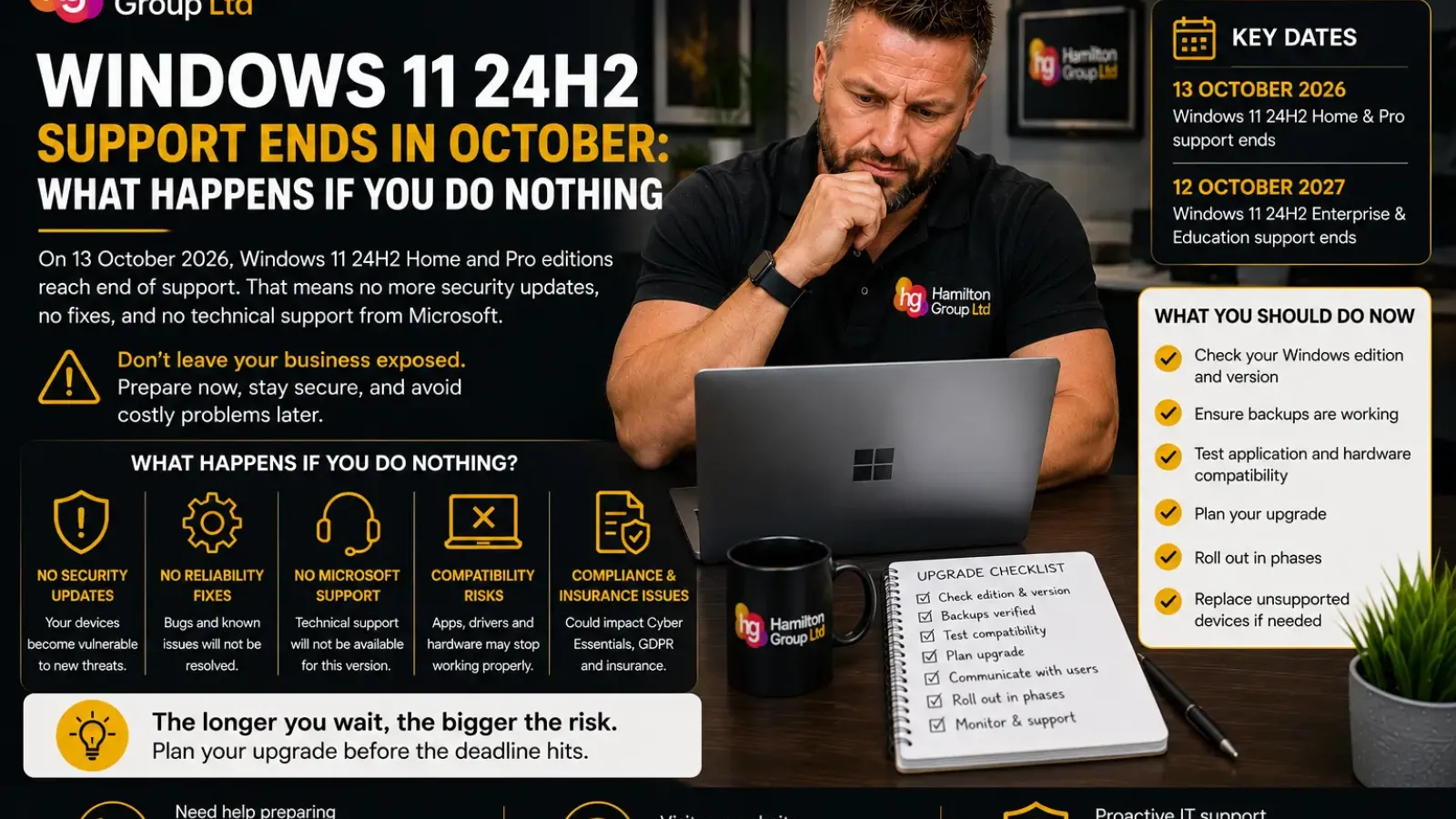
Windows 11 version 24H2 is approaching the end of its support lifecycle for many users.
On 13 October 2026, Microsoft will stop providing updates for Windows 11 24H2 Home and Pro editions. That includes Windows 11 Pro, which is widely used across small and medium-sized businesses. Enterprise and Education editions have a longer lifecycle and remain supported until 12 October 2027.
That distinction is important. Windows 11 itself is not ending, and your computer will not suddenly stop working. The issue is that devices left on an unsupported version will gradually become less secure, less reliable and more difficult to support.
Here is what the deadline means, what happens if you ignore it and how businesses should prepare.
What Does “End of Support” Actually Mean?
Microsoft releases Windows feature versions on a recurring schedule.
Each version receives updates for a defined period. When that servicing period ends, Microsoft stops supplying several types of support for that release.
For Windows 11 24H2 Home and Pro, the final scheduled support date is 13 October 2026. After that point, affected devices will no longer receive monthly security and preview updates, fixes for known problems, time-zone updates or Microsoft technical support for that version.
This is sometimes described as:
- End of support
- End of servicing
- End of updates
- End of life
These phrases broadly refer to the same practical issue: the version is no longer being maintained.
Which Windows 11 Editions Are Affected?
The October 2026 deadline applies to Windows 11 version 24H2 running editions covered by Microsoft’s Home and Pro lifecycle.
These include:
- Windows 11 Home
- Windows 11 Pro
- Windows 11 Pro Education
- Windows 11 Pro for Workstations
- Windows 11 SE
Windows 11 Enterprise, Education and Enterprise multi-session version 24H2 remain supported until 12 October 2027. Windows 11 IoT Enterprise version 24H2 also has a later end date.
Businesses should therefore check both the version and the edition installed on each device.
It is not enough to know that a computer runs Windows 11.
How to Check Your Windows Version
To check a device:
- Press Windows key + R
- Type winver
- Press Enter
A window will show the Windows version and operating-system build.
You can also go to:
Settings > System > About
Look under Windows specifications for:
- Edition
- Version
- OS build
If the computer shows Version 24H2 and uses Home or Pro, it is affected by the October 2026 deadline.
For a business with many computers, checking each device manually is inefficient. An IT provider or device-management platform should be able to produce a central report showing the version, edition and update status of the entire estate.
Will the Computer Stop Working?
No.
A Windows 11 24H2 computer will not automatically switch off or lock you out when support ends.
Applications may still open. Files will remain accessible. Users may be able to continue working much as they did the previous day.
This is what makes end-of-support deadlines easy to ignore.
The problem develops over time.
Once Microsoft stops supplying security and reliability updates, every newly discovered weakness becomes harder to manage. The device may appear normal while its risk steadily increases.
You Will Stop Receiving Security Updates
The biggest concern is the loss of monthly security updates.
Microsoft regularly fixes vulnerabilities in Windows that could otherwise be used to:
- Install malware
- Steal credentials
- Bypass security controls
- Gain unauthorised access
- Run malicious code
- Escalate user privileges
- Compromise business networks
- Exploit browsers or system components
Once 24H2 Home and Pro reach the end of updates, devices running those editions will no longer receive Microsoft’s monthly protections against newly identified threats.
Antivirus software does not fully solve this problem.
Endpoint protection can detect and block many threats, but it cannot replace security fixes for vulnerabilities within the operating system itself.
Existing Vulnerabilities Will Become More Valuable to Attackers
When a supported version of Windows receives a security update, researchers and attackers can analyse what Microsoft changed.
That analysis can reveal the underlying vulnerability.
Supported devices receive the fix. Unsupported devices do not.
An attacker may therefore be able to develop working methods against systems that remain on the older version.
The longer a device stays unsupported, the larger the gap becomes between it and a properly maintained computer.
You Will Stop Receiving Reliability Fixes
Security is not the only concern.
Monthly Windows updates also resolve known issues affecting:
- Printing
- Networking
- Bluetooth
- Storage
- Applications
- User profiles
- Authentication
- Displays
- Power management
- Time-zone information
- Drivers
- System performance
Microsoft states that affected 24H2 editions will no longer receive fixes for known issues or time-zone updates after support ends.
A problem discovered after the deadline may remain unresolved unless you upgrade to a supported Windows version.
Microsoft Technical Support Will Be Limited
Microsoft will no longer provide normal technical support for problems specifically affecting the unsupported release.
An engineer may tell you that the first required step is upgrading to a supported Windows version.
This can create difficulties when you are trying to troubleshoot:
- Failed updates
- Application crashes
- Driver problems
- Sign-in issues
- Performance faults
- Security incidents
It also limits what your own IT provider can realistically escalate to Microsoft.
Business Applications May Eventually Stop Supporting It
Software vendors maintain their own support policies.
They may continue supporting Windows 11 24H2 for a period after Microsoft’s deadline, but they are less likely to test future releases against an unsupported operating-system version.
Over time, you may find that:
- New application versions will not install
- Vendor support refuses to investigate a fault
- Security software requires a newer Windows build
- Drivers are no longer tested
- Business applications behave unpredictably
- Cloud software warns that the operating system is unsupported
This may not happen immediately in October, but it becomes increasingly likely as the device falls further behind.
New Hardware May Not Work Properly
Hardware manufacturers design and test new equipment for supported operating systems.
A computer left on Windows 11 24H2 may eventually struggle with:
- New printers
- Docking stations
- Graphics hardware
- Security devices
- Specialist USB equipment
- Updated Wi-Fi adapters
- New driver packages
The hardware may function, but the manufacturer may not provide formal support or guarantee compatibility.
Cybersecurity Insurance Could Become More Difficult
Many cybersecurity insurance policies require organisations to maintain supported software and apply security updates.
Operating unsupported systems may affect:
- Policy compliance
- Renewal questionnaires
- Premiums
- Claims
- Risk assessments
- Incident-response obligations
The exact effect depends on the policy wording.
However, continuing to use an unsupported operating system without a documented mitigation plan can be difficult to justify after a security incident.
Businesses should discuss lifecycle management with their insurer or broker rather than assuming antivirus software satisfies the requirement.
You May Create Compliance Problems
Organisations are expected to apply reasonable technical and organisational measures to protect personal and business information.
Unsupported operating systems may create difficulties under requirements involving:
- UK GDPR
- Data-protection policies
- Cyber Essentials
- Industry standards
- Client contracts
- Supplier assessments
- Internal security frameworks
Using one unsupported computer does not automatically prove non-compliance.
However, knowingly operating devices without security updates can weaken your ability to demonstrate appropriate risk management.
Cyber Essentials May Be Affected
Cyber Essentials requires organisations to use software that is licensed and supported, with important updates applied within the required timeframe.
A Windows version that no longer receives security updates could therefore affect certification.
Businesses pursuing or renewing Cyber Essentials should identify Windows 11 24H2 devices early rather than discovering them during the assessment.
Remote and Forgotten Devices Are Easy to Miss
The computers most likely to remain on an unsupported version are not always the main office desktops.
Commonly missed devices include:
- Homeworking laptops
- Spare computers
- Meeting-room PCs
- Reception devices
- Training machines
- Workshop computers
- Loan equipment
- Kiosk devices
- Computers stored in cupboards
- Systems used only for occasional tasks
- Devices belonging to long-term absentees
An accurate device inventory is essential.
A computer that connects only once every few months may miss the normal upgrade process and reappear later with an unsupported operating system.
Windows Update May Upgrade Some Devices Automatically
Microsoft may automatically offer or install a later Windows 11 feature update on eligible devices as a version approaches the end of servicing.
Microsoft’s lifecycle information notes that later Windows 11 feature updates may be installed before the listed end date unless the update has been deferred.
That does not mean businesses should rely on automatic upgrades.
An automatic feature update can cause disruption if the organisation has not checked:
- Application compatibility
- Driver support
- VPN compatibility
- Security software
- Free storage
- Encryption recovery keys
- User availability
- Backup status
Managed businesses should control and monitor the deployment rather than waiting for devices to update unpredictably.
What Should You Upgrade To?
At the time of writing, Windows 11 version 25H2 is the latest generally available Windows release for existing PCs, while version 26H1 is intended for newer device innovations rather than being the normal feature update for every existing computer. Microsoft’s 24H2 release-health page directs users towards Windows 11 25H2 as the latest available version.
For most eligible 24H2 business computers, the practical upgrade path will therefore be to Windows 11 25H2 or another supported release offered through the organisation’s approved update process.
The correct target should be confirmed closer to deployment because Microsoft’s currently supported versions may change.
Why Not Upgrade Every Computer Immediately?
A feature update affects the operating system more significantly than a routine monthly security patch.
Although many devices will upgrade without difficulty, businesses should test important systems first.
Possible compatibility concerns include:
- Legacy business applications
- Specialist hardware
- Printer drivers
- VPN clients
- Endpoint protection
- Disk encryption
- Accounting software
- Manufacturing equipment
- Audio or video systems
- Accessibility tools
- Browser-based line-of-business applications
The answer is not to avoid upgrading.
The answer is to plan, test and deploy it properly.
Create a Device Inventory
The first stage is to establish exactly what you own.
Your inventory should record:
- Device name
- Assigned user
- Location
- Windows edition
- Windows version
- OS build
- Manufacturer
- Model
- Warranty status
- Processor
- Memory
- Storage capacity
- Free storage
- Encryption status
- Backup status
- Last contact date
This will reveal which devices need upgrading and which may need replacing.
Identify Computers That Cannot Upgrade
Some computers may not be suitable for the next supported Windows release.
Possible reasons include:
- Unsupported hardware
- Insufficient storage
- Incompatible drivers
- Firmware issues
- Failed Windows Update components
- Specialist software restrictions
- A device-management policy
- Hardware faults
- A damaged Windows installation
Do not leave these devices until the final week.
Each one needs a defined outcome:
- Repair
- Rebuild
- Replace
- Retire
- Isolate temporarily
- Upgrade after resolving compatibility problems
Check Available Storage
Feature updates require sufficient free storage.
Devices with nearly full drives are more likely to experience failed installations, repeated rollbacks and poor performance.
Before deployment:
- Remove unnecessary temporary files
- Clear obsolete user data
- Uninstall unused software
- Move archived data to approved storage
- Confirm cloud files are synchronised correctly
- Check that user profiles are not excessively large
Avoid deleting business files simply to make the update fit.
Storage pressure may indicate that the device needs a larger drive or replacement.
Confirm Backups Are Working
A feature update should not normally remove user data, but businesses should never treat this as a substitute for a backup.
Before upgrading, confirm that important data is protected.
Check:
- The most recent backup date
- Whether the backup completed successfully
- What data is included
- Whether cloud data is independently backed up
- Whether files can be restored
- Whether encryption recovery keys are available
A backup that has been failing silently provides little protection.
Test Critical Applications
Create a small group of representative test devices.
The pilot group should include users who rely on important applications and hardware.
Test:
- Sign-in
- Microsoft 365
- Line-of-business applications
- Printing
- Scanning
- VPN access
- Wi-Fi
- File shares
- Cloud storage
- Security software
- Remote support
- Specialist peripherals
Record problems and resolve them before a wider rollout.
Plan a Phased Deployment
Avoid upgrading every computer simultaneously.
A safer rollout might include:
- IT test devices
- A small pilot group
- Low-risk users
- General office users
- Specialist departments
- Critical and executive devices
- Remote and rarely connected computers
A phased approach limits disruption and gives the support team time to identify unexpected problems.
Communicate With Users
Users should know what to expect.
Tell them:
- Why the upgrade is required
- When it will happen
- How long it may take
- Whether the computer must remain connected to power
- Whether they need to save and close work
- Who to contact if there is a problem
- Whether the interface will look different
- What to do if they work remotely
Good communication reduces unnecessary support calls and prevents users interrupting the upgrade.
Do Not Forget Recovery Keys
Windows devices may use BitLocker or another encryption system.
Before major maintenance, confirm that recovery keys are stored securely and can be retrieved.
A firmware or security change may occasionally trigger a recovery prompt.
Without the key, the user may be unable to access the device.
Recovery information should not depend entirely on one employee or one undocumented account.
What Happens If the Upgrade Fails?
A failed feature update may:
- Roll back to the previous version
- Display an error code
- Restart repeatedly
- Leave the device unable to boot
- Break a driver
- Disable an application
- Trigger an encryption recovery prompt
Record the error rather than repeatedly retrying without investigation.
Common causes include:
- Insufficient storage
- Incompatible drivers
- Security software conflicts
- Damaged system files
- Firmware problems
- Failed hardware
- Corrupted update components
The device may need remediation or a clean Windows installation.
Should You Replace the Computer Instead?
An upgrade deadline is a useful opportunity to review hardware condition.
Replacement may be more sensible when a computer:
- Is already slow
- Has recurring faults
- Is out of warranty
- Has inadequate memory
- Has insufficient storage
- Cannot support required applications
- Has poor battery life
- Is incompatible with the approved Windows release
- Costs too much to maintain
Spending several hours repairing and upgrading an ageing device may be poor value compared with a planned replacement.
What Happens If You Do Absolutely Nothing?
The likely timeline is gradual rather than dramatic.
Immediately After 13 October 2026
The computer will probably continue working.
However, Windows 11 24H2 Home and Pro will no longer receive normal security, quality or preview updates from Microsoft.
Over the Following Months
New vulnerabilities and software compatibility issues may appear.
Security tools and applications may start warning that the operating system is unsupported.
Over the Longer Term
The device becomes increasingly difficult to secure, insure, certify and support.
At some point, an urgent upgrade or replacement becomes unavoidable—usually at a less convenient time.
Doing nothing does not avoid the work. It postpones it while increasing the risk.
A Practical Windows 11 24H2 Action Plan
Now
Identify every device running Windows 11 24H2 and confirm its edition.
Next
Check hardware suitability, storage, backups, application compatibility and encryption recovery information.
Pilot
Upgrade a small selection of representative devices to the approved supported version.
Roll Out
Deploy in controlled phases and monitor failures.
Verify
Confirm that every device has upgraded, reconnected to management and resumed security, backup and update reporting.
Replace
Retire devices that cannot be upgraded reliably or economically.
How Hamilton Group Can Help
Windows lifecycle deadlines are easy to underestimate because unsupported computers do not stop working immediately.
The risk is what happens afterwards: security updates end, compatibility declines and businesses are left reacting to problems instead of planning for them.
Hamilton Group can help your organisation:
- Identify Windows 11 24H2 devices
- Confirm which editions are affected
- Assess hardware compatibility
- Test business applications
- Check backup and encryption readiness
- Plan a phased feature-update rollout
- Resolve failed upgrades
- Replace unsuitable computers
- Monitor update compliance
- Manage remote and office-based devices
We can also help build a long-term technology lifecycle plan so future Windows deadlines are managed before they become urgent.
To arrange a Windows 11 readiness review, call Hamilton Group on 0330 043 0069 or visit hgmssp.com.