Dell Laptop Overheating or Shutting Down After a June Update? Here’s the Intel IPF Fix
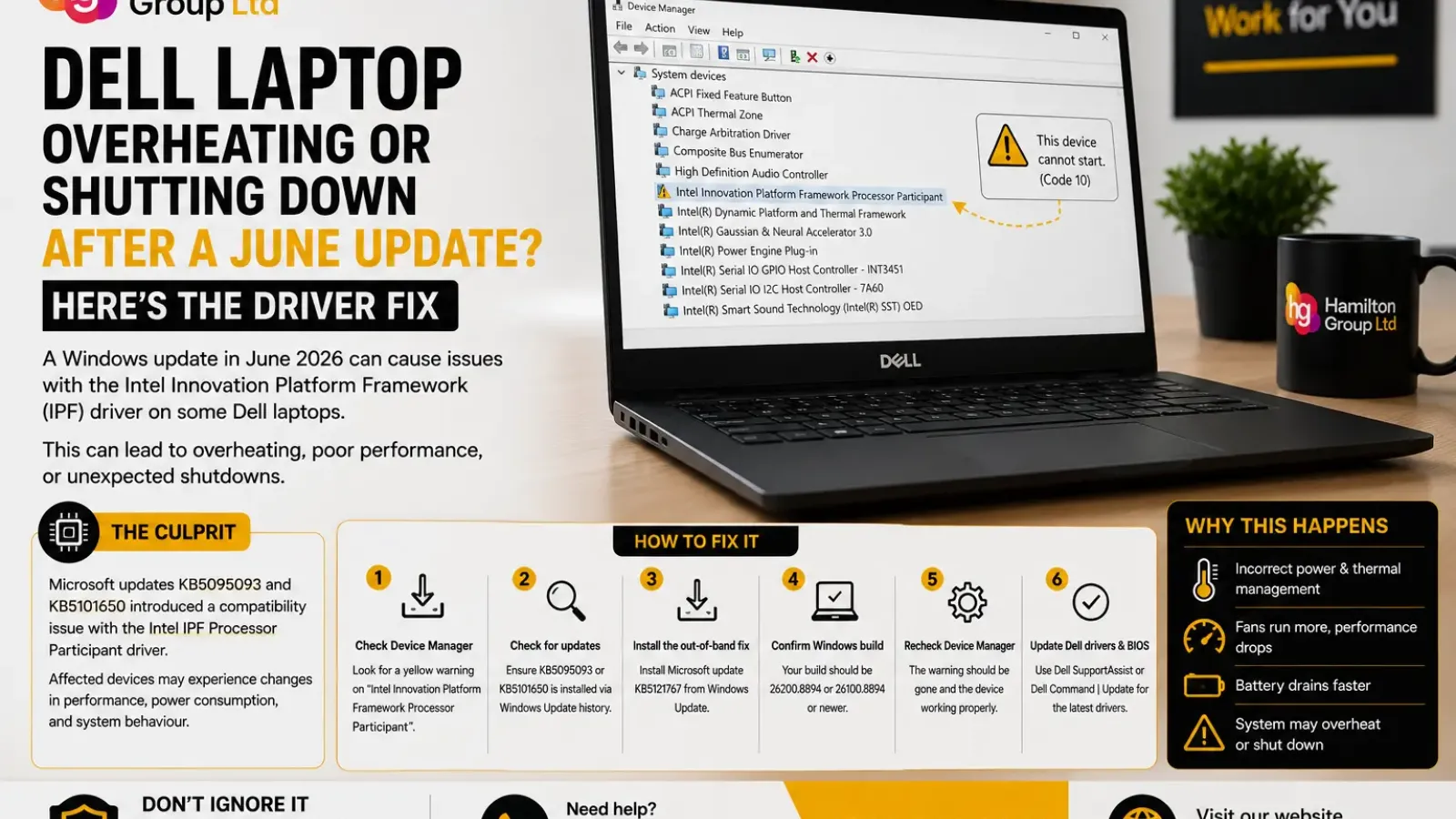
A Dell laptop that suddenly becomes hotter, runs its fans more aggressively, loses performance or shuts down after a Windows update may not have developed a physical cooling fault overnight.
On a limited number of Dell systems, Microsoft’s June and July 2026 Windows 11 updates introduced a compatibility problem involving the Intel Innovation Platform Framework Processor Participant driver.
The clearest sign is a yellow warning symbol beside that device in Windows Device Manager.
Dell says the incompatibility can affect performance, power consumption and general system behaviour. The problem relates to the Intel IPF Processor Participant driver and changes to the Windows USB-C Connection Manager interface introduced by updates KB5095093 and KB5101650.
Here is how to identify the issue, apply the correct fix and avoid replacing hardware unnecessarily.
What Is the Intel Innovation Platform Framework?
Intel Innovation Platform Framework, commonly shortened to Intel IPF, forms part of the software layer used by many Intel-based computers to manage platform behaviour.
It can help Windows and the computer’s firmware coordinate functions involving:
- Processor performance
- Thermal limits
- Power consumption
- Battery behaviour
- Fan and cooling responses
- Workload management
- Power profiles
- Connected hardware
The exact features vary by device.
On a Dell laptop, these controls work alongside the BIOS, firmware, sensors and other Intel components. When the IPF driver does not load or communicate correctly, the computer may no longer manage power and performance as expected.
This does not necessarily mean the processor is physically overheating. However, incorrect thermal or power-management behaviour can make the laptop run hotter, reduce performance or behave unpredictably.
What Changed After the June Update?
Dell has confirmed a compatibility issue between the Intel IPF Processor Participant driver and the Windows USB-C Connection Manager interface introduced through Windows updates KB5095093 and KB5101650.
The affected updates are associated with Windows 11 releases from June and July 2026.
After installation, some Dell systems may show a yellow exclamation mark beside:
Intel Innovation Platform Framework Processor Participant
Dell states that the issue can cause changes in:
- Performance
- Power consumption
- System behaviour
A limited number of affected devices were also temporarily prevented from receiving the July 2026 security update while the problem was being addressed.
Symptoms You May Notice
Not every affected Dell computer will behave in exactly the same way.
Possible symptoms may include:
- Fans running more often
- The laptop feeling hotter than usual
- Reduced performance
- Battery life falling more quickly
- Performance changing when the charger is connected
- Unexpected sleep or shutdown behaviour
- Unusual power-management behaviour
- Windows becoming less responsive
- A yellow warning icon in Device Manager
- The July Windows update not being offered
The Device Manager warning is the most useful diagnostic clue.
Overheating and shutdowns can have many causes, so do not assume this update issue is responsible unless the Intel IPF warning or relevant update history supports that conclusion.
Step 1: Check Device Manager
Right-click the Start button and select:
Device Manager
Alternatively:
- Press Windows key + R
- Type devmgmt.msc
- Press Enter
Expand:
System devices
Look for:
Intel Innovation Platform Framework Processor Participant
Check whether it has a yellow triangle or exclamation mark beside it.
Dell identifies this yellow Device Manager warning as the main symptom of the compatibility problem.
Open the Device Properties
Double-click the affected device.
Review:
- Device status
- Driver provider
- Driver date
- Driver version
- Events
Make a note of any displayed error code or message.
Do not immediately select Uninstall device unless you have confirmed the correct recovery procedure and have access to the approved replacement driver or Windows fix.
Step 2: Check Whether the Affected Updates Are Installed
Open:
Settings > Windows Update > Update history
Look for either of the following updates:
- KB5095093
- KB5101650
Dell recommends confirming whether one of these updates is present when the Intel IPF Processor Participant device shows a warning.
You can use the search box in Update History where available, or review the quality and security update sections manually.
Step 3: Install Microsoft’s Out-of-Band Fix
The official resolution is Microsoft update:
KB5121767
Dell says this out-of-band update resolves the Intel IPF compatibility issue for affected Windows 11 24H2 and 25H2 systems. It is cumulative, so it also includes earlier security and non-security improvements.
To install it:
- Open Settings.
- Select Windows Update.
- Click Check for updates.
- Look for KB5121767.
- Select Download and install if required.
- Restart the computer when prompted.
Microsoft released this as an out-of-band update, meaning it was issued outside the normal monthly update schedule to address a specific problem.
Dell advises that it is intended for affected devices. If the computer does not show the warning or related symptoms, no action is required beyond continuing normal Windows and Dell updates.
Step 4: Confirm the Correct Windows Build
After restarting:
- Press Windows key + R.
- Type winver.
- Press Enter.
Dell recommends confirming that the operating-system build is one of the following or newer:
- 26200.8894
- 26100.8894
These builds correspond to the corrected Windows 11 releases containing KB5121767.
Step 5: Recheck Device Manager
Return to:
Device Manager > System devices
Locate:
Intel Innovation Platform Framework Processor Participant
The yellow warning symbol should have disappeared.
Open the device properties and confirm that Windows reports:
This device is working properly
If the warning remains, restart the computer once more and check Windows Update again for pending updates.
Step 6: Install Dell BIOS and Driver Updates
Even though Microsoft’s out-of-band update is the primary fix for this particular incompatibility, the Dell computer should also have its approved BIOS and drivers installed.
Use one of the following:
- Dell SupportAssist
- Dell Command | Update
- Dell’s support page for the exact Service Tag
- Your organisation’s managed driver-deployment platform
Prioritise updates involving:
- BIOS or UEFI
- Intel chipset
- Intel Dynamic Tuning
- Intel Innovation Platform Framework
- Thunderbolt or USB-C
- Graphics
- Thermal-management components
- Dell power-management software
Do not download an IPF driver intended for another Dell model merely because its version number is newer.
Dell validates drivers against individual models, firmware versions and hardware configurations. Installing an unapproved package can introduce further instability.
Do You Need to Reinstall the Intel IPF Driver?
Usually, install the Windows fix first.
The problem Dell documented is not simply an outdated driver that every user should replace manually. It is an incompatibility introduced by specific Windows updates, and Dell identifies KB5121767 as the resolution.
A driver reinstall may be appropriate when:
- Device Manager still shows an error after the Windows fix
- The existing driver installation is corrupted
- Dell SupportAssist recommends a newer package
- The approved driver is available for the exact Service Tag
- A technician has confirmed the currently installed package is incorrect
Avoid using unofficial driver-download websites. Drivers operating at the power and thermal-management level should come from Dell, Intel where Dell explicitly supports that route, Microsoft Update or your managed IT platform.
What If KB5121767 Is Not Being Offered?
First confirm that the device is running a supported Windows 11 version.
Then try the following:
Restart Windows
A pending restart can prevent another cumulative update from being offered.
Check for Updates Again
Go to:
Settings > Windows Update > Check for updates
Allow Windows Update several minutes to complete its scan.
Install Earlier Pending Updates
KB5121767 is cumulative, but Windows may still need to complete a servicing-stack or prerequisite process before installation.
Check Available Storage
Open:
Settings > System > Storage
Make sure the Windows drive has adequate free space.
Run the Windows Update Troubleshooter
Go to:
Settings > System > Troubleshoot > Other troubleshooters > Windows Update
Run the troubleshooter, restart and check again.
Check Business Update Policies
On a managed Dell laptop, Intune, Windows Update for Business or another management platform may control which updates are approved.
Contact your IT provider rather than attempting to bypass company policy.
Could the Laptop Really Be Overheating?
Yes.
The Intel IPF issue may explain sudden changes after the update, but a physical cooling problem can occur at the same time.
Warning signs of a genuine hardware or thermal fault include:
- The laptop is too hot to touch
- Fans grind, rattle or fail to spin
- The device shuts down under light use
- The battery or case is swollen
- A burning smell is present
- Dell diagnostics report a fan or sensor error
- The laptop overheats in the BIOS or diagnostics environment
- Temperatures remain abnormal after the driver issue is resolved
Stop using the computer if the battery appears swollen or there is a burning smell.
Do not repeatedly run stress tests on a device that is shutting down because of heat.
Run Dell Hardware Diagnostics
To check for a physical fault:
- Shut down the laptop.
- Switch it on.
- Repeatedly press F12 when the Dell logo appears.
- Select Diagnostics.
- Allow the initial checks to complete.
- Run the extended tests where appropriate.
Record any validation or error code.
Dell diagnostics may test components including:
- Fans
- Temperature sensors
- Battery
- Memory
- Processor
- Storage
- System board
A passed diagnostic does not rule out every intermittent fault, but it helps distinguish software-related behaviour from an obvious hardware failure.
Check Windows Event Viewer
Event Viewer can provide additional clues when the laptop shuts down unexpectedly.
Right-click Start and select:
Event Viewer
Open:
Windows Logs > System
Look around the time of the shutdown for entries involving:
- Kernel-Power
- Thermal events
- ACPI
- Intel Dynamic Tuning
- Intel Innovation Platform Framework
- Driver failures
- Unexpected shutdowns
A Kernel-Power Event ID 41 confirms that Windows detected an unexpected loss of power or improper shutdown. It does not, by itself, explain the cause.
The surrounding events are often more useful.
Do Not Disable Thermal Protection
Some online troubleshooting advice recommends disabling Intel thermal services or power-management devices to stop shutdowns.
That is risky.
Those components may be responsible for protecting the processor, battery and surrounding hardware.
Disabling them may:
- Remove thermal safeguards
- Increase temperatures
- Reduce battery life
- Create instability
- Cause unexpected throttling
- Allow hardware damage
- Hide the symptom without fixing the cause
The correct approach is to repair the driver and update compatibility issue, not permanently disable the protection layer.
Should You Uninstall the June Update?
Uninstalling an update may temporarily reverse the symptom, but it should not be the preferred long-term solution when Microsoft has published a corrected cumulative update.
Removing a security update can reintroduce vulnerabilities and may cause Windows to offer the same update again.
Consider uninstalling an affected update only when:
- The system is unusable
- KB5121767 cannot be installed
- A technician has confirmed the rollback is appropriate
- The device is protected by other temporary controls
- There is a clear plan to install the corrected update promptly
For most affected Dell computers, installing the out-of-band fix is the safer route.
Which Dell Devices Are Affected?
Dell’s published affected-product list is extensive and includes systems from several ranges, including:
- Alienware
- Dell consumer laptops and desktops
- Dell Pro
- Dell Pro Max
- Inspiron
- Latitude
- OptiPlex
- Precision
- Vostro
- XPS
The list contains a wide selection of current and earlier Intel-based devices. Dell advises users to check the support article against their exact product because not every configuration is necessarily affected.
Use the Service Tag on Dell’s support site rather than assuming that every device in a named range has the problem.
A Quick Diagnostic Checklist
The Intel IPF compatibility problem is likely when all or most of the following are true:
- The behaviour began after a June or July 2026 Windows update.
- Device Manager shows a yellow warning.
- The warning is beside Intel Innovation Platform Framework Processor Participant.
- KB5095093 or KB5101650 is installed.
- Power, performance or thermal behaviour changed after the update.
- Dell lists the device among the affected products.
The official fix is to install KB5121767 and confirm Windows build 26200.8894, 26100.8894 or newer.
What Businesses Should Do
A single overheating laptop is disruptive. The same driver issue across an entire Dell estate can lead to widespread performance problems and support calls.
Businesses should identify:
- Which Dell models are in use
- Which devices have KB5095093 or KB5101650
- Which devices show the Intel IPF warning
- Which computers have received KB5121767
- Which OS builds remain outdated
- Which devices are reporting thermal or shutdown events
- Whether BIOS and Dell drivers are current
Centralised monitoring through Intune, RMM software or another management platform can make this much faster than checking each computer manually.
Deploy the corrected update to a small pilot group first, confirm that Device Manager and thermal behaviour return to normal, and then expand the rollout.
How Hamilton Group Can Help
A Dell laptop that becomes hot or starts shutting down after a Windows update does not necessarily need a new fan, battery or motherboard.
Hamilton Group can help determine whether the problem is caused by the Intel IPF incompatibility, a failed Windows update, an outdated Dell driver or a genuine hardware fault.
Our team can assist with:
- Intel IPF driver diagnosis
- Device Manager warning investigation
- Windows update remediation
- Dell BIOS and driver deployment
- Overheating and shutdown diagnostics
- Event Log analysis
- Dell hardware testing
- Intune and update-management policies
- Business-wide device reporting
- Repair and replacement planning
We can also check an entire Dell estate for affected Windows builds and deploy the correction in a controlled manner.
To arrange support for an overheating or unstable Dell computer, call Hamilton Group on 0330 043 0069 or visit hgmssp.com.