Secure Boot Certificates Are Expiring — How to Check Yours Before Boot Protection Falls Behind
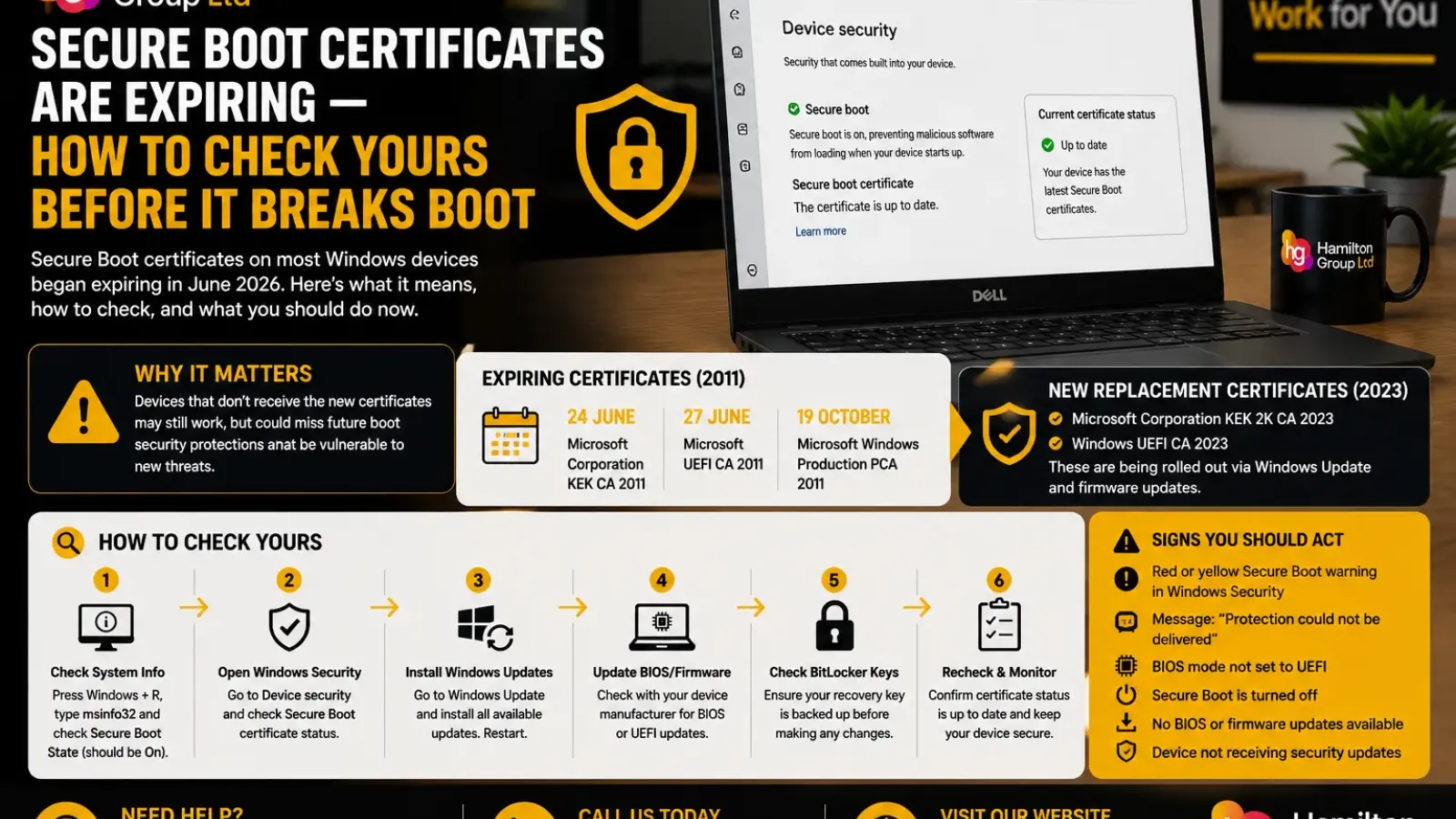
Secure Boot certificates used across many Windows computers began expiring in June 2026.
That sounds alarming, particularly when warnings suggest the expiry could affect the computer’s ability to start. However, the situation is more nuanced than “your PC will suddenly stop booting.”
Most computers that still use the older certificates should continue starting and running Windows normally. Standard Windows updates should also continue installing. The real concern is that a device without the replacement certificates may no longer be able to receive future protections for Windows Boot Manager, Secure Boot revocation lists and newly discovered boot-level vulnerabilities.
Microsoft is replacing certificates originally issued in 2011 with a new set issued in 2023. Many consumer devices will receive the replacements automatically through Windows Update, but some business computers, older systems and devices with particular firmware configurations may need additional attention.
Here is what the expiry means, how to check your PC and what businesses should do before unsupported Secure Boot configurations become a security problem.
What Is Secure Boot?
Secure Boot is a security feature built into modern UEFI firmware.
It checks software used during the early stages of startup and allows only components trusted by the computer’s Secure Boot database to run.
That includes elements such as:
- Windows Boot Manager
- Firmware drivers
- UEFI applications
- Option ROMs
- Security updates for the boot process
You can think of Secure Boot as a security checkpoint that operates before Windows fully loads.
Its purpose is to prevent malicious or unauthorised software from inserting itself into the startup process, where it may be difficult for conventional antivirus tools to detect.
Bootkits and rootkits are particularly serious because they can run before the operating system and potentially interfere with Windows security controls.
Why Are the Certificates Expiring?
Secure Boot relies on digital certificates and certificate authorities to determine which boot components can be trusted.
Many Windows devices were provisioned with Microsoft certificates issued in 2011. Certificates have finite lifetimes, and several of these older authorities expire during 2026.
The key dates include:
- Microsoft Corporation KEK CA 2011: 24 June 2026
- Microsoft UEFI CA 2011: 27 June 2026
- Microsoft Windows Production PCA 2011: 19 October 2026
The replacements include Microsoft’s newer 2023 certificate authorities, such as Microsoft Corporation KEK 2K CA 2023 and Windows UEFI CA 2023.
Microsoft began preparing and distributing the replacement certificates before the first June 2026 expirations.
Will an Expired Certificate Stop Windows Booting?
In most cases, no.
Microsoft states that computers which have not yet received the newer certificates should generally continue to start and operate normally. They should also continue receiving ordinary Windows updates.
Expiry does not automatically invalidate software that was legitimately signed while a certificate was valid.
The more important issue is what happens next.
A computer that remains on the old Secure Boot configuration may be unable to receive future:
- Windows Boot Manager protections
- Secure Boot database updates
- DBX revocation-list updates
- Mitigations for newly discovered boot-level vulnerabilities
- Updates signed only with the newer certificate authorities
The PC may therefore appear to work normally while its early-boot protection gradually falls behind.
Why the Headlines Sound More Dramatic
The phrase “Secure Boot certificates are expiring” can easily be interpreted as “Windows will stop booting when the date arrives.”
That is not Microsoft’s general expectation.
The risk is that an outdated computer may eventually encounter a security update or boot component that requires the newer trust chain.
Microsoft’s Windows Security guidance explains that a device could show a red Secure Boot warning when a boot-related vulnerability exists but the required protection cannot be delivered to its current firmware configuration. This could happen after the older certificates begin expiring.
It is therefore better to treat this as a security-readiness deadline rather than a guaranteed mass boot failure.
Which Computers Are Affected?
The issue applies primarily to Windows devices with:
- Secure Boot enabled
- UEFI firmware
- One or more of the Microsoft 2011 Secure Boot certificates
- No completed update to the replacement 2023 certificates
This can include:
- Windows 11 laptops and desktops
- Supported Windows 10 devices
- Business workstations
- Windows Server systems
- Virtual machines using Secure Boot
- Specialist and embedded devices
- Older computers that still meet current Windows requirements
Not every PC requires manual intervention.
Microsoft has been distributing the new certificates automatically to many consumer and non-managed business devices. Some systems, however, may require firmware support or additional deployment steps.
First, Confirm That Secure Boot Is Enabled
Press:
Windows key + R
Type:
msinfo32
Press Enter.
In System Information, check:
- BIOS Mode
- Secure Boot State
Ideally, you should see:
- BIOS Mode: UEFI
- Secure Boot State: On
If Secure Boot State shows Unsupported, the device may be using legacy BIOS mode or hardware that does not support Secure Boot.
If it shows Off, the feature is available but disabled.
Do not enable Secure Boot blindly on an older or specially configured computer. Changing firmware startup settings can prevent Windows or another operating system from loading if the device was not prepared correctly.
Check the Windows Security App
Microsoft has added Secure Boot certificate-status information to the Windows Security app on supported systems.
Open:
Start > Windows Security
Then look under:
Device security
Open the Secure Boot or certificate-status information shown there.
Depending on the device’s state, Windows may indicate that:
- The updated certificates are installed
- The update is being prepared
- No action is currently required
- A firmware update may be needed
- The device cannot receive a future boot-security protection
- Administrative action is required
Microsoft says the Windows Security app is being used to show whether devices have received the new certificates and whether any action is needed.
The exact wording and icons may differ according to the Windows version and update state.
Install All Available Windows Updates
For most home users, the first action is straightforward:
- Open Settings.
- Select Windows Update.
- Click Check for updates.
- Install all current security and quality updates.
- Restart when prompted.
- Check Windows Update again.
Microsoft is using Windows Update to deploy the newer certificates to supported consumer devices and some non-managed business devices.
The certificate transition may occur in stages rather than in one visible update.
A computer can therefore be fully patched while Windows is still assessing whether its firmware is ready for all certificate changes.
Check for BIOS and Firmware Updates
Some computers may need updated UEFI firmware before the replacement certificates can be installed reliably.
Visit the support service provided by the device manufacturer and check for:
- BIOS updates
- UEFI firmware updates
- Secure Boot updates
- TPM updates
- Firmware security updates
Use the exact computer model or serial number.
For business computers, approved update tools might include:
- Dell Command | Update
- HP Image Assistant
- Lenovo Commercial Vantage
- Microsoft Intune
- An organisation’s remote monitoring platform
Before installing firmware:
- Connect the laptop to mains power.
- Confirm the battery is charged.
- Close applications.
- Save all work.
- Make sure the BitLocker recovery key is accessible.
- Do not interrupt the installation.
Never install firmware intended for a different model.
Check Your BitLocker Recovery Key
Secure Boot and firmware changes can occasionally trigger BitLocker recovery.
Before changing BIOS settings or installing firmware, confirm that the device’s recovery key is stored safely.
On a personal Microsoft-account device, the key may be associated with the user’s Microsoft account.
On a business computer, it may be stored in:
- Microsoft Entra ID
- Active Directory
- Microsoft Intune
- A managed password or documentation platform
Do not begin firmware troubleshooting if the drive is encrypted and no recovery key can be found.
Can You Check the Certificates Directly?
Advanced users and IT administrators can inspect the Secure Boot databases and Windows event information, but this is more complex than checking a normal website certificate.
The relevant authorities may be stored in UEFI variables such as:
- KEK
- DB
- DBX
These stand for the key-exchange-key database, allowed-signature database and forbidden-signature or revocation database.
Microsoft provides dedicated technical guidance and deployment tools for administrators managing the transition.
For individual users, the Windows Security status, current Windows updates and manufacturer firmware tools are normally the safest checks.
What Does “Updated Certificates Are Available but Not Yet Applied” Mean?
Some systems may report that replacement certificates are available but have not yet been written into the firmware.
This can happen when:
- Windows is staging the transition
- The firmware has not yet accepted the update
- A prerequisite update is missing
- The manufacturer needs to release new firmware
- The system is awaiting another restart
- The device has a non-standard Secure Boot configuration
- The update has been deliberately delayed for safety
Do not repeatedly reset Secure Boot keys or manually delete firmware certificates.
Incorrect changes to Secure Boot databases can make operating systems, recovery tools, peripherals or third-party boot software untrusted.
Install current Windows and manufacturer updates first, then recheck the status.
What Happens If You Do Nothing?
The likely outcome depends on the device.
In the Short Term
The computer will probably continue to boot and operate normally.
Routine Windows updates may continue installing.
Over Time
The computer may become unable to receive new protections for the Windows boot environment.
It may miss updates to:
- Windows Boot Manager
- Secure Boot trust databases
- Revocation information
- Defences against future bootkits
- Early-boot vulnerability mitigations
After a New Boot Vulnerability Is Found
Windows Security may warn that the required protection cannot be delivered to the device’s current boot configuration.
Microsoft says this warning state may appear after the older certificates expire if a relevant boot vulnerability is discovered.
In a Business Environment
The device may eventually create problems involving:
- Security compliance
- Cyber Essentials
- Insurance requirements
- Vulnerability management
- Customer security assessments
- Device-support standards
- Audit evidence
The danger is not necessarily an immediate boot failure. It is the continued operation of a device whose pre-boot security can no longer be maintained properly.
Should You Reset the Secure Boot Keys?
Not unless you have a specific, documented reason.
Most UEFI firmware offers options such as:
- Restore factory keys
- Clear Secure Boot keys
- Install default keys
- Enter setup mode
- Custom key management
These are not routine troubleshooting buttons.
Clearing or replacing keys incorrectly can affect:
- Windows startup
- BitLocker
- Linux dual-boot installations
- Recovery media
- Graphics or storage Option ROMs
- Virtualisation platforms
- Specialist UEFI applications
Use manufacturer or Microsoft instructions for the exact device.
For normal users, Windows Update and approved firmware updates should be used instead of manual key manipulation.
Do You Need to Replace an Older Computer?
Not automatically.
A device may continue receiving the updated certificates through Windows and firmware servicing.
Replacement may become necessary when:
- The manufacturer no longer provides firmware updates
- The firmware cannot support the new trust authorities
- The device is already outside its supported lifecycle
- Windows itself is unsupported
- Secure Boot is unavailable
- The computer cannot receive future security protections
- The cost of remediation exceeds its remaining value
This is more likely to affect ageing or specialist equipment than current mainstream business laptops.
What About Custom Secure Boot Configurations?
Some organisations manage their own Secure Boot keys or use specialised boot software.
Examples include:
- Linux dual-boot systems
- Custom operating-system images
- Hypervisors
- Industrial systems
- Medical equipment
- Network appliances
- Security products loaded before Windows
- Custom UEFI applications
These systems require additional planning.
Updating only Microsoft’s certificates may not be sufficient, and replacing firmware keys without understanding the existing trust chain could prevent required software from loading.
Microsoft’s Secure Boot playbook is intended to help administrators plan, monitor and troubleshoot the transition across managed estates.
Secure Boot and Third-Party Software
The Microsoft UEFI CA has historically been used to trust certain third-party boot loaders and UEFI applications.
Its replacement therefore matters beyond Windows Boot Manager alone.
Depending on the device, the transition may affect:
- Recovery tools
- Linux boot loaders
- Add-in hardware firmware
- Storage controllers
- Network-boot tools
- Option ROMs
- Diagnostic utilities
That is one reason Microsoft is deploying the new authorities cautiously rather than replacing every certificate on every device simultaneously.
How Businesses Should Prepare
Businesses should not depend on employees checking Windows Security individually.
A managed process should include the following.
Inventory Secure Boot Status
Identify:
- Devices with Secure Boot enabled
- Devices using legacy BIOS mode
- Devices missing the replacement certificates
- Computers with outdated firmware
- Models no longer supported by their manufacturer
- Devices not checking in to management
Confirm Windows Support
The certificate transition does not remove the need to keep Windows itself supported.
A computer running an unsupported Windows release remains a risk even when its Secure Boot certificates are current.
Update BIOS and Firmware
Deploy approved manufacturer updates in controlled phases.
Test firmware on a small group before wider rollout, particularly where users depend on docks, specialist hardware or encryption.
Confirm BitLocker Recovery Information
Make sure recovery keys are escrowed and retrievable before firmware deployment.
Monitor the Outcome
Verify that devices:
- Restart successfully
- Retain BitLocker protection
- Show Secure Boot enabled
- Report the updated certificate state
- Continue receiving Windows updates
- Remain visible in device-management systems
Investigate Exceptions
Some computers will fail the update because of firmware limitations, unsupported hardware or custom configurations.
Give every exception a documented plan:
- Update
- Remediate
- Replace
- Isolate
- Retire
- Accept temporarily with compensating controls
Microsoft provides guidance for monitoring the transition across managed fleets, including Intune-based status monitoring.
A Practical Secure Boot Certificate Checklist
For an individual PC:
- Run msinfo32.
- Confirm BIOS Mode shows UEFI.
- Confirm Secure Boot State shows On.
- Install all Windows updates.
- Restart and check again.
- Open Windows Security and review Device Security.
- Install approved BIOS or firmware updates.
- Confirm the BitLocker key is available.
- Avoid manually clearing Secure Boot keys.
- Seek assistance if Windows reports that boot protection cannot be delivered.
For a business:
- Inventory the entire device estate.
- Report Secure Boot and firmware status centrally.
- Identify devices still relying on the older certificates.
- Pilot firmware and certificate updates.
- Verify recovery keys.
- Deploy updates in phases.
- Monitor failed or incompatible devices.
- replace systems that cannot remain securely supported.
When to Seek Professional Help
Further assistance is advisable when:
- Secure Boot is unexpectedly disabled
- Windows reports that certificates cannot be applied
- The manufacturer has no firmware update
- The device requests a BitLocker recovery key
- The PC fails to boot after a firmware change
- A dual-boot or specialist system is involved
- Secure Boot keys were manually cleared
- Multiple business devices show warnings
- The Windows Security app displays a red boot-protection alert
- The organisation needs evidence for compliance or certification
Do not experiment with firmware certificate stores on a business-critical device without a tested backup and recovery plan.
How Hamilton Group Can Help
The Secure Boot certificate transition is unlikely to make every Windows computer suddenly stop starting.
However, devices that fail to receive the updated 2023 certificates may be unable to receive future protections against boot-level threats.
Hamilton Group can help businesses identify affected devices and complete the transition safely.
Our team can assist with:
- Secure Boot status audits
- Windows certificate-readiness checks
- BIOS and UEFI updates
- BitLocker recovery-key verification
- Microsoft Intune reporting
- Windows Update troubleshooting
- Firmware deployment
- Unsupported-device identification
- Security and compliance reviews
- Hardware replacement planning
We can also monitor your wider Windows estate and identify devices that have stopped receiving essential operating-system, firmware or boot-security protections.
To arrange a Secure Boot readiness review, call Hamilton Group on 0330 043 0069 or visit hgmssp.com.