How to Use Point-in-Time Restore: Windows 11’s New “Undo” Button
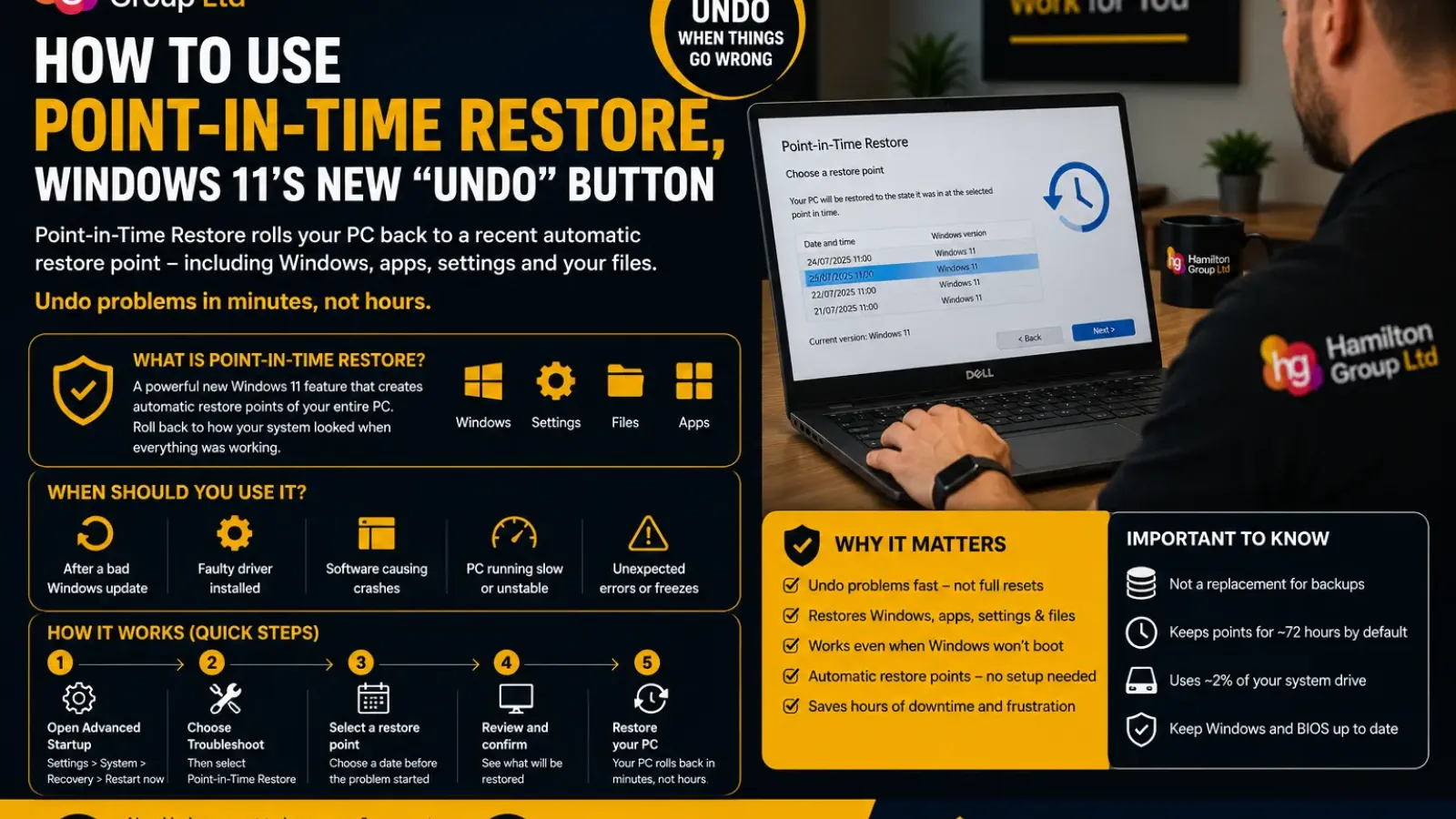
We have all experienced it.
A Windows update installs, a new driver is added, or a piece of software changes something deep within the operating system. Suddenly your PC becomes unstable, applications begin crashing or Windows refuses to behave normally.
Until recently, recovering often meant spending hours uninstalling updates, manually removing software or performing a full Windows reset.
Windows 11 now offers a much smarter solution called Point-in-Time Restore.
Think of it as an Undo button for your entire PC. Instead of restoring only Windows system files like the old System Restore feature, Point-in-Time Restore can roll your computer back to an earlier snapshot—including Windows, installed applications, settings and your local files—allowing you to recover from many issues in just a few minutes.
Here’s everything you need to know about this major new Windows recovery feature.
What Is Point-in-Time Restore?
Point-in-Time Restore is Microsoft’s newest recovery technology built into Windows 11.
Instead of only protecting Windows system files, it creates complete restore snapshots of your PC using the Volume Shadow Copy Service (VSS).
Each restore point includes:
- Windows itself
- Installed applications
- Windows settings
- Application settings
- Local documents
- Desktop files
- Downloads
- User profiles
- Registry settings
When something goes wrong, Windows can return the PC to exactly how it looked at an earlier point in time.
Why Microsoft Introduced It
Traditional troubleshooting could involve:
- Removing updates
- Uninstalling drivers
- Repairing Windows
- Reinstalling applications
- Recovering backups
- Rebuilding the PC completely
That often took hours.
Microsoft designed Point-in-Time Restore to reduce recovery time to minutes, allowing users and IT departments to quickly undo unwanted changes instead of rebuilding devices from scratch.
What Can It Fix?
Point-in-Time Restore is ideal when problems begin suddenly after a change.
For example:
- A faulty Windows Update
- A bad graphics driver
- VPN software causing crashes
- Printer drivers breaking printing
- Blue Screens
- Random freezing
- Slow performance
- Software installation failures
- Registry corruption
- Failed application updates
Instead of hunting for the cause, you simply roll the machine back to when everything worked.
How Is It Different From System Restore?
Many people remember System Restore from earlier versions of Windows.
Although useful, it had limitations.
Traditional System Restore generally restored:
- Windows system files
- Drivers
- Registry settings
- Certain installed programs
It usually left personal documents untouched.
Point-in-Time Restore goes much further.
It restores:
- Windows
- Applications
- Settings
- Local files
- User data
This provides a much more complete rollback experience.
Does It Replace Backups?
No.
This is one of the biggest misunderstandings.
Point-in-Time Restore is not a backup solution.
Instead, it is a recovery feature.
Backups protect against:
- Hard drive failure
- Ransomware
- Theft
- Fire
- Accidental deletion weeks later
- Long-term archive requirements
Point-in-Time Restore only keeps recent restore points locally on the computer.
If the SSD fails completely, those restore points disappear with it.
You still need proper backups.
How Does It Work?
Windows automatically creates restore points in the background.
By default:
- Restore points are created approximately every 24 hours
- They are retained for around 72 hours
- Storage usage defaults to approximately 2% of the system drive
- Enterprise administrators can customise these settings.
Unlike traditional restore methods, you do not usually need to remember to create restore points manually.
Is It Enabled Automatically?
For many users, yes.
Microsoft enables Point-in-Time Restore by default on:
- Windows 11 Home
- Windows 11 Pro (not managed by an organisation)
Enterprise-managed devices generally have it disabled by default until administrators choose to enable it. Devices with an OS drive smaller than 200 GB also do not have it enabled automatically.
How To Check If It’s Enabled
Open:
Settings
Go to:
System → Recovery
Select:
Point-in-Time Restore
Choose:
View or Edit
If User Account Control appears, click Yes.
Here you can see:
- Whether it is enabled
- Current storage usage
- Restore point frequency
- Retention period
- Available restore points
Home and Pro editions have fewer configuration options than Enterprise.
When Should You Use It?
Excellent situations include:
- Windows became unstable today
- A driver broke Wi-Fi
- A Windows update caused problems
- Applications suddenly crash
- Startup problems appeared
- Settings became corrupted
- Software installation went wrong
- A registry cleaner damaged Windows
- Malware removal caused issues
If the computer worked yesterday but not today, Point-in-Time Restore may be the quickest fix.
How To Restore Your PC
At present, restoration is performed from the Windows Recovery Environment (WinRE).
Step 1
Open:
Settings → System → Recovery
Select:
Advanced startup
Choose:
Restart now
Step 2
Windows starts into the recovery environment.
Select:
Troubleshoot
Then:
Point-in-Time Restore
Step 3
If BitLocker is enabled, Windows will ask for your recovery key.
Enter it.
Step 4
Windows displays available restore points.
Each shows:
- Date
- Time
- Windows version
Choose the restore point immediately before the problem began.
Step 5
Windows explains:
- What will be restored
- Potential risks
- Current Windows version
- Restore point selected
Review the information carefully.
Step 6
Click:
Restore
Windows performs the rollback.
Microsoft says recovery is designed to complete in minutes rather than hours.
What Gets Restored?
The restore point includes:
- Windows files
- Installed applications
- Application settings
- Windows settings
- Registry
- User profiles
- Desktop
- Documents
- Downloads
- Local files
Your PC returns to exactly how it looked when that restore point was created.
What Doesn’t Get Restored?
It is not designed to recover:
- Deleted cloud files
- Files created after the selected restore point
- Data stored on disconnected drives
- Data never saved locally
- Hardware failures
- BIOS settings
- Firmware
Always maintain proper backups for important business data.
How Much Disk Space Does It Use?
Restore points are stored using Microsoft’s Volume Shadow Copy Service.
Windows limits storage automatically.
By default:
- Maximum storage usage is approximately 2% of the system drive
- Administrators can increase the limit
- Space is not permanently reserved—unused capacity remains available for Windows until restore points need it.
Older restore points are removed automatically when necessary.
Can I Create Restore Points Manually?
Point-in-Time Restore is designed around automatic snapshots.
The goal is to remove the need for users to remember creating restore points before every software change.
Windows quietly protects the computer in the background.
Is It Safe?
Yes.
The feature uses Microsoft’s existing Volume Shadow Copy infrastructure, which has been used in Windows for many years.
The restore process also performs security validation before allowing restoration on supported Windows versions. Recent updates require restore points to meet specific security checks, particularly on systems using Virtualization-Based Security (VBS).
Does It Work If Windows Won’t Boot?
Yes.
That is one of its biggest advantages.
Because Point-in-Time Restore runs from the Windows Recovery Environment, it can recover many systems that cannot boot into Windows normally.
Should Businesses Enable It?
Absolutely.
For businesses it can significantly reduce downtime after:
- Faulty software deployments
- Failed updates
- Driver conflicts
- User mistakes
- Registry corruption
- Configuration changes
Instead of rebuilding an employee’s PC, IT may simply roll it back to the previous working state.
That can save hours of support time.
Does It Replace Imaging Software?
Not entirely.
Many businesses still require:
- Full system imaging
- Disaster recovery
- Off-site backups
- Long-term retention
- Compliance archives
- Bare-metal recovery
Point-in-Time Restore complements these technologies rather than replacing them.
Think of it as the fastest first response when something goes wrong.
Common Mistakes To Avoid
Avoid:
- Using it instead of backups
- Waiting weeks before restoring
- Ignoring Windows Updates
- Disabling restore points to save disk space
- Forgetting BitLocker recovery keys
- Assuming it protects external drives
The sooner you restore after a problem appears, the better your chances of having a suitable restore point available.
A Quick Point-in-Time Restore Checklist
If your PC suddenly develops problems:
- Identify when the issue started.
- Restart the PC once.
- Open Advanced Startup.
- Enter Windows Recovery Environment.
- Select Point-in-Time Restore.
- Choose a restore point from before the issue began.
- Complete the restore.
- Verify the problem has been resolved.
- Reinstall any essential updates if required.
- Confirm your backups are still working.
How Hamilton Group Can Help
Point-in-Time Restore is one of the most significant recovery improvements Microsoft has added to Windows in years. Instead of spending hours rebuilding a computer after a failed update, driver issue or software problem, many systems can now be returned to a working state in just a few minutes.
Hamilton Group helps businesses make the most of Windows 11’s latest recovery features while ensuring they form part of a wider resilience strategy that includes proper backups, patch management and endpoint protection.
Our team can assist with:
- Windows 11 recovery planning
- Point-in-Time Restore deployment
- Failed Windows update recovery
- Driver and application rollback
- BitLocker recovery management
- Windows Recovery Environment troubleshooting
- Microsoft Intune configuration
- Backup and disaster recovery solutions
- Endpoint security
- Business continuity planning
We can also help ensure every business device is configured to recover quickly from software failures while keeping critical data protected.
To arrange a Windows 11 health check or discuss proactive IT support, call Hamilton Group on 0330 043 0069 or visit hgmssp.com.