Why Is File Explorer So Slow? Fixing Windows 11’s Most Annoying Bottleneck
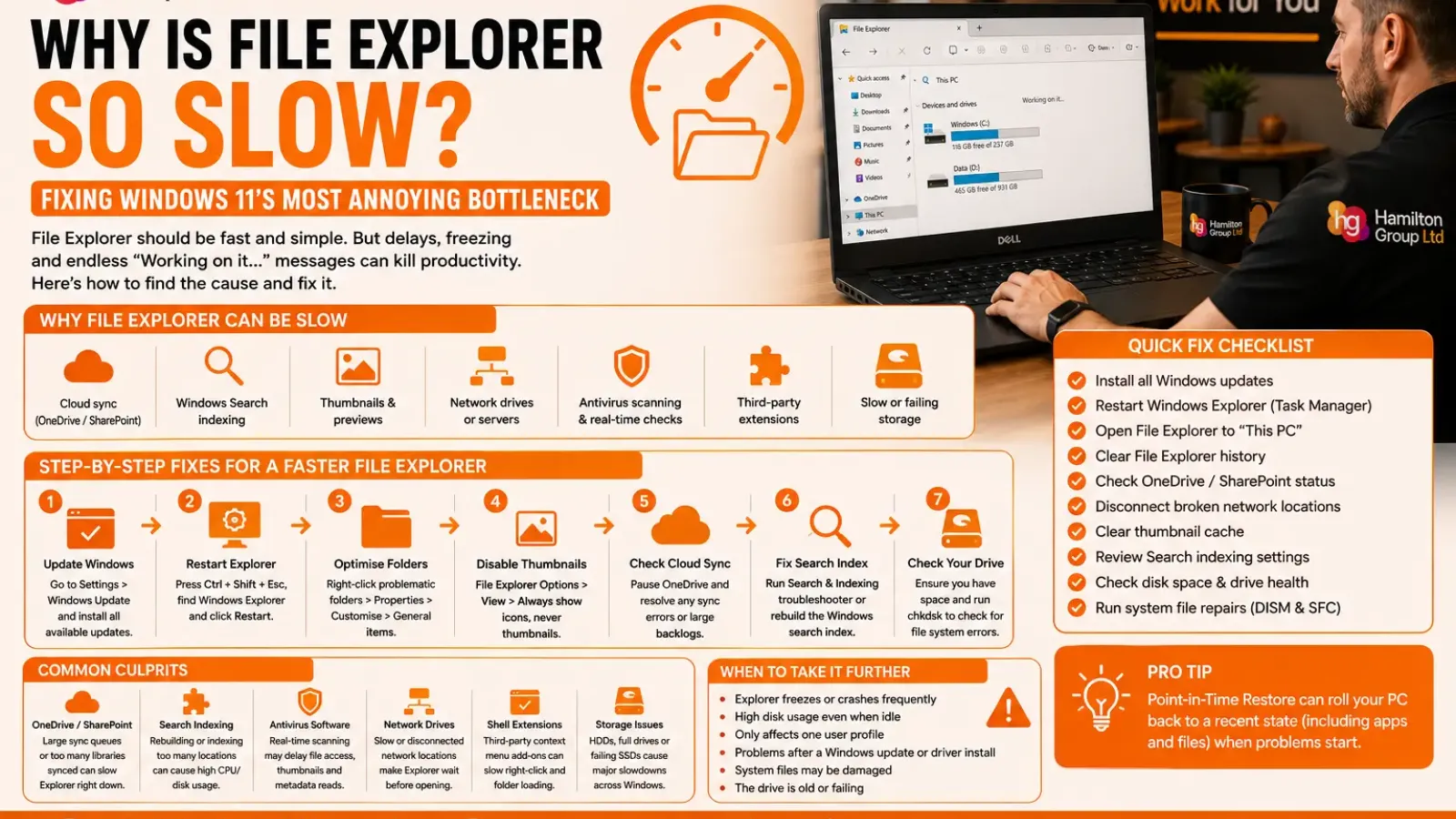
File Explorer should be one of the fastest and simplest parts of Windows 11.
You click a folder, open a document, copy a file or browse a network location. Yet on some computers, even these basic tasks become painfully slow.
You may see:
- A blank File Explorer window
- “Working on it…” for several seconds
- Green progress bars that never seem to finish
- Delays when right-clicking files
- Folders taking ages to populate
- Search results appearing slowly
- Explorer freezing when opening Downloads
- Long pauses when accessing OneDrive or SharePoint
- File Explorer restarting unexpectedly
The frustrating part is that the computer itself may otherwise feel perfectly fast.
File Explorer performance depends on far more than the speed of your processor. It interacts with Windows Search, cloud storage, thumbnails, network shares, antivirus software, context-menu extensions, recent-file history and the health of the underlying drive.
Microsoft has also continued making performance improvements. Its June 2026 Windows 11 preview update included a specific improvement to File Explorer launch speed and responsiveness when mounting disk images.
Here is how to identify what is slowing File Explorer down and fix it without resorting immediately to a full Windows reinstall.
Why File Explorer Can Become Slow
File Explorer is not just a basic folder viewer.
When you open a location, it may need to:
- Read the folder contents
- Generate image and video thumbnails
- Query file metadata
- Check recent and recommended files
- Contact OneDrive or SharePoint
- Verify network connections
- Ask antivirus software to scan files
- Load right-click menu extensions
- Read Search indexing information
- Check whether unavailable drives are connected
- Display status icons from synchronisation tools
If any one of these processes is delayed, the entire File Explorer window can appear to hang.
The symptoms often reveal which component is responsible.
Start by Installing Current Windows Updates
Before making deeper changes, ensure Windows 11 is fully updated.
Microsoft regularly fixes File Explorer problems through cumulative updates. The June 2026 preview update, KB5095093, specifically improved File Explorer launch speed and responsiveness and corrected a OneDrive shortcut issue.
Open:
Settings > Windows Update
Then:
- Select Check for updates.
- Install all available security and quality updates.
- Restart the computer.
- Check for updates again.
On a business device, updates may be controlled through Microsoft Intune, Windows Update for Business or another management platform.
Do not manually install preview updates on company computers unless your IT provider has approved them.
Restart Windows Explorer
File Explorer runs through a Windows process called explorer.exe.
Restarting that process can resolve temporary hangs without restarting the whole computer.
Press:
Ctrl + Shift + Esc
This opens Task Manager.
Find:
Windows Explorer
Right-click it and select:
Restart
The taskbar and desktop may disappear briefly before returning.
This is worth trying when File Explorer was previously working normally and has suddenly become slow during the current session.
Identify Which Folder Is Slow
Before changing anything, check whether the problem affects:
- Every folder
- Only Downloads
- Only Pictures or Videos
- OneDrive
- A SharePoint library
- A mapped network drive
- An external USB drive
- File Explorer Home
- Search results
- The right-click menu
This distinction is important.
If only one folder is slow, the issue is probably related to that folder’s contents, layout or location. If every File Explorer window is slow, the cause is more likely to be Windows, a third-party extension or the storage device.
Fix a Slow Downloads Folder
The Downloads folder is one of the most common sources of File Explorer delays.
It often contains a mixture of:
- Installation files
- Photographs
- Videos
- ZIP archives
- PDFs
- Office documents
- Temporary downloads
Windows may try to analyse these files and generate previews or metadata for each one.
Change the Folder Optimisation
Right-click the Downloads folder and select:
Properties
Open the:
Customise tab
Under Optimise this folder for, select:
General items
Tick:
Also apply this template to all subfolders
Select Apply, then OK.
This prevents Windows from treating the folder as a photo or video library and attempting to generate unnecessary media information.
Turn Off Thumbnails Temporarily
Large collections of photos, videos, PDFs and design files can make Explorer pause while it generates thumbnail previews.
To test whether thumbnails are the cause:
- Open File Explorer.
- Select the three-dot menu.
- Choose Options.
- Open the View tab.
- Enable Always show icons, never thumbnails.
- Select Apply.
Reopen the slow folder.
If it becomes noticeably faster, thumbnail generation is contributing to the problem.
You do not necessarily need to leave thumbnails disabled permanently. The test helps identify the cause before you clear or rebuild the thumbnail cache.
Clear the Thumbnail Cache
A damaged thumbnail cache can make folders slow or cause previews to appear incorrectly.
Open:
Settings > System > Storage > Temporary files
Select:
Thumbnails
Then choose:
Remove files
Windows will regenerate thumbnails when you reopen folders.
The first visit may still take slightly longer while previews are rebuilt, but later visits should improve.
Change File Explorer to Open at This PC
By default, File Explorer may open at Home, where it displays recent, favourite and recommended content.
That requires Explorer to gather information from several locations, including cloud files and recently accessed documents.
To make Explorer open directly at local drives:
- Open File Explorer.
- Select the three-dot menu.
- Select Options.
- Find Open File Explorer to.
- Choose This PC.
- Select Apply.
This is particularly useful when File Explorer opens slowly but individual folders work normally once displayed.
Microsoft describes File Explorer Home as a location that can show recent, favourite and other frequently used content.
Clear File Explorer History
A large or damaged recent-file history can make the Home view sluggish.
Open:
File Explorer > Three-dot menu > Options
Under Privacy, select:
Clear
You can also temporarily untick options relating to recently used files and frequently used folders to test whether the Home feed is responsible.
Clearing this history does not delete the underlying files.
Check OneDrive Synchronisation
File Explorer is closely integrated with OneDrive.
When OneDrive is stuck, processing thousands of changes or repeatedly failing to connect, Explorer may pause while it tries to retrieve cloud status information.
Look for the OneDrive cloud icon in the notification area.
Check for:
- A red cross
- A paused icon
- “Processing changes”
- Sign-in requests
- Storage-limit warnings
- File-name conflicts
- Sync errors
Microsoft provides specific troubleshooting for OneDrive synchronisation problems, including missing status icons, sign-in errors and files that will not upload or download.
Pause OneDrive as a Test
Select the OneDrive icon, open its settings and temporarily pause synchronisation.
Then reopen File Explorer.
If performance improves immediately, the issue is likely associated with OneDrive, SharePoint or one of the synchronised libraries rather than File Explorer itself.
Do not leave business data unsynchronised indefinitely. Investigate and correct the underlying sync issue.
Reduce the Number of Synced SharePoint Libraries
Synchronising a large number of SharePoint sites into File Explorer can create a significant workload.
Each library may require:
- File-status monitoring
- Change processing
- Availability checks
- Cloud metadata
- Explorer status icons
- Right-click integration
Microsoft previously documented a Windows issue where synchronising more SharePoint sites could slow folder navigation and context menus.
Businesses should review whether employees genuinely need every SharePoint library synchronised locally.
Using Add shortcut to OneDrive, web access or selective synchronisation may be more appropriate than syncing an entire organisation’s document structure.
Remove Broken Network Locations
File Explorer can become slow when it repeatedly tries to contact a server, NAS device or mapped drive that is no longer available.
Open:
This PC
Look for mapped drives showing:
- A red cross
- Disconnected status
- An old server name
- A drive belonging to a former workplace
- A VPN-dependent location
Right-click an obsolete mapped drive and select:
Disconnect
Also inspect Quick access for pinned folders on servers or external drives that no longer exist.
Unpin inaccessible locations and restart Explorer.
Test Network Folders Separately
If local folders are fast but a network share is slow, File Explorer may not be the real problem.
Possible causes include:
- Weak Wi-Fi
- High latency
- VPN performance
- DNS delays
- Server overload
- Offline Files
- Antivirus scanning
- Large directory structures
- Slow NAS storage
- Permissions checks
Try opening the same location from another computer.
If it is slow everywhere, investigate the network or server. If it is slow only on one PC, check that device’s network adapter, cached credentials, VPN client and endpoint security software.
Check Windows Search Indexing
File Explorer searches can be slow when the Windows Search index is incomplete, corrupted or processing too many locations.
Microsoft explains that Windows Search performance problems can occur while the index is being built or when indexing configuration requires adjustment.
Open:
Settings > Privacy & security > Searching Windows
Check the indexing status.
You may see that indexing is:
- Complete
- Paused
- Running
- Waiting for the device to become idle
- Processing a large number of files
Choose the Appropriate Search Mode
Windows may offer:
Classic
Indexes common locations such as Documents, Pictures and the desktop.
Enhanced
Indexes the entire computer.
Enhanced search can make more files searchable, but it also creates a heavier indexing workload, particularly on computers containing large development folders, archives or synchronised cloud libraries.
Use Enhanced only when its broader search coverage is genuinely required.
Run the Search and Indexing Troubleshooter
Open:
Settings > System > Troubleshoot > Other troubleshooters
Find:
Search and Indexing
Select Run.
The troubleshooter can identify common problems involving:
- Search results not appearing
- Indexing not running
- Incorrect permissions
- Search becoming unresponsive
Microsoft recommends the Windows Search troubleshooter when diagnosing indexing and search-performance problems.
Rebuild the Search Index
Rebuild the index only after simpler checks have failed.
Search for:
Indexing Options
Open it and select:
Advanced
Under troubleshooting, choose:
Rebuild
Windows will delete the current index and create a new one.
Search results may be incomplete until rebuilding finishes. The process can take a considerable amount of time on systems containing many files.
Run it while the computer is connected to power and not urgently needed.
Look for SearchIndexer.exe Activity
Open Task Manager and check whether any of these processes are using significant resources:
- Microsoft Windows Search Indexer
- SearchHost.exe
- SearchProtocolHost.exe
- SearchFilterHost.exe
Some activity is normal after:
- A major Windows update
- Moving many files
- Connecting a new drive
- Syncing a large cloud library
- Rebuilding the index
Continued high CPU or disk activity for many hours may indicate an indexing problem or an excessively broad search scope.
Disable the Preview Pane
The Preview pane asks File Explorer to open or analyse the selected file without fully launching its application.
This can cause delays with:
- Large PDFs
- Videos
- Office documents
- CAD files
- Damaged files
- Network documents
- Unsupported file types
Press:
Alt + P
This toggles the Preview pane off and on.
If Explorer becomes responsive when the Preview pane is disabled, a preview handler or particular file type may be causing the delay.
Disable the Details Pane
The Details pane can also force Explorer to read metadata from selected files.
Press:
Alt + Shift + P
Test the folder again.
This is especially useful when Explorer freezes as soon as a particular file is selected.
Check for a Damaged File
A single corrupted image, video, archive or PDF can make Explorer appear to hang while it repeatedly tries to read its metadata or create a preview.
Signs include:
- One folder is slow while others are fine
- Explorer freezes near the same point
- A particular thumbnail never loads
- Selecting one file causes the window to stop responding
Switch the folder to Details view and disable thumbnails.
Sort files by date or type and move suspected items to a temporary folder in small groups until the problem stops.
Check Right-Click Menu Extensions
Third-party programs can add options to File Explorer’s context menu.
Examples include:
- Compression tools
- Cloud-storage software
- Antivirus products
- PDF applications
- Graphics software
- Backup tools
- Encryption software
- Source-control clients
When you right-click a file, Explorer must load these extensions. One damaged or outdated extension can delay the entire menu.
A clean boot can help confirm whether third-party software is involved.
Do not randomly delete registry entries for context-menu handlers. Uninstall or update the associated application, or have an IT professional disable the problematic extension safely.
Perform a Clean Boot Test
A clean boot starts Windows with a reduced set of non-Microsoft services and startup applications.
This can reveal whether security software, cloud tools, backup agents or other third-party applications are interfering with File Explorer.
Search for:
System Configuration
Open the Services tab.
Select:
Hide all Microsoft services
Then disable the remaining services temporarily and review startup applications through Task Manager.
Record what you change so it can be restored afterwards.
On a company computer, do not disable security, monitoring or management services without permission.
Check Windows Security Scanning
Microsoft Defender and third-party antivirus products inspect files when they are opened, copied or downloaded.
This is necessary, but performance can suffer if:
- A folder contains thousands of small files
- Archives are repeatedly scanned
- The same cloud files are being scanned and synchronised
- Developer build folders change constantly
- Antivirus definitions or services are damaged
- Two security products are scanning simultaneously
Open Task Manager and look for high activity from:
- Antimalware Service Executable
- Microsoft Defender Antivirus Service
- Your third-party endpoint-security agent
Do not disable antivirus protection as a permanent fix.
Business exclusions should only be created after a security review. Excluding broad folders can create an easy hiding place for malware.
Check Available Storage
Windows needs free disk space for:
- Temporary files
- Thumbnail caches
- Search indexes
- Updates
- OneDrive processing
- Virtual memory
Open:
Settings > System > Storage
As a practical guideline, avoid running the Windows drive almost completely full.
Use Storage recommendations to remove:
- Temporary files
- Old update files
- Recycle Bin contents
- Unneeded downloads
- Previous Windows installations, where appropriate
Review every category before deleting it.
Test the Drive’s Performance
File Explorer cannot open folders quickly if the storage device is struggling.
Open Task Manager and select:
Performance > Disk
Warning signs include:
- Disk usage remaining at 100%
- Very high response times
- Low transfer speeds during simple tasks
- Freezing when files are accessed
- Mechanical clicking from an older hard drive
A traditional mechanical hard disk will usually feel much slower than an SSD, especially when searching, indexing or generating thumbnails.
A sudden decline can indicate drive failure rather than a Windows problem.
Back up important data before running extensive tests on a drive showing physical warning signs.
Check the Drive for File-System Errors
Open Terminal as Administrator and run:
chkdsk C: /scan
This performs an online scan of the Windows drive.
If errors are found, Windows may recommend a repair that requires a restart.
Do not use aggressive repair options without a current backup, especially when the drive may be failing.
Repair Windows System Files
Damaged Windows components can affect File Explorer.
Open Terminal as Administrator and run:
DISM.exe /Online /Cleanup-Image /RestoreHealth
After it finishes, run:
sfc /scannow
DISM repairs the Windows component store, while System File Checker checks protected system files and replaces damaged copies where possible.
Restart the computer after both commands complete.
Check Whether Explorer Is Using Excessive Memory
In Task Manager, review the memory usage of Windows Explorer.
Explorer may use more memory when many windows, tabs or media-heavy folders are open.
Close unnecessary Explorer tabs and windows, then restart the process.
If memory consumption rises continually after each restart, a third-party shell extension or preview handler may be leaking resources.
Reset Folder Views
Windows remembers display settings for different folders.
A damaged or overly complex folder-view configuration can occasionally cause unusual behaviour.
Open:
File Explorer Options > View
Select:
Reset Folders
This resets folder views of the current folder type.
You can also select:
Restore Defaults
This does not delete files, but it may reset preferences such as navigation and display behaviour.
Turn Off Unnecessary File Explorer Features for Testing
In File Explorer Options, temporarily test performance with features such as the following disabled:
- Recently used files
- Frequently used folders
- Office.com files
- Preview pane
- Details pane
- Thumbnail previews
Change one item at a time.
If you disable everything simultaneously, you may improve performance without knowing which setting actually fixed it.
Create a New Windows User Profile
If File Explorer is slow only for one user account, the Windows profile may be damaged.
Create a temporary local or Microsoft account and sign in.
Test File Explorer there.
If the new account performs normally, the issue may involve:
- Quick access history
- User-specific registry settings
- OneDrive configuration
- Shell extensions
- Profile corruption
- App settings
Migrating to a clean profile may be safer than repeatedly repairing a heavily corrupted one.
What Not to Do
Several online “fixes” can create more problems than they solve.
Avoid:
- Downloading registry-cleaner applications
- Disabling Microsoft Defender permanently
- Deleting unknown registry keys
- Removing Windows components manually
- Disabling every service without documenting changes
- Running disk repairs without a backup
- Installing unofficial Explorer replacements on business devices
- Clearing OneDrive folders without checking sync status
- Resetting Windows before investigating network or storage faults
File Explorer slowness is usually a symptom. The goal is to identify the bottleneck rather than merely hide it.
A Practical Troubleshooting Order
Use this sequence to avoid unnecessary work:
- Install Windows updates.
- Restart Windows Explorer.
- Identify whether every folder or one location is affected.
- Test This PC instead of Home.
- Clear File Explorer history.
- Disable previews and thumbnails temporarily.
- Check OneDrive and SharePoint synchronisation.
- Disconnect broken network locations.
- Review Search indexing.
- Check Task Manager for CPU, memory and disk activity.
- Test the drive and available storage.
- Repair Windows system files.
- Test with a clean boot or new user profile.
- Investigate shell extensions and hardware if the problem continues.
Why File Explorer Slowness Matters to Businesses
A ten-second delay may sound minor.
Repeated dozens of times each day across an entire organisation, it becomes a genuine productivity problem.
Slow File Explorer can affect:
- Opening customer records
- Saving documents
- Browsing SharePoint
- Accessing project folders
- Uploading files
- Processing invoices
- Working with design assets
- Navigating network drives
- Responding to customers
It may also point to a wider issue such as:
- Failing storage
- Broken OneDrive policies
- Excessive SharePoint synchronisation
- Slow network infrastructure
- Outdated Windows builds
- Endpoint-security conflicts
- Poor device specifications
Treat recurring Explorer delays as an operational issue, not merely a user annoyance.
How Hamilton Group Can Help
File Explorer should not make employees wait every time they open a folder.
Hamilton Group can identify whether the bottleneck is being caused by Windows, OneDrive, SharePoint, Search indexing, network storage, security software or failing hardware.
Our team can assist with:
- Windows 11 performance diagnostics
- File Explorer troubleshooting
- OneDrive and SharePoint optimisation
- Windows Search repairs
- Network-drive performance
- SSD health checks and upgrades
- Windows update management
- Microsoft Intune configuration
- Endpoint-security troubleshooting
- System-file and profile repairs
- Business-wide performance monitoring
We can also review your wider IT environment to determine whether persistent file-access delays are being caused by individual computers or the underlying network and cloud configuration.
For help with a slow Windows 11 computer, call Hamilton Group on 0330 043 0069 or visit hgmssp.com.