Windows 11 Is Slow After an Update? A 10-Minute Diagnostic Checklist That Actually Works
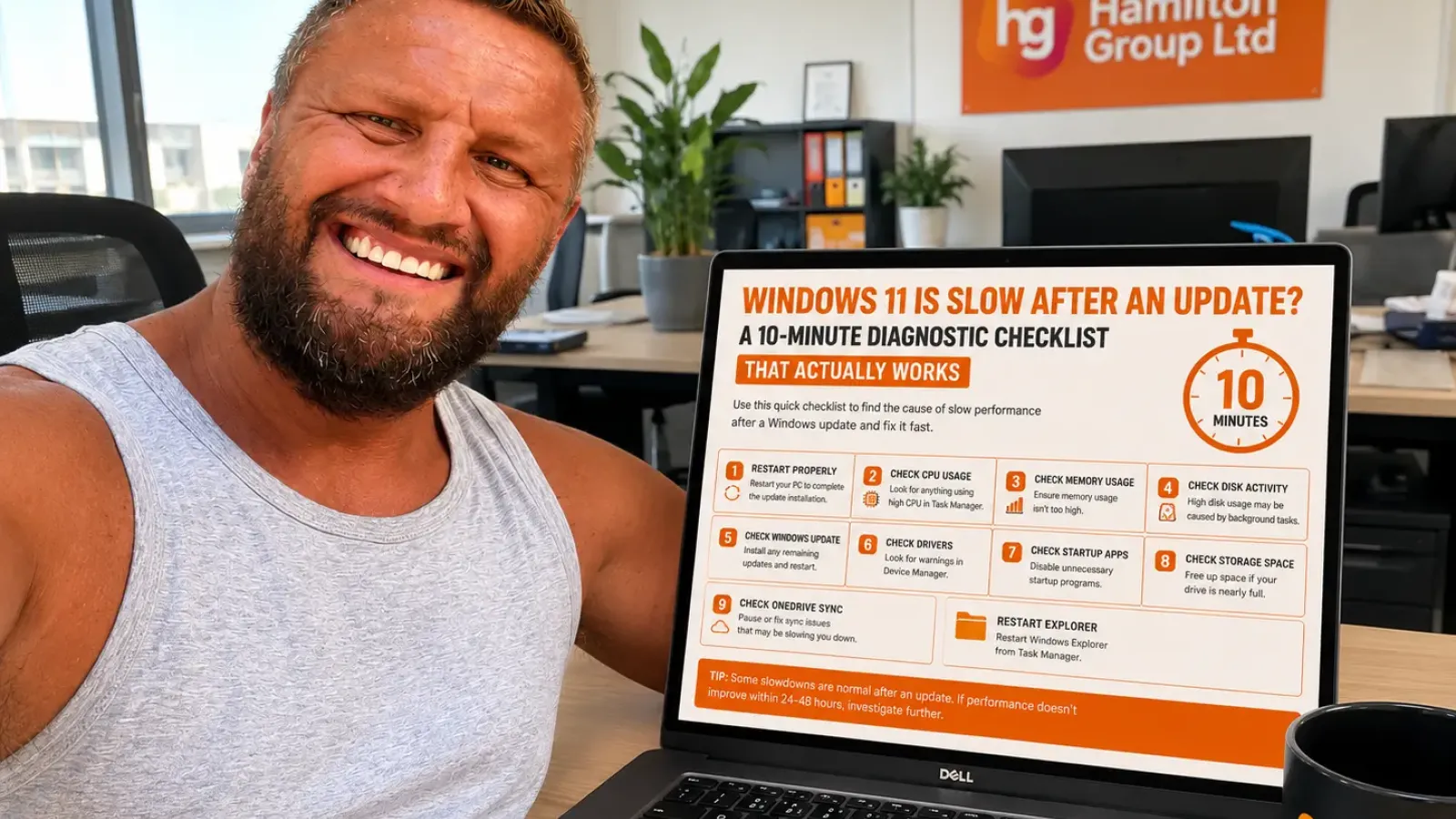
A Windows update should improve your computer—not leave it feeling sluggish.
Yet after installing a major Windows 11 update, it’s not uncommon to notice longer boot times, slower applications, laggy File Explorer, high fan noise or generally poor performance.
The good news is that, in many cases, this slowdown is temporary or caused by a specific issue that can be identified in just a few minutes.
After a feature update or cumulative update, Windows often performs background tasks such as rebuilding the search index, optimising storage, updating Microsoft Defender signatures and completing OneDrive synchronisation. These processes can temporarily increase CPU, memory and disk usage. Microsoft also notes that Windows may continue completing post-update activities after the initial restart. (learn.microsoft.com)
Before you consider resetting Windows or replacing your PC, work through this simple 10-minute diagnostic checklist.
Why Does Windows Feel Slower After an Update?
Windows updates don’t simply replace a few files.
They can also:
- Install new drivers
- Optimise system files
- Rebuild the search index
- Regenerate thumbnails
- Update Microsoft Defender
- Reconfigure OneDrive
- Install .NET components
- Optimise SSD storage
- Recompile apps
- Complete background maintenance
Some of these tasks continue after you’ve logged back in.
That means your PC may feel slower for several hours—or even a day—after a major update before returning to normal.
If the slowdown continues beyond that, it’s time to investigate.
Step 1: Restart Your Computer Properly (1 Minute)
Many users simply close the lid of a laptop or put the PC to sleep after an update.
Instead:
- Click Start
- Select Power
- Choose Restart
A proper restart allows Windows to complete update configuration and clear temporary processes.
If you’ve already restarted once, do it again after any pending updates have finished installing.
Step 2: Check CPU Usage (1 Minute)
Press:
Ctrl + Shift + Esc
Open Task Manager.
Look under:
Processes
Sort by:
CPU
Ask yourself:
- Is one application using 80–100% CPU?
- Is Windows Update still active?
- Is Microsoft Defender scanning?
- Is Search Indexer running?
- Is OneDrive processing files?
Temporary high CPU usage immediately after an update is often normal.
If the same process remains at very high usage for hours, it deserves further investigation.
Step 3: Check Memory Usage (1 Minute)
Still in Task Manager, select:
Memory
Warning signs include:
- 90–100% memory usage
- Many browser tabs
- Large background applications
- Virtual machines
- Video editing software
Windows updates occasionally increase memory usage until applications receive compatibility updates.
Closing unused software may immediately improve responsiveness.
Step 4: Check Disk Activity (1 Minute)
In Task Manager, review:
Disk
If the drive is constantly showing:
100% Active Time
Windows may still be:
- Installing updates
- Optimising files
- Building search indexes
- Running Defender scans
- Processing OneDrive synchronisation
If disk activity remains high for many hours, investigate further.
Mechanical hard drives are particularly affected.
Step 5: Check Windows Update Again (1 Minute)
Open:
Settings > Windows Update
Click:
Check for updates
Many cumulative updates are followed by:
- Driver updates
- Microsoft Defender updates
- .NET updates
- Servicing Stack updates
Installing the remaining updates often resolves performance problems.
Restart afterwards if prompted.
Step 6: Look for Driver Problems (1 Minute)
Right-click:
Start
Choose:
Device Manager
Look for:
- Yellow warning triangles
- Unknown devices
- Display adapter errors
- Storage controller issues
- Intel or AMD warnings
Driver problems frequently appear after major Windows updates.
The correct driver should normally come from:
- Windows Update
- Dell
- HP
- Lenovo
- ASUS
- Acer
- Microsoft Surface
Avoid downloading drivers from unofficial websites.
Step 7: Check Startup Apps (1 Minute)
Open:
Task Manager
Select:
Startup apps
Look for:
- High-impact applications
- Software you no longer use
- Multiple cloud storage tools
- RGB lighting software
- Game launchers
- Printer utilities
Disabling unnecessary startup programs can significantly improve boot time.
Only disable software you recognise.
Step 8: Check Available Storage (1 Minute)
Open:
Settings > System > Storage
Windows performs best when it has sufficient free space.
As a guide:
- Less than 10% free space can affect performance.
- Temporary update files may consume several gigabytes.
Use Storage recommendations to safely remove:
- Temporary files
- Windows Update cleanup
- Recycle Bin contents
- Previous Windows installations (after confirming you don’t need to roll back)
Review every category before deleting it.
Step 9: Check OneDrive Sync (1 Minute)
Look at the OneDrive cloud icon near the clock.
Check whether it says:
- Processing changes
- Sync pending
- Signing in
- Error
- Paused
After Windows updates, OneDrive may recheck thousands of files.
This can temporarily affect:
- CPU
- Disk usage
- File Explorer
- Battery life
Pause synchronisation briefly to see whether performance improves.
If it does, investigate the sync issue rather than leaving OneDrive permanently paused.
Step 10: Restart Windows Explorer (30 Seconds)
Press:
Ctrl + Shift + Esc
Locate:
Windows Explorer
Right-click it.
Choose:
Restart
This refreshes:
- Desktop
- Taskbar
- File Explorer
- Start Menu
It’s surprising how often this resolves temporary slowdowns.
If the PC Is Still Slow
If you’ve completed the checklist and performance hasn’t improved, continue with these additional checks.
Run Storage Optimisation
Open:
Settings > System > Storage
Choose:
Storage Sense
Run cleanup if required.
Windows may still be holding update files that are no longer needed.
Check SSD Health
Open a Command Prompt and run:
wmic diskdrive get status
If the result isn’t OK, investigate further using the drive manufacturer’s diagnostic tool.
A failing SSD often becomes noticeable after a major update because Windows performs much more disk activity than usual.
Repair Windows Files
Open Windows Terminal (Administrator).
Run:
DISM /Online /Cleanup-Image /RestoreHealth
When finished:
sfc /scannow
These built-in tools repair damaged Windows system files without affecting your personal data.
Microsoft recommends running DISM before System File Checker if Windows component corruption is suspected. (learn.microsoft.com)
Check Windows Search Indexing
Open:
Settings > Privacy & security > Searching Windows
If Windows is still indexing thousands of files, temporary slowdowns are expected.
Once indexing completes, search and File Explorer should become more responsive.
Look at Reliability Monitor
Search for:
Reliability Monitor
Open:
View reliability history
This often reveals:
- Driver crashes
- Failed Windows updates
- Application failures
- Hardware errors
It provides a much clearer timeline than Event Viewer for everyday troubleshooting.
Check for BIOS Updates
Major Windows updates occasionally require newer firmware.
Visit your computer manufacturer’s support page and check for:
- BIOS updates
- Chipset drivers
- Graphics drivers
- SSD firmware
- Intel Management Engine updates
Only install firmware designed specifically for your exact model.
Could Windows Defender Be Slowing Things Down?
Possibly—but usually only temporarily.
Immediately after a Windows update, Microsoft Defender may:
- Update definitions
- Scan new files
- Verify applications
- Rebuild security data
This can increase CPU and disk activity.
Allow the scan to finish rather than disabling antivirus protection.
What About File Explorer?
If folders are opening slowly after the update, check:
- OneDrive sync
- Search indexing
- Thumbnail generation
- Network drives
- Preview pane
- Downloads folder optimisation
File Explorer delays often disappear once Windows finishes its background maintenance.
Should You Roll Back the Update?
Only if:
- Performance became dramatically worse immediately after installing the update.
- Multiple applications no longer work.
- Drivers are incompatible.
- Microsoft has acknowledged a known issue.
Rolling back should be considered a last resort after confirming the update is genuinely responsible.
When Is Slow Performance a Hardware Problem?
Sometimes the update merely exposes an existing issue.
Watch for:
- SSD nearing failure
- Mechanical hard drive constantly at 100%
- Overheating
- Dust-blocked cooling
- Low RAM
- Ageing processor
- Battery power throttling
- Faulty memory
The update itself may not be the real cause.
A 10-Minute Diagnostic Summary
If Windows 11 feels slow after an update:
✅ Restart properly
✅ Check CPU usage
✅ Check memory usage
✅ Review disk activity
✅ Install remaining updates
✅ Look for driver warnings
✅ Review startup apps
✅ Free disk space
✅ Check OneDrive sync
✅ Restart Windows Explorer
If the issue remains:
- Run DISM and SFC
- Check SSD health
- Review Reliability Monitor
- Inspect BIOS and driver updates
- Investigate hardware
How Businesses Can Reduce Update-Related Slowdowns
Business users often notice slowdowns because updates are deployed across many devices simultaneously.
A proactive IT strategy includes:
- Testing updates before wide deployment
- Keeping BIOS and drivers current
- Monitoring endpoint performance
- Managing startup applications
- Optimising OneDrive and SharePoint synchronisation
- Replacing ageing hardware before it becomes a bottleneck
- Using Microsoft Intune or other endpoint management tools to control update rollouts
With proper management, update-related performance issues can usually be identified and resolved before they affect productivity.
How Hamilton Group Can Help
A slow Windows 11 PC after an update doesn’t always mean something has gone wrong. In many cases, it’s simply Windows completing background optimisation. However, if performance doesn’t recover, it could point to a driver conflict, storage issue, hardware problem or software incompatibility.
Hamilton Group helps businesses diagnose and resolve Windows performance issues quickly, minimising downtime and ensuring devices remain secure and productive.
Our team can assist with:
- Windows 11 performance troubleshooting
- Post-update diagnostics
- Driver and BIOS management
- Microsoft Intune update deployment
- OneDrive and SharePoint optimisation
- SSD health checks and upgrades
- Windows repair and recovery
- Endpoint monitoring
- Proactive maintenance
- Managed IT support
If your Windows 11 computers are running slower after an update, don’t waste hours guessing the cause. Call Hamilton Group on 0330 043 0069 or visit hgmssp.com to book a Windows performance health check.