Why SMC Resets Don’t Exist on Apple Silicon  — And What to Do Instead
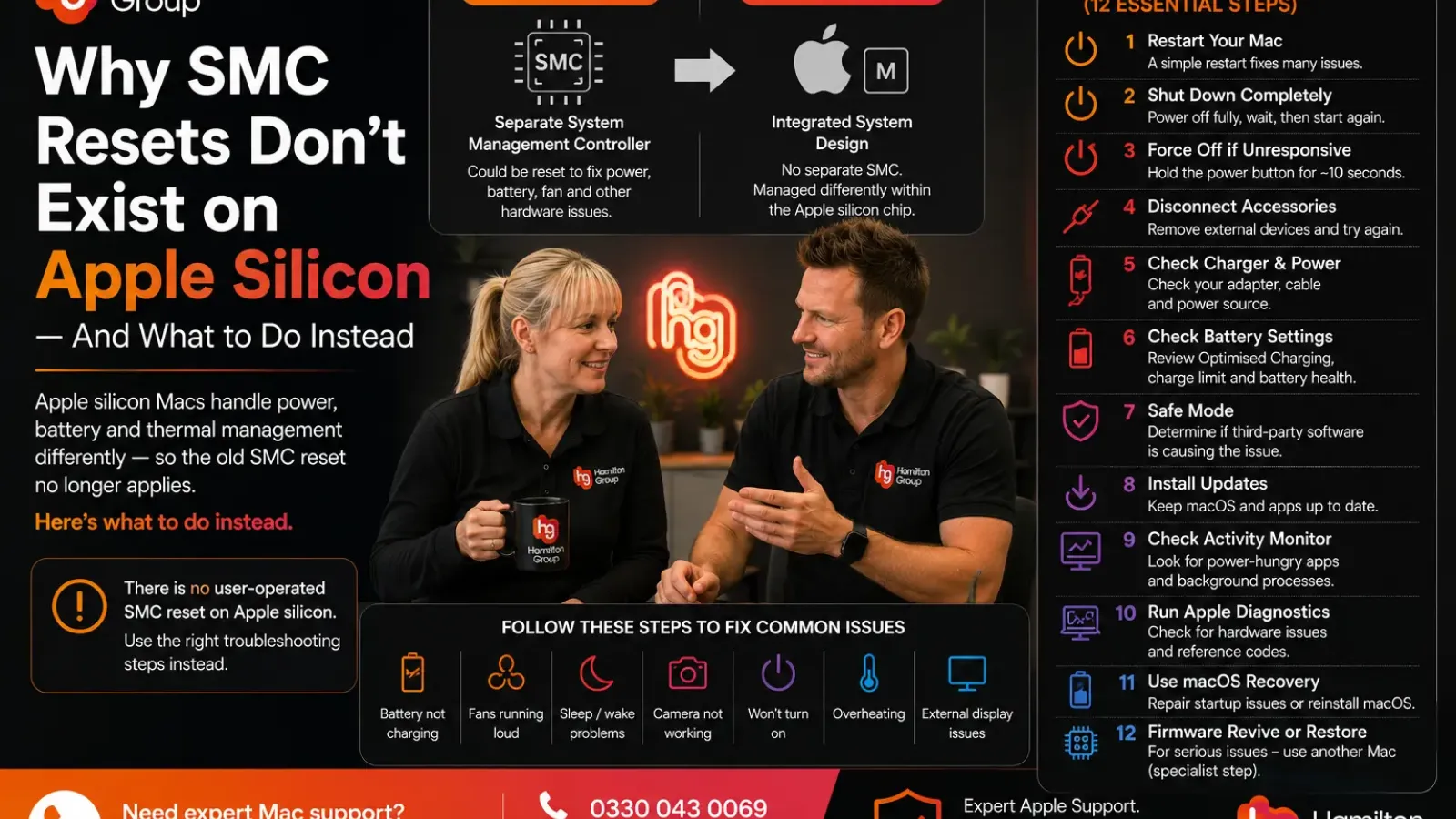
For years, resetting the System Management Controller was one of the standard troubleshooting steps for an Intel-based Mac.
If a MacBook would not charge properly, its fans ran continuously, it behaved strangely after sleeping or its power button stopped responding, an SMC reset was often recommended.
That advice is still widely repeated online. However, it no longer applies to Macs powered by Apple silicon.
If you own a Mac with an M-series chip, there is no traditional SMC-reset keyboard combination to perform. Apple’s guidance for many issues that previously called for an SMC reset is simply to restart the Mac.
So, why did the reset disappear, and what should you do instead?
What Was the SMC?
On Intel-based Macs, the System Management Controller, or SMC, was a separate controller responsible for several low-level hardware functions.
These included areas such as:
- Power management
- Battery charging
- Sleep and wake behaviour
- Fan control
- Thermal management
- Status lights
- Keyboard backlighting
- Response to the power button
- Some lid and sensor functions
When one of these systems behaved incorrectly, resetting the SMC could clear its saved state and reinitialise its hardware-management functions.
The process varied depending on the model. Some Intel MacBooks required a particular keyboard combination, while desktop Macs often used a power-disconnection procedure.
Why Apple Silicon Macs Don’t Have a Traditional SMC Reset
Apple silicon changed the Mac’s internal architecture.
Rather than relying on the same collection of separate controllers used by older Intel models, Apple’s system-on-a-chip design integrates processor, graphics, memory architecture and many supporting functions much more closely.
As a result, Apple does not provide a separate user-operated SMC reset for M-series Macs.
That does not mean power, battery and thermal-management functions have disappeared. They are still present, but they are handled differently within the Apple silicon platform.
Apple’s own support documentation is clear: resetting the SMC is an Intel-only step, and it is not required on a Mac with Apple silicon.
How to Check Whether Your Mac Uses Apple Silicon
Open:
Apple menu > About This Mac
Look for either Chip or Processor.
If the Mac lists an Apple M-series chip, such as an M1, M2, M3, M4 or later Apple chip, it is an Apple silicon Mac.
If it lists an Intel processor, traditional Intel troubleshooting instructions may still apply.
This distinction matters because startup procedures and reset instructions differ between the two architectures.
What Should You Do Instead of an SMC Reset?
There is no single replacement button or keyboard shortcut.
The correct step depends on the problem you are experiencing. However, the following process covers most situations that previously led users to try an SMC reset.
1. Restart the Mac Properly
Start with:
Apple menu > Restart
A restart reloads macOS, closes background processes and reinitialises many hardware-management services.
Apple specifically recommends restarting an Apple silicon Mac in situations where an Intel Mac may previously have required an SMC reset, including some battery, camera, sleep and fan-related problems.
Do not merely close the lid and reopen it. Sleep is not the same as a complete restart.
2. Perform a Full Shutdown
When a normal restart does not help, shut the Mac down completely.
Choose:
Apple menu > Shut Down
Wait until:
- The screen is fully black
- The keyboard backlight is off
- Any external display has disconnected
- The Mac is completely silent
Leave it powered off briefly, then press the power or Touch ID button normally.
For certain battery problems, Apple recommends shutting down and leaving a MacBook’s lid closed for around 30 seconds before trying to charge it again.
This is not technically an SMC reset, but it gives the machine an opportunity to power down more completely than an ordinary restart.
3. Force the Mac Off When It Is Unresponsive
When the Mac is completely frozen and cannot be shut down normally, press and hold the power button or Touch ID button for approximately ten seconds.
Once it has switched off, wait briefly and press the button normally to start it again.
Apple recommends this procedure when a Mac will not turn on or is stuck on a blank startup screen.
Use forced shutdown only when the Mac is unresponsive, as unsaved work may be lost.
4. Disconnect Accessories
A faulty dock, external drive, cable or USB device can cause symptoms that resemble a power-management fault.
Shut down the Mac and disconnect non-essential accessories, including:
- USB hubs
- External drives
- Printers
- Displays
- Audio equipment
- Mobile devices
- Third-party chargers
- Docking stations
Start the Mac again with only essential power and input devices connected.
Apple recommends removing accessories when diagnosing a Mac that does not power on correctly.
Reconnect devices one at a time. If the problem returns after reconnecting one accessory, you may have identified the cause.
5. Check the Charger and Power Source
For charging problems, inspect the complete power chain:
- The wall socket
- Power extension
- Apple power adapter
- Removable plug
- USB-C or MagSafe cable
- Mac charging port
Unplug the adapter from the electrical socket, wait a few seconds and reconnect it.
Try another suitable socket and, where possible, a known-good compatible charger.
Apple recommends restarting the Mac and checking the power source when a USB-C Mac laptop is not charging.
Also remember that a low-powered adapter or dock may keep the Mac running without supplying enough power to charge it during demanding work.
6. Check Battery Settings Before Assuming There Is a Fault
A MacBook may intentionally stop charging at around 80% to reduce long-term battery ageing.
Review:
System Settings > Battery
Look for:
- Optimised Battery Charging
- Charge Limit
- Battery condition
- Maximum capacity
- Energy usage
Depending on your Mac and macOS version, you may be able to choose Charge to Full Now from the battery menu when you need maximum runtime.
A paused charge is therefore not always evidence of a hardware or controller problem.
7. Use Safe Mode
Safe mode helps determine whether third-party software, login items or cached system data are contributing to the problem.
On an Apple silicon Mac:
- Shut the Mac down.
- Press and hold the power button until Loading startup options appears.
- Select the startup volume.
- Hold the Shift key.
- Click Continue in Safe Mode.
The Mac will restart, and Safe Boot should appear in the menu bar.
Test the affected feature in safe mode.
If the problem disappears, the likely cause may be software rather than the Mac’s underlying power-management hardware.
8. Install macOS and Application Updates
Power, sleep, fan and charging problems can be caused by software bugs or incompatible background applications.
Open:
System Settings > General > Software Update
Install available macOS updates and update frequently used applications.
This is particularly important for:
- Security software
- VPN clients
- Cloud-backup tools
- Display utilities
- Dock drivers
- Virtualisation software
- Hardware-monitoring tools
Restart the Mac after updating.
9. Check Activity Monitor
Loud fans, excessive heat and short battery life are often caused by high processor use rather than a controller fault.
Open:
Applications > Utilities > Activity Monitor
Check the CPU and Energy tabs.
Look for applications or processes that remain unusually active, especially:
- Web browsers with many tabs
- Video conferencing software
- Cloud synchronisation
- Spotlight indexing
- Photo analysis
- Backup jobs
- Virtual machines
- Runaway applications
Close or update the affected software before assuming the Mac has a hardware problem.
10. Run Apple Diagnostics
When you suspect a hardware issue, Apple Diagnostics can test the Mac and provide reference codes.
On an Apple silicon Mac:
- Shut down the Mac.
- Press and hold the power button.
- Continue holding it until startup options appear.
- Release the power button.
- Press and hold Command-D until the Mac restarts into diagnostics.
Apple documents this as the correct Apple silicon procedure.
Record any reference code shown and provide it to your support provider.
A clean diagnostics result does not rule out every fault, but it is a useful starting point.
11. Use macOS Recovery for Startup or Disk Problems
If the Mac will not start correctly, repeatedly shows a blank screen or appears to have a damaged startup disk, use macOS Recovery.
On an Apple silicon Mac:
- Shut it down.
- Press and hold the power button.
- Release it when Loading startup options appears.
- Select Options.
- Click Continue.
From Recovery, you can use Disk Utility, reinstall macOS or access other troubleshooting tools.
Reinstalling macOS from Recovery can often repair system software without erasing personal files, although a current backup should always be created first where possible.
12. Firmware Revive or Restore Is a Specialist Step
In rare cases, an Apple silicon Mac may require its firmware to be revived or restored using another Mac.
This is not an everyday replacement for an SMC reset.
It is intended for more serious situations, such as a Mac that cannot complete startup or Recovery successfully.
A revive attempts to repair firmware without erasing the Mac. A restore is more extensive and can erase the device.
Apple provides a specific DFU procedure for this process, but it requires another compatible Mac, the correct cable and careful preparation.
For business-critical or data-sensitive equipment, this is usually best handled by an experienced technician.
Which Problems Used to Lead People to Reset the SMC?
The old advice commonly appeared in troubleshooting guides for:
- Battery not charging
- Fans running at full speed
- Mac not turning on
- Sleep or wake problems
- Camera issues
- Keyboard backlight problems
- Unexpected power behaviour
- Unresponsive power button
- Thermal problems
- External-display issues
On Apple silicon, these symptoms should be investigated individually rather than treated with one universal reset.
For example, loud fans may be caused by workload or airflow, while a charging issue may involve an adapter, battery-health setting or insufficient power delivery.
Avoid Outdated Keyboard Combinations
You may still find websites recommending combinations involving:
- Shift
- Control
- Option
- The power button
Those instructions may apply to particular Intel-based MacBook models, including some equipped with Apple’s T2 Security Chip.
They are not a normal SMC-reset procedure for Apple silicon Macs.
Trying outdated combinations is unlikely to repair the fault and may simply start another boot mode or force the Mac to power off.
Always confirm the processor type before following reset instructions.
What About Resetting NVRAM?
NVRAM is another term frequently mentioned alongside the SMC.
On Intel Macs, users could manually reset NVRAM with the Option-Command-P-R startup combination.
Apple’s startup documentation lists that combination under Intel-based Mac instructions, while Apple silicon Macs use their power-button startup-options interface instead.
For most Apple silicon troubleshooting, you should not rely on old Intel NVRAM-reset instructions either.
Use restart, safe mode, Recovery, diagnostics and issue-specific settings instead.
When to Seek Professional Help
Arrange professional support when:
- The Mac will not turn on
- Charging remains unreliable with a known-good adapter
- The battery reports Service Recommended
- The case or trackpad appears swollen
- The Mac becomes dangerously hot
- Fans remain at maximum speed while idle
- The Mac repeatedly shuts down
- Apple Diagnostics reports a reference code
- Recovery will not load
- Important business data is at risk
- A firmware revive or restore may be required
Do not repeatedly force the Mac off or attempt random reset combinations when the problem persists.
That can distract from the real cause and may increase the risk of data loss.
The Important Difference
An Apple silicon Mac still manages power, charging, temperature and sleep behaviour.
What has disappeared is the old, separate user-operated SMC-reset procedure.
For most everyday problems, the modern replacement is not one special reset. It is a structured troubleshooting process:
- Restart or fully shut down
- Disconnect accessories
- Check power and battery settings
- Test in safe mode
- Install updates
- Review Activity Monitor
- Run Apple Diagnostics
- Use Recovery when necessary
This approach is more useful than repeatedly trying instructions designed for an older Mac architecture.
How Hamilton Group Can Help
Outdated Mac troubleshooting advice can make a relatively simple issue more confusing.
Hamilton Group can identify whether your Mac uses Apple silicon or Intel, diagnose the underlying problem and apply the correct steps for that model.
We can help with:
- Apple silicon troubleshooting
- Charging and battery problems
- Fan and overheating issues
- Sleep and wake faults
- macOS startup problems
- Safe mode and Recovery
- Apple Diagnostics results
- Firmware revive and restore procedures
- Business Mac management
- Ongoing Apple support
Rather than attempting irrelevant reset combinations, our engineers can investigate the actual cause and recommend the safest solution.
Call Hamilton Group on 0330 043 0069 to arrange an assessment and get your Mac working properly again.