Managing Feature Update Deferrals With Group Policy and Intune
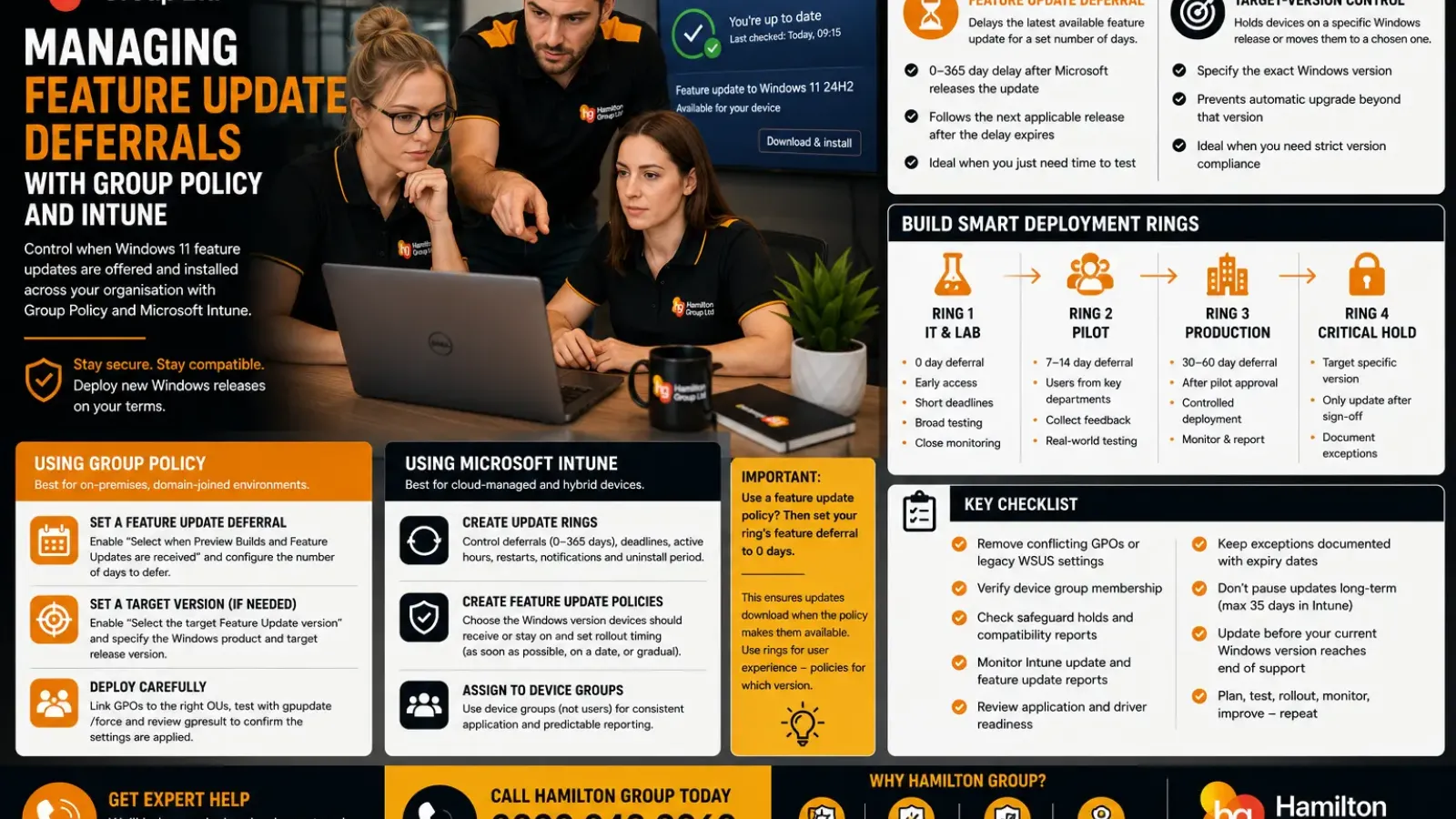
Windows feature updates introduce new functionality, security improvements and platform changes. They can also expose compatibility problems involving specialist applications, drivers, VPN clients, security software and older hardware.
Allowing every computer to install a new Windows 11 release on day one is therefore rarely the best approach for a business.
A safer strategy is to deploy feature updates in stages:
- Test them with IT devices.
- Expand to a small pilot group.
- Monitor compatibility and user experience.
- Release them to the wider organisation.
- Keep exceptions on the previous supported version until their issues are resolved.
Group Policy and Microsoft Intune can both control when feature updates are offered. However, the most important decision is whether you merely want to delay the latest available release or deliberately hold devices on a named Windows version.
Those are different controls, and confusing them is one of the most common causes of unexpected upgrades or devices that never update at all.
What Is a Feature Update?
A Windows feature update moves a device to a newer operating-system release, such as one Windows 11 annual version to another.
Feature updates are different from monthly quality updates.
Feature updates
These can introduce:
- New Windows functionality
- Changes to the user interface
- Security-platform improvements
- Updated system components
- New management capabilities
- Removed or deprecated features
- Changes affecting applications and drivers
Quality updates
These are normally the cumulative security and reliability updates released throughout the year.
A business may wish to install quality updates quickly while delaying feature updates for longer compatibility testing. Windows Update client policies allow these update types to be managed separately.
Deferral Is Not the Same as Selecting a Target Version
Before configuring any policy, understand the difference between these two approaches.
Feature-update deferral
A deferral tells Windows to wait for a specified number of days after Microsoft releases a feature update before offering it to the device.
For example:
- Deferral: 30 days
- Microsoft release date: 1 October
- Earliest offer date: approximately 31 October
Microsoft’s Intune update-ring setting supports a feature-update deferral period from 0 to 365 days.
A deferral follows whatever version is considered applicable when the delay expires. It does not necessarily hold the device on one named release indefinitely.
Target-version control
A target-version policy tells Windows which specific Windows release the device should move to or remain on.
For example:
- Product: Windows 11
- Target version: a specified supported Windows 11 release
Microsoft’s feature-update policies can hold devices at a particular release or move them to a newer named version while preventing them from automatically advancing beyond it.
This is usually the better control when the organisation needs predictable version compliance.
Which Method Should You Use?
Use a deferral period when:
- You are comfortable receiving the latest generally available feature update
- You only need time for initial industry testing
- You want simple deployment rings
- You do not need to remain on a specific named release
Use a target-version policy when:
- A business application is certified only for a specific Windows version
- You need precise version control
- You are migrating from Windows 10 to Windows 11 in stages
- You want to prevent devices advancing to a later release unexpectedly
- You need clear compliance reporting against an approved version
Many organisations use both concepts, but they must be configured carefully to avoid conflict.
Planning Your Deployment Rings
A sensible deployment model uses device groups representing increasing levels of business risk.
For example:
Ring 1: IT and lab devices
A small number of devices managed by technical staff.
Typical approach:
- Feature-update deferral: 0 days
- Early availability
- Short deadlines where appropriate
- Close monitoring
- Broad hardware representation
Ring 2: Pilot users
Technically confident users from several departments.
Typical approach:
- Deferral: 7–14 days
- Include important application users
- Include laptops, desktops and different manufacturers
- Collect structured feedback
Ring 3: General production
The majority of business devices.
Typical approach:
- Deferral: 30–60 days
- Deploy only after pilot approval
- Controlled deadlines and restart notifications
- Monitor failure and rollback rates
Ring 4: Critical or specialist devices
Computers running legacy software, production equipment or regulated workloads.
Typical approach:
- Target a specifically approved Windows version
- Update only after application-owner sign-off
- Maintain documented exceptions
- Replace or remediate unsupported systems before their current release reaches end of service
Intune update rings are specifically designed to control deferrals, deadlines, restart behaviour, active hours and notifications across staged groups such as test, pilot and production.
Managing Feature-Update Deferrals With Group Policy
Group Policy remains appropriate for domain-joined organisations that manage devices primarily through on-premises Active Directory.
The relevant Windows Update policies are located beneath:
Computer Configuration > Administrative Templates > Windows Components > Windows Update
Depending on the Administrative Template version, Windows release and policy wording, feature-update controls are normally found under sections such as:
- Manage updates offered from Windows Update
- Windows Update for Business
Microsoft documents Group Policy as one of the supported management methods for Windows Update client policies.
Configure a Feature-Update Deferral in Group Policy
Open the Group Policy Management Console and edit the policy assigned to the intended computer group.
Locate:
Select when Preview Builds and Feature Updates are received
Enable the policy and enter the required deferral period.
The supported policy writes Windows Update configuration under:
HKLM\SOFTWARE\Policies\Microsoft\Windows\WindowsUpdate
The current Policy CSP documentation describes the same control as the number of days after a feature update is released before it is offered to the device.
After updating the GPO:
- Link it to the appropriate organisational unit.
- Confirm security filtering.
- Run gpupdate /force on a test device where necessary.
- Restart if required.
- Confirm that the policy appears in the Windows Update configured-policy view.
Avoid linking a production deferral policy to the whole domain before testing it with a limited computer group.
Configure a Target Windows Version Through Group Policy
Where precise version control is required, use the policy:
Select the target Feature Update version
The policy requires the intended Windows product and target version.
Conceptually, this configures:
- Product version
- Target release version
- Target release version information
Microsoft’s current Windows policy documentation states that the product-version value must be configured alongside the target-release version for the targeting control to work correctly.
This policy can be used to:
- Keep Windows 11 devices on an approved release
- Move devices to a specific newer release
- Prevent an uncontrolled advance to a later version
- Separate Windows 10 and Windows 11 migration groups
Use Microsoft’s current release identifiers and confirm that the targeted version remains supported.
Group Policy Deployment Example
A traditional Active Directory design might use separate organisational units or security groups:
Windows Update - IT Test
Windows Update - Pilot
Windows Update - Production
Windows Update - Specialist Hold
Each corresponding GPO could define:
Group | Feature deferral | Target version | Purpose |
IT Test | 0 days | Approved candidate | Immediate validation |
Pilot | 14 days | Approved candidate | Wider compatibility testing |
Production | 45 days | Approved version | Controlled deployment |
Specialist Hold | Not relied upon alone | Current certified version | Prevent unapproved upgrade |
Target-version control is especially important for the final group because a long deferral alone will eventually expire.
Do Not Configure Overlapping GPOs Carelessly
A device may receive Windows Update settings from:
- Local Group Policy
- Domain Group Policy
- Microsoft Intune
- Configuration Manager
- Provisioning packages
- Registry scripts
- Third-party endpoint management
- An old WSUS policy
Conflicting policies can lead to:
- Feature updates never appearing
- Devices receiving a later version than expected
- Intune reporting conflicts
- Windows scanning the wrong update source
- Deferrals remaining after a migration
- Some devices following GPO while others follow MDM
Use:
gpresult /h C:\Temp\GPResult.html
to generate a Group Policy report on an affected device.
Also review the configured update policies shown in Windows Settings and check:
HKLM\SOFTWARE\Policies\Microsoft\Windows\WindowsUpdate
Do not manually edit the registry as the permanent management method when Group Policy or Intune owns the setting.
Managing Feature Updates With Microsoft Intune
Microsoft Intune provides two related policy types:
- Update rings
- Feature-update policies
They are designed for different parts of the update process.
What an Intune Update Ring Controls
An update ring controls the device’s general Windows Update experience, including:
- Feature-update deferral period
- Quality-update deferral period
- Automatic-update behaviour
- Active hours
- Restart notifications
- Deadlines
- Grace periods
- Driver-update behaviour
- Feature-update uninstall period
Intune update rings apply Windows Update client policies to assigned groups and are commonly used to create staged deployments.
What an Intune Feature-Update Policy Controls
A feature-update policy specifies the Windows version that assigned devices should receive or remain on.
This provides much more predictable control than relying solely on a deferral.
Microsoft describes feature-update policies as the mechanism for locking devices to a release or targeting a newer one without allowing them to move beyond it.
A strong Intune design therefore often uses:
- Feature-update policy: Which Windows version the device should receive
- Update ring: How the update behaves, including deadlines, notifications and restart experience
Creating an Intune Update Ring
In the Microsoft Intune admin centre, go to:
Devices > By platform > Windows > Manage updates > Windows updates
Select:
Update rings > Create profile
Configure:
- Name and description
- Update settings
- User-experience settings
- Scope tags
- Included device groups
- Excluded groups
Microsoft recommends assigning rings to device groups, which allows policy to apply without waiting for a particular user to sign in.
Key Feature-Update Ring Settings
Feature update deferral period
Select a value from 0 to 365 days.
Use lower values for test rings and larger values for production only when you are intentionally following the latest applicable release.
Feature update uninstall period
This controls the period during which Windows may retain the files needed to return to the previous version.
A longer rollback period uses additional disk space, but can provide more time to identify post-upgrade problems.
Deadlines and grace periods
Deferral determines when the update becomes available.
A deadline determines how long the device or user can postpone installation or restart after the update becomes applicable.
Do not confuse these controls:
- Deferral: Delays the offer
- Deadline: Limits postponement after the offer
- Grace period: Provides additional time before an enforced restart
Active hours and notifications
Configure these to reduce disruption, but remember that excessively permissive restart settings can leave devices waiting for completion for extended periods.
Creating an Intune Feature-Update Policy
In the Intune admin centre, open the Windows update-management area and select the Feature updates policy type.
Create a policy and specify:
- A descriptive policy name
- The target Windows version
- Rollout option
- Included device groups
- Excluded groups
Each feature-update policy targets one Windows version. When a device falls under multiple policies, Windows Update evaluates the applicable versions and can offer the latest eligible one. Microsoft specifically warns that a Windows 10 device targeted by both a Windows 10 and Windows 11 feature-update policy can be offered Windows 11 because it is considered the later applicable version.
Keep group assignments mutually exclusive wherever possible.
Choosing an Intune Rollout Option
Current feature-update policies can make an update available:
- As soon as possible
- On a specified date
- Gradually across a staged period
Microsoft notes that rollout settings control when an update becomes available, while installation timing is still affected by deadlines, restart controls and user behaviour.
A gradual rollout is useful for large organisations because it avoids making the update available to every device at the same moment.
Important: Set the Ring Deferral to Zero When Using a Feature-Update Policy
This is one of the most important Intune configuration points.
When an Intune feature-update policy is controlling the selected Windows version, Microsoft recommends setting the associated update ring’s Feature update deferral period to 0.
Otherwise, the ring’s deferral may delay the update even after the feature-update policy says that it should be available.
A practical design is:
- Feature-update policy selects the approved Windows version.
- Rollout configuration determines when it is released to the group.
- Update ring uses 0 days of feature deferral.
- Update ring manages deadlines, restart behaviour and notifications.
This produces clearer and more predictable results than stacking a 60-day ring deferral on top of a dated feature-update rollout.
Example Intune Structure
IT validation group
Feature-update policy
- Approved Windows version
- Available as soon as possible
Update ring
- Feature-update deferral: 0
- Short deadline
- Detailed notifications
- Early restart requirement
Business pilot group
Feature-update policy
- Same approved Windows version
- Specific start date or early gradual rollout
Update ring
- Feature-update deferral: 0
- Moderate deadline
- User notifications and grace period
Production group
Feature-update policy
- Same version
- Gradual rollout after pilot acceptance
Update ring
- Feature-update deferral: 0
- Business-appropriate deadline
- Active-hours configuration
- Controlled restart notifications
Application-exception group
Feature-update policy
- Previous approved Windows release
- Held until remediation is complete
Update ring
- Standard monthly-update controls
- No reliance on an arbitrary feature deferral as the permanent block
Group Policy Versus Intune
Both tools can manage Windows Update, but their operating models differ.
Area | Group Policy | Microsoft Intune |
Primary environment | On-premises Active Directory | Cloud-managed and hybrid devices |
Connectivity | Normally requires domain or VPN contact | Applies through internet connectivity |
Deployment groups | OUs and security filtering | Microsoft Entra device groups |
Reporting | Group Policy results and external tooling | Integrated policy and update reports |
Target-version control | Windows Update GPO | Feature-update policy |
User experience | GPO settings | Update-ring settings |
Remote workforce | Can be harder without VPN | Generally better suited |
Gradual rollout | Group design and staged GPO assignment | Built-in feature-update rollout options |
Some hybrid organisations use Group Policy for traditional office devices and Intune for remote or Autopilot-managed devices. However, applying both update-management methods to the same devices without a documented authority model creates unnecessary risk.
Decide Which Platform Owns Windows Update
For each device population, document whether update policy is owned by:
- Group Policy
- Microsoft Intune
- Configuration Manager
- WSUS
- Windows Autopatch
- Another approved platform
Do not leave legacy GPOs in place after moving a device group to Intune unless they are deliberately required.
Common leftover settings include:
- Intranet update-service location
- Disable Dual Scan
- Old deferral values
- Target release version
- Automatic-update configuration
- Driver restrictions
- Restart policies
These may continue affecting devices even when the Intune configuration appears correct.
What About WSUS?
Feature-update deferrals through Windows Update client policies generally assume that devices obtain update content and metadata from Microsoft’s Windows Update service.
Devices configured to use an internal WSUS server may instead follow:
- WSUS synchronisation selections
- Update approvals
- Group Policy pointing them to the intranet service
- Configuration Manager software-update deployment rules
Do not combine WSUS approvals and Windows Update deferral policies without understanding scan-source and dual-scan behaviour.
If an organisation is migrating away from WSUS, remove or replace the old update-source settings in a controlled sequence.
Pause Is Not a Long-Term Deployment Strategy
Both Group Policy and Intune provide pause controls.
An Intune update ring can pause feature or quality updates for up to 35 days, after which the pause expires and the device scans for applicable updates.
Pause is useful when:
- Microsoft has confirmed a widespread issue
- A critical business application has suddenly failed
- An update is causing serious disruption
- You need time to deploy a remediation
Pause is not suitable for:
- Keeping devices on a release for many months
- Replacing application testing
- Avoiding all feature updates indefinitely
- Managing unsupported systems
For longer control, use a target-version policy.
Microsoft Safeguard Holds
Even when your policy makes a feature update available, Microsoft may temporarily prevent a device from receiving it because of a known compatibility problem.
Safeguard holds can apply when Microsoft has identified issues involving:
- Drivers
- Firmware
- Applications
- Hardware combinations
- Security software
- Upgrade reliability
Microsoft releases the update to affected devices after the problem has been resolved and validated.
Do not automatically override a safeguard hold simply because a device has missed your planned deployment date.
Investigate the reason and update the affected driver, application or firmware where possible.
Use Intune Compatibility Reports Before Deployment
Intune provides compatibility and readiness reporting that can identify application and driver risks before a feature update is widely released.
The Windows feature-update device-readiness report provides per-device information about compatibility risks associated with the selected Windows version.
Review:
- Devices not ready
- Application risks
- Driver risks
- Insufficient storage
- Hardware requirements
- Safeguard holds
- Unsupported versions
- Deployment errors
Testing ten IT laptops is not enough when the production environment contains different hardware, VPN software and specialist applications.
Monitor the Feature-Update Deployment
Intune provides feature-update reports showing the target version and deployment state for assigned devices.
Common states may indicate that a device is:
- Eligible
- In progress
- Installed
- Deferred
- Under a safeguard hold
- Not ready
- Experiencing an error
Microsoft’s reporting documentation specifically identifies Deferred as a condition in which Windows Update client policy is delaying the update offer.
This is valuable when a feature-update policy appears correct but a non-zero update-ring deferral is still active.
Why Devices May Not Receive the Feature Update
A correctly assigned device may still not upgrade because of:
- A non-zero ring deferral
- A conflicting target-version GPO
- An old WSUS policy
- Multiple feature-update policies
- A safeguard hold
- Insufficient disk space
- Unsupported hardware
- A blocked driver or application
- The device not checking into Intune
- Windows Update endpoint restrictions
- A disabled required Windows service
- The device already running a later version
- The feature-update policy not applying to that device group
Microsoft notes that feature updates might not be offered if the Microsoft Account Sign-In Assistant service is disabled on devices managed through update rings.
How to Verify Group Policy on a Device
On a Group Policy-managed computer:
- Run gpupdate /force.
- Generate a gpresult report.
- Review Windows Update policies in Settings.
- Check Event Viewer.
- Review the Windows Update registry policy path.
- Confirm that the device is in the expected OU and security group.
Useful logs include:
Event Viewer > Applications and Services Logs > Microsoft > Windows > WindowsUpdateClient
Do not rely only on whether the GPO appears linked in Group Policy Management. Confirm the resultant policy on the device.
How to Verify Intune Policy on a Device
In Intune:
- Open the update ring.
- Review device assignment status.
- Review per-setting status.
- Open the feature-update policy report.
- Check readiness and compatibility reports.
- Confirm that the device belongs to the intended Entra group.
- Review any conflicting configuration profiles.
On the computer, use:
Settings > Accounts > Access work or school > Info > Sync
to request a management synchronisation where appropriate.
Then review Windows Update and MDM diagnostic logs.
Microsoft’s Intune troubleshooting guidance recommends checking policy status in the admin centre and verifying that device prerequisites are met.
Avoid User-Based Assignments for Core Update Rings
Update policies are most predictable when assigned to device groups.
A shared computer may be used by several employees, but the Windows version belongs to the device rather than the signed-in user.
Microsoft specifically recommends device-group assignments for Intune update rings so that the policy does not depend on a user signing in.
Use dynamic device groups carefully and validate their membership rules before assigning production update policies.
Do Not Put Devices in Multiple Rings
Overlapping rings can create conflicting settings for:
- Deferral periods
- Deadlines
- Active hours
- Restart behaviour
- Driver updates
- Notifications
Create exclusion groups where needed.
For example:
- Production ring includes all managed Windows devices.
- IT Test and Pilot groups are explicitly excluded.
- Specialist Hold devices are excluded from all wider feature-update policies.
Document the assignment logic so that another administrator can understand it without reverse-engineering every group.
Build an Application-Readiness Process
Feature-update management is not only an Intune or GPO task.
Before approving a new Windows release, test:
- Microsoft 365 applications
- VPN connectivity
- Endpoint security software
- Printing and scanning
- Line-of-business applications
- Browser-based platforms
- Authentication and Windows Hello
- Docking stations
- Audio and video conferencing
- Specialist USB and serial hardware
- Finance and payroll systems
Record:
- Application owner
- Tested version
- Test result
- Known workaround
- Required update
- Approval decision
- Replacement plan
A feature-update delay is useful only when the organisation uses the extra time to perform meaningful validation.
Do Not Delay Until the Current Release Is Unsupported
Feature-update deferrals should reduce risk, not create an estate of unsupported operating systems.
Every Windows release has an end-of-service date. Once a device reaches that point, it may no longer receive the expected security updates.
Your update plan should therefore work backwards from end of service:
- Identify the current release’s support deadline.
- Begin application testing well in advance.
- Pilot the approved successor.
- Remediate exceptions.
- Complete broad rollout before support ends.
- Escalate or replace devices that cannot upgrade.
A target-version policy should be reviewed regularly rather than left untouched for years.
A Recommended Policy Model
For many small and medium-sized businesses, a sensible Intune design is:
Update rings
- IT Test
- Pilot
- Production
- Critical Devices
Feature-update policies
- Current approved Windows 11 release
- Previous supported release for temporary exceptions
Deferral approach
- Set feature deferral to 0 where a feature-update policy controls the target version.
- Use rollout dates and gradual availability instead.
- Use quality-update deferrals separately.
- Configure deadlines and restart experience in update rings.
Reporting
- Review update-ring policy status weekly during deployment.
- Review feature-update readiness before release.
- Investigate safeguard holds.
- Track devices remaining on older releases.
- Document approved exceptions and expiry dates.
Common Mistakes
Avoid:
- Using a 365-day deferral as a permanent version lock
- Applying a target-version policy and a large ring deferral together
- Assigning one device to several update rings
- Targeting the same device with multiple Windows feature versions
- Leaving old GPO settings after moving to Intune
- Ignoring WSUS or Configuration Manager policies
- Overriding safeguard holds without investigation
- Assigning core update controls to user groups
- Pausing updates indefinitely
- Releasing to production without a representative pilot
- Forgetting devices that rarely connect to the corporate network
- Holding systems beyond the supported life of their Windows release
The Best Implementation Order
Use this sequence:
- Inventory Windows versions, hardware and critical applications.
- Decide whether Group Policy or Intune owns update management.
- Remove or document conflicting legacy settings.
- Create representative test, pilot and production device groups.
- Decide whether to use simple deferrals or named target versions.
- Configure the IT test ring.
- Test the new feature release and review compatibility reports.
- Deploy to the pilot group.
- Resolve application and driver issues.
- Release gradually to production.
- Hold genuine exceptions on a supported approved version.
- Monitor deployment and safeguard holds.
- Remove stale exclusions.
- Complete rollout before the previous release reaches end of service.
- Review the policy design before the next annual feature update.
How Hamilton Group Can Help
Feature updates need to be fast enough to maintain security but controlled enough to avoid disrupting the business.
Hamilton Group can help with:
- Group Policy Windows Update configuration
- Microsoft Intune update rings
- Windows feature-update policies
- Pilot and production group design
- Windows 10 to Windows 11 migration
- Application and driver readiness
- Safeguard-hold investigation
- Update compliance reporting
- WSUS and Intune migration
- Windows Autopatch planning
- Microsoft Entra device groups
- Remediation of failed feature updates
- End-of-service planning
We can review your existing policies, identify conflicts and build a staged update process that gives your business time to test new Windows releases without leaving devices unsupported.
Control Feature Updates Without Losing Control of Security
Feature-update deferrals are useful, but they are only one part of a reliable Windows servicing strategy.
Use Group Policy or Intune to create clear deployment rings. Use target-version policies when you need predictable release control. Set Intune ring deferrals to zero when a feature-update policy is already controlling availability, and rely on rollout options, deadlines and reporting to manage the deployment.
For help designing or troubleshooting Windows feature-update policies, call Hamilton Group on 0330 043 0069 or book a call with one of our experts today.