Printer Offline in Windows 11? Fix It in the Right Order
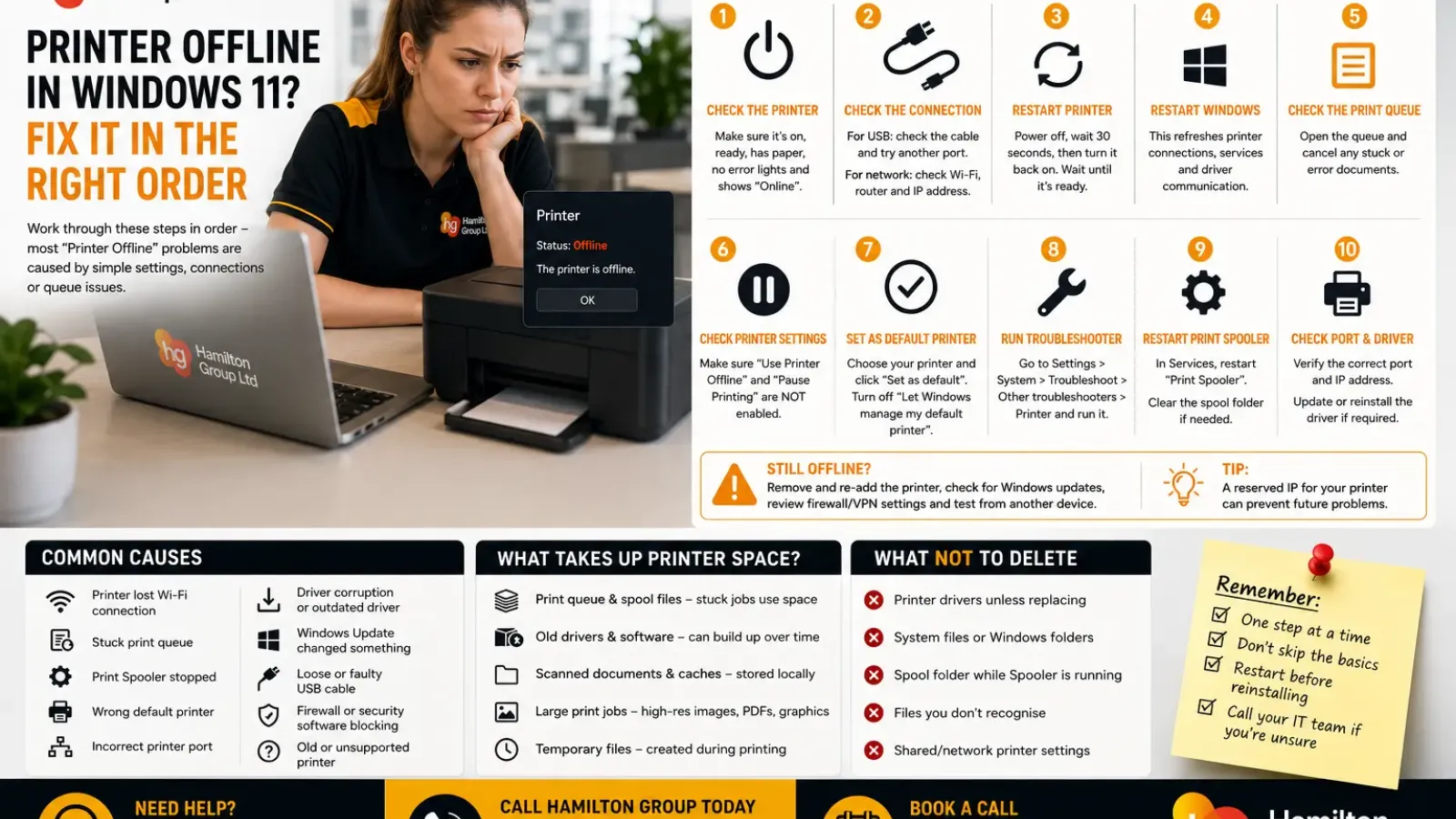
Few IT problems are as frustrating as sending a document to the printer only to see “Printer Offline” in Windows 11.
The printer is switched on, there are no obvious error lights and it may have been working perfectly only minutes earlier. Yet Windows insists it is offline, documents remain stuck in the print queue and nothing comes out of the printer.
The temptation is to remove and reinstall the printer immediately.
In reality, that is rarely the quickest solution.
Most printer offline issues are caused by a loose connection, a temporary communication problem, a stalled print queue, a Windows update, an incorrect printer setting or a driver issue. Working through the checks in the right order can often have you printing again within minutes.
What Does “Printer Offline” Actually Mean?
When Windows reports that a printer is offline, it simply means that it cannot communicate with the device.
That could be because:
- The printer is switched off
- The printer has lost its Wi-Fi connection
- A USB cable has become disconnected
- Windows is using the wrong printer port
- The print spooler has stopped
- The printer driver is damaged
- The printer is paused
- Windows is trying to print to an old printer
- A network problem is preventing communication
The message itself does not identify which of these is responsible.
Step 1: Check the Printer First
Before changing anything in Windows, make sure the printer itself is ready.
Check that:
- The printer is powered on
- There are no warning lights
- There is paper loaded
- There are no paper jams
- Ink or toner is not critically low
- The display shows Ready or Online
- The network icon shows connected if using Wi-Fi
If the printer is displaying an error code, resolve that first.
Windows cannot communicate with a printer that is waiting for user attention.
Step 2: Check the Connection
USB Printers
If the printer connects via USB:
- Disconnect and reconnect the cable
- Try another USB port
- Avoid USB hubs where possible
- Restart both the printer and computer
Damaged USB cables are surprisingly common.
Network Printers
If the printer connects over Wi-Fi or Ethernet:
- Confirm it is connected to the correct network
- Restart the router if other devices also have connection issues
- Check whether the printer has received an IP address
- Ensure the computer is on the same network
Many printer displays include a network status page showing the current IP address.
Step 3: Restart the Printer
Power the printer off completely.
Wait around 30 seconds before turning it back on.
This clears temporary communication faults and allows the printer to reconnect to the network properly.
If possible, wait until the printer reports Ready before attempting to print again.
Step 4: Restart Windows
If the printer appears ready but still shows offline, restart Windows.
This refreshes:
- Printer connections
- Network services
- The print spooler
- Driver communication
- USB device detection
Avoid repeatedly sending print jobs before restarting, as they may simply build up in the queue.
Step 5: Check the Print Queue
Open:
Settings > Bluetooth & devices > Printers & scanners
Select your printer and choose:
Open print queue
Look for:
- Documents stuck in an error state
- Paused jobs
- Very old print jobs
- Failed documents blocking newer ones
If necessary:
- Cancel all pending documents
- Wait a few moments
- Send a single test page
A corrupted print job can prevent everything behind it from printing.
Step 6: Make Sure “Use Printer Offline” Isn’t Enabled
In the print queue window:
Select:
Printer
Ensure:
Use Printer Offline
is not ticked.
Also check that:
Pause Printing
is not enabled.
These settings can occasionally become enabled after connection interruptions or troubleshooting attempts.
Step 7: Set the Correct Default Printer
Windows can automatically change your default printer.
Open:
Settings > Bluetooth & devices > Printers & scanners
Turn off:
Let Windows manage my default printer
Then manually select the printer you actually use and choose:
Set as default
Otherwise Windows may continue sending jobs to:
- A disconnected printer
- A PDF printer
- A previous office printer
- An old USB printer
- A virtual printer
Step 8: Check the Printer Status
Open:
Settings > Bluetooth & devices > Printers & scanners
Select the printer.
Check that Windows reports:
- Ready
- Idle
- Online
If it still reports Offline, continue with the next steps.
Step 9: Run the Windows Printer Troubleshooter
Open:
Settings > System > Troubleshoot > Other troubleshooters
Locate:
Printer
Run the troubleshooter.
Windows may automatically detect:
- Queue problems
- Offline settings
- Driver issues
- Print spooler faults
- Connection problems
It is not perfect, but it often fixes simple configuration issues automatically.
Step 10: Restart the Print Spooler
The Print Spooler manages communication between Windows and printers.
If it stops responding, printers may appear offline.
Press:
Windows + R
Type:
services.msc
Locate:
Print Spooler
Right-click it and choose:
Restart
Wait a few seconds before trying to print again.
If the spooler repeatedly stops, the issue may involve:
- A damaged printer driver
- A corrupted print job
- Faulty third-party printer software
Step 11: Clear the Print Spooler Queue
If restarting the spooler doesn’t help:
- Stop the Print Spooler service.
- Browse to:
C:\Windows\System32\spool\PRINTERS
- Delete the files inside the folder.
- Restart the Print Spooler service.
This removes stuck print jobs.
Do not delete the folder itself.
Step 12: Check the Printer Port
Open:
Control Panel > Devices and Printers
Right-click the printer.
Select:
Printer Properties
Open the:
Ports
tab.
Make sure Windows is using the correct:
- USB port
- TCP/IP port
- WSD port (where appropriate)
If the printer recently changed IP address, Windows may still be pointing to the old address.
This is particularly common after replacing a router.
Step 13: Check the Printer’s IP Address
For network printers:
Print the network configuration page or check the printer’s display.
Compare the printer’s IP address with the port configured in Windows.
If they differ, Windows may be trying to communicate with the wrong device.
Assigning the printer a static or reserved IP address can help prevent this happening again.
Step 14: Update or Reinstall the Driver
Printer drivers occasionally become corrupted after Windows updates.
Open:
Device Manager
Expand:
Print queues
or
Printers
Update the driver if available.
If the problem began immediately after a Windows update, visit the printer manufacturer’s support website for the latest Windows 11 driver.
Avoid downloading drivers from unofficial websites.
Step 15: Remove and Re-add the Printer
Only after the previous steps should you consider removing the printer.
Open:
Settings > Bluetooth & devices > Printers & scanners
Select the printer.
Choose:
Remove
Restart Windows.
Then add the printer again.
If using a network printer, Windows should rediscover it automatically.
For older printers you may need:
- The manufacturer’s driver
- The IP address
- The installation software
Step 16: Check Windows Updates
If the problem started immediately after Windows updated:
Open:
Settings > Windows Update > Update history
Look for:
- Driver updates
- Quality updates
- Optional updates
Sometimes installing the latest manufacturer driver resolves compatibility issues introduced by Windows.
Step 17: Check the Firewall or Security Software
Some third-party security software can interfere with printer discovery.
This is particularly true for:
- Network scanning
- Printer discovery
- Bonjour services
- WSD communication
Temporarily testing with security software disabled should only be done if you understand the risks and should be re-enabled immediately afterwards.
Business environments should consult IT before changing endpoint protection.
Step 18: Check Network Discovery
If Windows cannot discover network devices:
Open:
Settings > Network & Internet > Advanced network settings
Ensure:
- Network Discovery is enabled
- File and Printer Sharing is enabled where appropriate
These settings are more relevant in shared office environments than home networks.
Step 19: Check VPN Connections
A VPN can prevent access to local printers.
If connected to a VPN:
- Disconnect temporarily
- Test printing again
Some VPNs route all traffic through the remote office, preventing communication with printers on the local network.
Split tunnelling policies may resolve this.
Step 20: Test From Another Device
Try printing from:
- Another Windows computer
- A Mac
- A smartphone
- A tablet
If every device reports the printer as unavailable, the issue almost certainly lies with:
- The printer
- The network
- The router
If only one computer has the problem, focus on Windows configuration and drivers.
When the Printer Is Very Old
Older printers may not have fully compatible Windows 11 drivers.
Possible options include:
- Using Windows Update drivers
- Using a manufacturer universal driver
- Installing the printer manually
- Replacing unsupported hardware
If the printer is over ten years old, replacement may ultimately be more reliable than continued troubleshooting.
Common Causes Ranked by Likelihood
Most offline printer issues are caused by:
- Printer disconnected from Wi-Fi
- Stuck print queue
- Print Spooler problem
- Wrong default printer
- Incorrect printer port
- Driver corruption
- Windows update
- USB cable fault
- Network configuration changes
- Hardware failure
Working through the fixes in this order usually saves the most time.
Prevent It Happening Again
You can reduce future problems by:
- Reserving a static IP address for network printers
- Keeping drivers up to date
- Restarting printers occasionally
- Clearing failed print jobs promptly
- Avoiding generic driver packages when manufacturer drivers are available
- Keeping Windows updated
- Replacing ageing printers before they become unreliable
How Hamilton Group Can Help
Printer problems often waste far more time than people expect, especially in busy offices where several users rely on the same device.
Hamilton Group can help with:
- Windows 11 printer troubleshooting
- Network printer configuration
- Print server support
- Driver installation
- Microsoft Intune printer deployment
- Wi-Fi and network issues
- Secure printing
- Printer replacement planning
- Multi-site office printing
- Ongoing managed IT support
Whether it’s one desktop printer or an entire fleet of office multifunction devices, we can quickly identify whether the issue lies with Windows, the network or the printer itself.
Get Printing Again Quickly
When Windows 11 reports that your printer is offline, resist the urge to immediately remove and reinstall it.
Start with the basics—check the printer, verify the connection, clear the print queue and restart the Print Spooler. Only move on to driver reinstalls or printer removal if the simpler fixes don’t solve the problem.
If your business is losing productivity because of recurring printer issues, call Hamilton Group on 0330 043 0069 or book a call with one of our IT experts today.