OneDrive Support Ending on Windows 10: What to Check
OneDrive has become an important part of the way many businesses store, protect and share information.
Employees may use it to access documents from different devices, collaborate with colleagues and synchronise files between Microsoft 365 and their computers.
However, Microsoft is changing the support available for the OneDrive sync application on older versions of Windows 10.
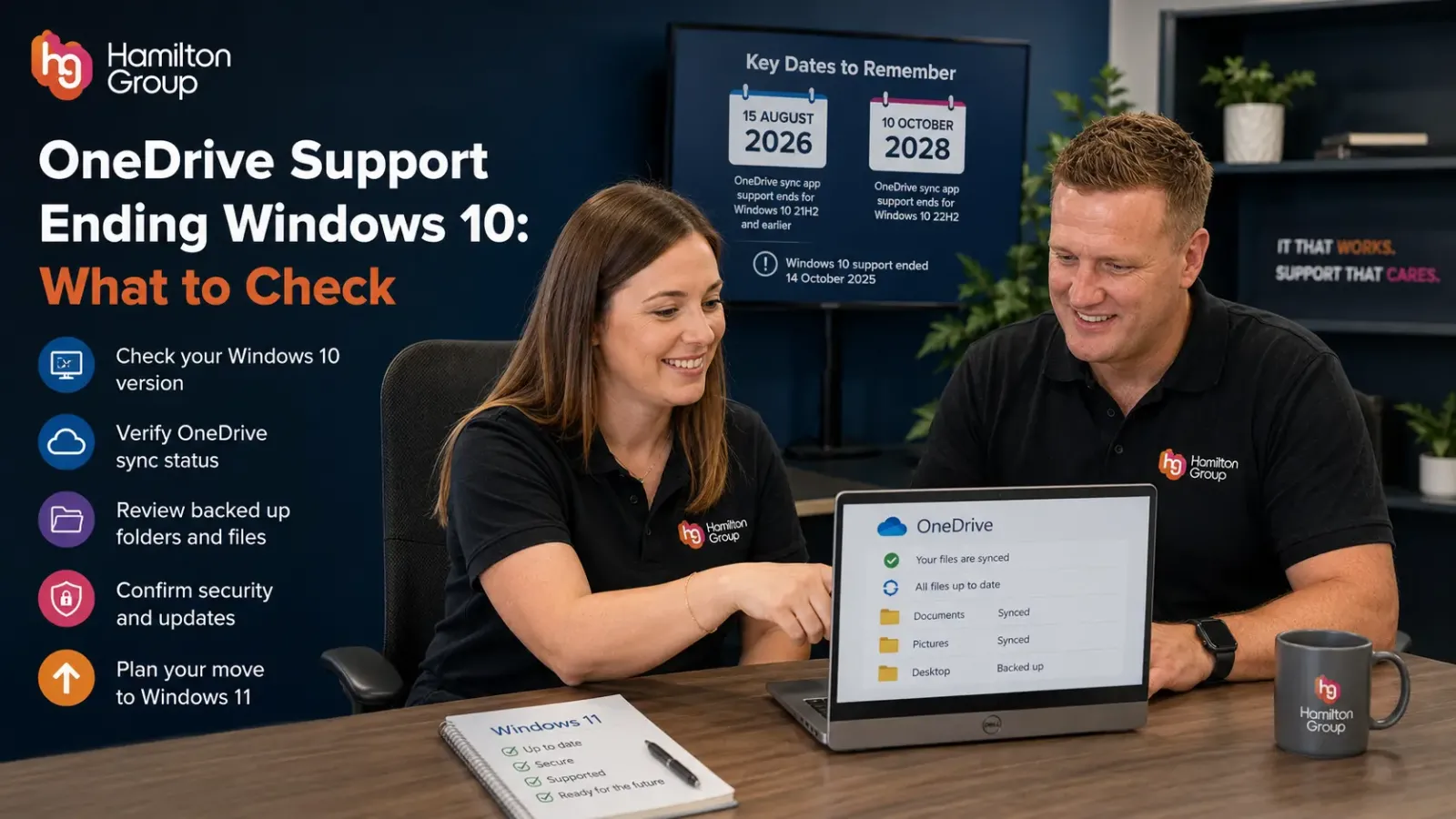
From 15 August 2026, the OneDrive sync application will stop receiving feature updates, bug fixes and security updates on devices running Windows 10 version 21H2 or earlier.
Devices running the final Windows 10 release, version 22H2, will continue receiving OneDrive sync application updates until 10 October 2028. Existing OneDrive installations on older Windows 10 versions may continue to work after support ends, but Microsoft has warned that future functionality is not guaranteed.
Businesses should not wait for employees to report that their files have stopped synchronising.
They should identify affected computers now, confirm which information is protected and create a plan for moving users to Windows 11.
What Is Changing?
Microsoft’s OneDrive support change applies specifically to the desktop sync application.
The OneDrive sync application runs in the background and keeps files synchronised between a computer and Microsoft 365.
It supports services including:
- OneDrive for Business
- Personal OneDrive accounts
- SharePoint document libraries
- Microsoft Teams files
- Known Folder Backup
- Files On-Demand
Microsoft has announced the following support dates:
Windows 10 version 21H2 and earlier
OneDrive sync application updates end on 15 August 2026.
These devices will no longer receive:
- New OneDrive features
- Bug fixes
- Reliability improvements
- Security updates
- Future compatibility updates
The application may continue operating, but Microsoft does not guarantee that it will continue functioning correctly as OneDrive and Microsoft 365 develop.
Windows 10 version 22H2
OneDrive sync application updates will continue until 10 October 2028.
Version 22H2 was the final major release of Windows 10.
This gives organisations using 22H2 additional time, but it should not be treated as a reason to delay Windows 11 indefinitely.
Windows 11
Windows 11 remains Microsoft’s recommended operating system for supported business devices.
Moving compatible computers to Windows 11 provides a more sustainable and secure long-term position.
Windows 10 Itself Is Already Out of Support
It is important to separate OneDrive support from Windows support.
General support for Windows 10 ended on 14 October 2025. Standard Windows 10 devices no longer receive free security fixes, quality updates or technical support from Microsoft.
A Windows 10 22H2 computer may therefore continue receiving OneDrive updates while the underlying operating system is unsupported.
Continuing OneDrive support does not make the complete computer secure or fully supported.
The device may still have risks relating to:
- The Windows operating system
- Device drivers
- Hardware compatibility
- Security controls
- Business applications
- Microsoft support
- Cyber-insurance requirements
- Compliance obligations
Microsoft offers Extended Security Updates for eligible Windows 10 devices, but these provide only critical and important security fixes. They do not add new features or restore normal Windows technical support.
The preferred solution remains upgrading to Windows 11 or replacing computers that cannot support it.
Will OneDrive Stop Working on 15 August 2026?
Not necessarily.
Microsoft has said that existing installations on Windows 10 21H2 and earlier may continue functioning after the support deadline.
However, those installations will no longer receive updates, and future operation is not guaranteed. Users may gradually experience reduced functionality, compatibility problems or sync failures as the OneDrive service changes.
This is similar to other unsupported software.
The application may appear to work normally immediately after the deadline, but the risk increases over time because Microsoft is no longer correcting problems for that configuration.
A business should not wait for a failure before taking action.
Why Does the OneDrive Version Matter?
OneDrive is more than an application employees open occasionally.
It may be continuously synchronising important information in the background.
Employees may assume a document is safely stored in Microsoft 365 because it appears within their OneDrive folder.
If synchronisation is failing, the latest copy may exist only on the computer.
This can create problems when:
- The device fails
- The employee loses the laptop
- Ransomware damages local files
- The user moves to a new computer
- A colleague attempts to access the document
- The employee leaves the organisation
- The local profile becomes corrupted
An unsupported sync application may also make it more difficult for the IT provider to obtain fixes when a new compatibility issue appears.
Check Which Version of Windows 10 You Are Using
The first step is to identify the Windows version on every business computer.
On an individual computer:
- Press the Windows key and R.
- Enter
winver. - Select OK.
- Review the version shown in the window.
You can also check through:
Settings > System > About
Look for the Windows specifications section.
The important result is whether the computer is running:
- Windows 10 22H2
- Windows 10 21H2
- An earlier Windows 10 release
- Windows 11
Businesses with several computers should not rely on employees checking manually.
A managed IT provider can use device-management and monitoring systems to produce a central report showing the operating system and version installed across the organisation.
Do Not Assume Every Windows 10 Device Is on 22H2
Windows 10 version 22H2 was the final Windows 10 feature release, but some computers may still be running an earlier version.
This can happen when:
- Feature updates repeatedly failed
- The device was rarely connected
- Windows Update was disabled
- A management policy blocked upgrades
- The computer has limited storage
- The device has not been maintained
- An old installation image was used
- The equipment runs specialist software
These devices will be affected by the August 2026 OneDrive deadline sooner than Windows 10 22H2 computers.
Any device running Windows 10 21H2 or earlier should be treated as a priority.
Check the Installed OneDrive Application
Microsoft provides more than one application carrying the OneDrive name.
The desktop sync application is responsible for synchronising and backing up files. The Microsoft Store viewing application does not provide the same backup and sync functionality.
To check the OneDrive sync application version:
- Select the OneDrive cloud icon in the Windows notification area.
- Select Help & Settings.
- Open Settings.
- Select About.
- Review the version number.
Microsoft publishes regular OneDrive sync release notes showing current fixes and features.
The IT team should confirm that OneDrive is updating successfully and that devices are not stuck on an old build.
Check Whether OneDrive Is Actually Running
OneDrive may be installed but not operating correctly.
Look for the cloud icon near the Windows clock.
The icon may indicate that:
- Files are fully synchronised
- Synchronisation is in progress
- The user is signed out
- Synchronisation is paused
- An error requires attention
- Storage is full
- A file cannot be uploaded
The absence of the icon may mean that OneDrive is not running or has been disabled.
Businesses should investigate recurring error symbols rather than asking employees to ignore them.
Confirm That Employees Are Signed Into the Correct Account
Employees may have both personal and work Microsoft accounts.
Files can accidentally be saved into a personal OneDrive account rather than the organisation’s Microsoft 365 environment.
This can lead to:
- Loss of business control
- Inappropriate external storage
- Difficulties recovering information
- Data-protection concerns
- Files remaining available after employment ends
- Confusion over which version is current
The OneDrive settings should show the organisation’s work or school account.
Businesses should also review whether personal OneDrive accounts are permitted on managed devices and apply suitable restrictions where necessary.
Check Which Folders Are Being Protected
OneDrive Known Folder Backup can protect standard Windows folders such as:
- Desktop
- Documents
- Pictures
This is sometimes called Known Folder Move.
It can help protect files employees might otherwise store only on their computers.
However, businesses should confirm that folder backup has completed successfully.
Check:
- Which folders are included
- Whether any folders show errors
- Whether files exceed supported limits
- Whether the user has enough cloud storage
- Whether unsupported file types are present
- Whether the employee has paused backup
- Whether files have been redirected elsewhere
Do not assume that every file on a computer is protected simply because OneDrive is installed.
Files stored outside approved OneDrive folders may remain local only.
Understand the OneDrive Status Icons
OneDrive uses status icons to show where a file is stored.
Depending on the configuration, a file may be:
- Available only online
- Downloaded temporarily
- Always available on the device
- Currently synchronising
- Experiencing a sync problem
Files On-Demand allows employees to see cloud files in File Explorer without downloading every file to the computer. Microsoft states that Files On-Demand requires Windows 10 version 1709 or later and a suitable OneDrive build.
Before replacing a device, the IT team should verify that all required local changes have finished uploading.
Copying or wiping the device too early could cause the most recent version of a file to be lost.
Check SharePoint and Microsoft Teams Libraries
OneDrive is also used to synchronise document libraries from SharePoint and Microsoft Teams.
Employees may have several libraries connected to File Explorer.
Review:
- Which libraries are synchronised
- Whether they are still required
- Whether duplicate libraries exist
- Whether any show persistent errors
- Whether the employee still has permission
- Whether libraries contain excessive numbers of files
- Whether the same data is stored elsewhere
A Windows migration is a good opportunity to remove obsolete connections and simplify the user’s working environment.
The new computer should not automatically inherit years of unnecessary or abandoned sync relationships.
Check for Unsynchronised or Conflicting Files
Before upgrading or replacing a computer, look for OneDrive problems such as:
- Files with red error symbols
- Duplicate documents
- Conflicted copies
- Invalid file names
- Paths that are too long
- Files locked by applications
- Insufficient storage
- Unsupported characters
- Permissions errors
- Libraries that have stopped syncing
These issues should be resolved before the old computer is decommissioned.
Moving to Windows 11 will not automatically correct a document that never successfully uploaded.
Check OneDrive Storage Usage
A full OneDrive account may stop accepting new files.
Review:
- The employee’s available storage
- Large or unnecessary files
- Deleted-item retention
- Version history
- Former employee data
- Shared libraries
- Microsoft 365 licence allocation
OneDrive for Business storage is normally linked to the user’s Microsoft 365 licence.
If a licence is removed or expires, the account’s behaviour and retention may change.
Storage and licence management should therefore form part of employee onboarding and offboarding.
Check Whether the Computer Can Run Windows 11
Microsoft’s PC Health Check application can assess whether a Windows 10 computer meets the Windows 11 requirements.
It can identify whether the device is eligible and explain why an upgrade may not be available.
A compatibility review should consider:
- Processor support
- TPM requirements
- Secure Boot
- Memory
- Storage
- Firmware
- Device drivers
- Business applications
- Specialist hardware
A computer may technically meet the minimum requirements but still be unsuitable because of its age, performance or warranty status.
The decision should consider the complete useful life of the equipment rather than only whether Windows 11 can be installed.
Check Business Application Compatibility
Before upgrading to Windows 11, test the applications employees rely on.
These might include:
- Accounting software
- Customer relationship management systems
- Case-management applications
- Document-management software
- Industry-specific platforms
- Printer and scanner software
- VoIP applications
- VPN clients
- Security tools
- Browser extensions
- Microsoft Office add-ins
Speak to application suppliers where necessary.
Do not assume that an old application is supported on Windows 11 simply because it opens during an initial test.
Employees should complete realistic business tasks during the pilot.
Review Microsoft 365 Apps
Microsoft 365 Apps can continue receiving security updates on Windows 10 until 10 October 2028, although Microsoft still recommends moving to Windows 11.
Feature updates and eligible Copilot support continue until Microsoft 365 Apps version 2608. Windows 10 devices will then remain on that version and receive security updates only until the October 2028 deadline.
This temporary extension should not be confused with full Windows 10 support.
Microsoft also warns that performance and reliability problems may develop when Microsoft 365 Apps run on an unsupported operating system. Support may be limited, and Microsoft may ask the organisation to reproduce the problem on Windows 11.
A business should therefore review Windows, OneDrive and Microsoft 365 Apps together rather than treating them as separate projects.
Does Extended Security Updates Solve the Problem?
Windows 10 Extended Security Updates can provide additional time for eligible devices.
However, ESU is intended as a temporary transition measure.
It generally provides critical and important Windows security updates but does not include:
- New Windows features
- Normal quality improvements
- General technical support
- Application compatibility guarantees
- A replacement for Windows 11
It also does not automatically extend support for every third-party or Microsoft application installed on the device.
Organisations using ESU should still have a documented Windows 11 migration plan.
Can Employees Use OneDrive Through a Browser?
Yes.
Microsoft has said users on affected devices can continue accessing OneDrive through a supported web browser.
This may provide temporary access to files, but it does not replace every desktop sync feature.
Browser access may require employees to:
- Upload files manually
- Download files before editing
- Return completed files to OneDrive
- Work without File Explorer integration
- Change established working practices
- Manage several versions more carefully
It may also be unsuitable for applications that expect files to be available through the local Windows file system.
Browser access should therefore be treated as a fallback rather than the preferred long-term solution.
Check Whether OneDrive Is Being Used as a Backup
OneDrive can help protect selected folders and files, but synchronisation and backup are not exactly the same thing.
When a file is changed or deleted, that action may synchronise to the cloud.
Microsoft 365 provides recovery features, including deleted-item retention and version history, but organisations should decide whether they also require a separately managed Microsoft 365 backup service.
The business should understand:
- Which data is protected
- How long deleted items are retained
- How previous versions are recovered
- Who can permanently delete files
- How quickly large amounts of data can be restored
- Whether SharePoint and Teams are included
- When recovery was last tested
The Windows 11 migration should not begin until critical information has been backed up and verified.
Review Device Encryption
A computer containing synchronised OneDrive files may store local copies of confidential information.
BitLocker or another suitable encryption solution should protect the device.
This is particularly important for:
- Laptops
- Remote workers
- Directors
- Finance employees
- Regulated organisations
- Employees handling customer information
Replacing Windows 10 equipment provides an opportunity to confirm that encryption is enabled, recovery keys are securely stored and the device is centrally managed.
Review User Access
Migrating to Windows 11 should include an access review.
Confirm:
- The user’s Microsoft 365 account
- Group membership
- SharePoint permissions
- Microsoft Teams membership
- Shared mailbox access
- OneDrive sharing links
- Guest access
- Administrator privileges
- Third-party application access
Employees may have accumulated permissions that are no longer required.
Moving them to a new device without reviewing access may carry old security weaknesses into the new environment.
Check External Sharing
OneDrive allows employees to share files and folders with people outside the organisation.
Review:
- Anonymous links
- Links available to the entire organisation
- Named external recipients
- Links with no expiry date
- Documents shared by former employees
- Sensitive information
- Unused guest accounts
The business should define which sharing methods are approved.
A migration project is a useful opportunity to remove old links and improve control over confidential information.
Review Former Employee OneDrive Accounts
OneDrive information linked to former employees must be handled through a defined offboarding process.
The business should know:
- Whether the account has been disabled
- Whether relevant files were transferred
- Who now owns the information
- Whether external sharing remains active
- How long the data will be retained
- Whether the Microsoft 365 licence was removed
- Whether legal or regulatory retention applies
Important documents should not remain permanently dependent on an inactive employee’s personal OneDrive area.
Shared business information normally belongs in an approved SharePoint or document-management location.
Create a Device Inventory
A useful Windows and OneDrive review should record:
- Computer name
- Assigned employee
- Operating system
- Windows version
- Windows 11 eligibility
- OneDrive version
- OneDrive account
- Sync status
- Hardware age
- Warranty status
- Encryption status
- Microsoft 365 licence
- Business applications
- Replacement decision
- Target migration date
This provides a clear picture of which devices require urgent action.
The highest priority should normally be given to:
- Windows 10 21H2 and earlier
- Unsupported hardware
- Computers with failed OneDrive sync
- Devices holding sensitive information
- Computers without encryption
- Systems running unsupported applications
Plan the Migration in Stages
Businesses do not need to replace every computer on the same day.
A staged migration may include:
Stage 1: Discovery
Identify Windows versions, devices, users and applications.
Stage 2: Data verification
Confirm that OneDrive and other important information are synchronised and backed up.
Stage 3: Compatibility testing
Test Windows 11 with business applications, printers and specialist equipment.
Stage 4: Pilot deployment
Move a small number of suitable employees first.
Stage 5: Wider rollout
Upgrade or replace devices department by department.
Stage 6: Validation
Confirm that OneDrive, SharePoint, Teams and business applications work correctly.
Stage 7: Secure disposal
Remove company information from retired equipment before recycling or disposal.
The plan should include employee communication and support throughout the process.
Avoid Installing Windows 11 on Unsupported Hardware
Various unofficial methods may allow Windows 11 to be installed on hardware that does not meet Microsoft’s requirements.
This can create problems with:
- Updates
- Drivers
- Performance
- Stability
- Vendor support
- Security
- Future Windows releases
A business should not create another unsupported environment while attempting to leave Windows 10.
When a computer cannot properly support Windows 11, replacement is usually the safer long-term option.
Do Not Leave the Review Until August
Waiting until the support deadline creates unnecessary risk.
A Windows migration may require time for:
- Purchasing equipment
- Testing applications
- Scheduling employee downtime
- Transferring user profiles
- Resolving OneDrive errors
- Configuring security policies
- Replacing unsupported peripherals
- Training employees
- Securely disposing of old devices
Starting early allows problems to be corrected without rushing important security and data-migration decisions.
What Should Businesses Check Now?
The immediate priorities are:
- Identify every Windows 10 computer
- Confirm which Windows version each device uses
- Prioritise Windows 10 21H2 and earlier
- Check OneDrive is running and signed in
- Resolve all sync errors
- Confirm important files have uploaded
- Check Windows 11 compatibility
- Test business applications
- Review backup and recovery
- Create a replacement timetable
Windows 10 22H2 provides more OneDrive support time, but it should remain part of the migration plan because the underlying operating system has already passed its standard support date.
How Hamilton Group Can Help
Hamilton Group helps businesses identify unsupported technology, protect their Microsoft 365 information and move securely to Windows 11.
We can help with:
- Windows 10 device audits
- Windows version reporting
- Windows 11 compatibility checks
- Device replacement planning
- OneDrive sync reviews
- OneDrive Known Folder Backup
- SharePoint and Teams library reviews
- Microsoft 365 licence reviews
- Data migration
- Application compatibility testing
- Microsoft Intune
- Windows Autopilot
- BitLocker encryption
- Managed endpoint protection
- Microsoft 365 backups
- Secure equipment disposal
- Ongoing managed IT support
We can identify devices running Windows 10 21H2 or earlier, resolve OneDrive synchronisation issues and create a staged plan for upgrading or replacing affected equipment.
At Hamilton Group, we aim to make first contact on IT support requests within 15 minutes, helping employees receive assistance quickly when a file, device or Microsoft 365 problem affects their work.
Call Hamilton Group today on 0330 043 0069 to arrange a Windows 10 and OneDrive review before support changes begin affecting your business.
Microsoft product features, support dates and licensing may change. This article reflects information available on 24 July 2026 and should be reviewed alongside current Microsoft guidance.