How to Use Microsoft Copilot – for Businesses
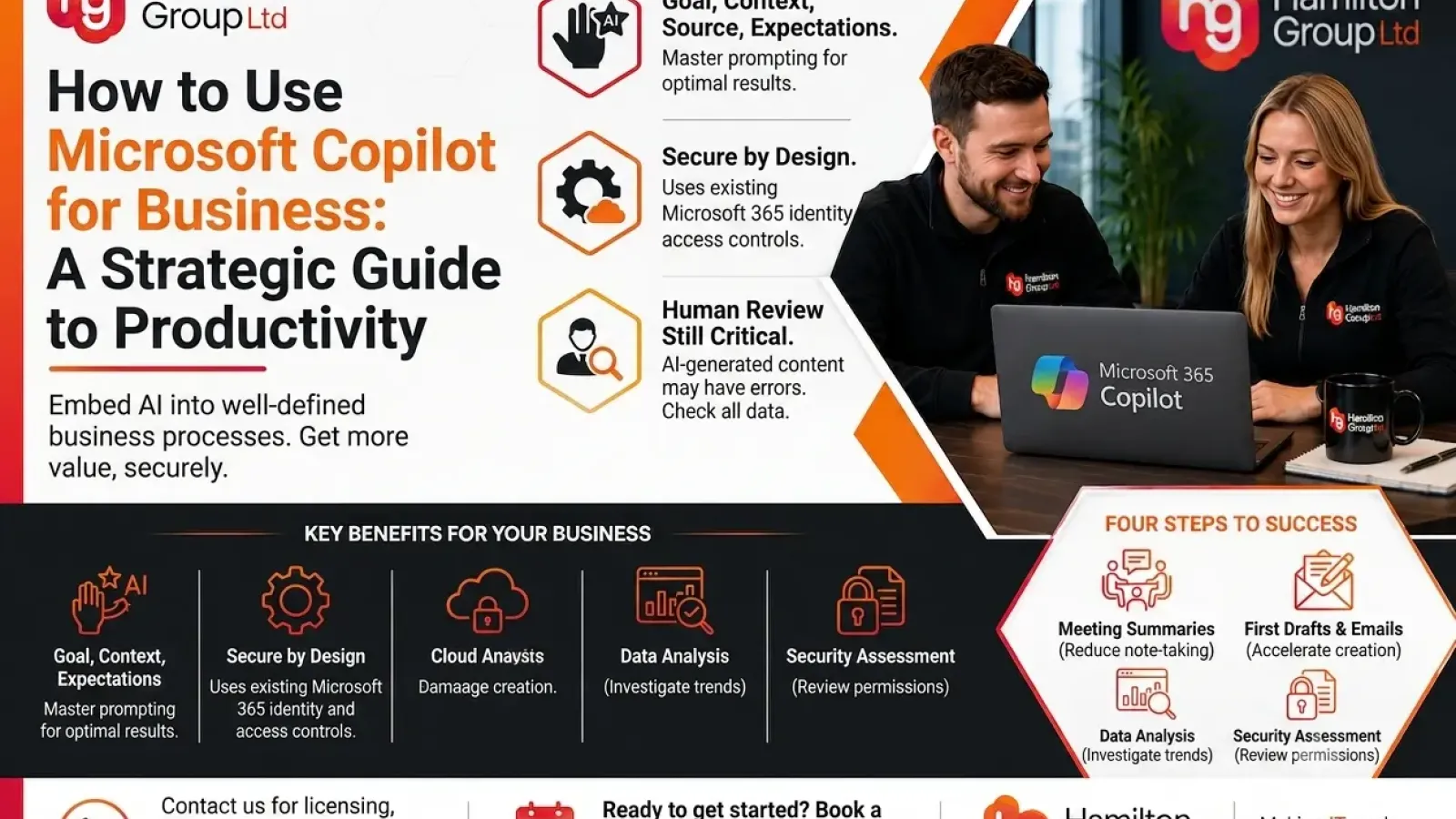
Here is a practical, business-focused article written in the voice of Hamilton Group.
How to Use Microsoft Copilot for Business
Artificial intelligence is quickly becoming part of everyday business life. Rather than being limited to specialist technical teams, AI tools are now built directly into applications that employees already use every day.
Microsoft 365 Copilot is one of the most significant examples. It works alongside Microsoft applications such as Word, Excel, PowerPoint, Outlook and Teams, helping employees create content, analyse information, summarise conversations and complete routine tasks more efficiently. (Microsoft)
However, simply giving employees access to Copilot does not automatically create productivity gains. Businesses need to understand what the technology can do, how to write effective instructions and how to introduce it securely.
What Is Microsoft 365 Copilot?
Microsoft 365 Copilot is an AI-powered assistant designed for the workplace. Users communicate with it using ordinary written instructions, known as prompts.
Depending on the licence assigned to the user, Copilot can work with information from the web as well as business content stored within Microsoft 365, including emails, documents, meetings, chats and calendars.
There is an important distinction between Microsoft 365 Copilot Chat and the full Microsoft 365 Copilot experience.
Copilot Chat is available to users with qualifying Microsoft 365 business or enterprise subscriptions. A Microsoft 365 Copilot licence adds deeper access to organisational data and more extensive integration within applications such as Word, Excel, PowerPoint, Outlook and Teams. Availability can vary according to the organisation’s subscription, configuration and licensing. (Microsoft Support)
Where Can Businesses Use Copilot?
Copilot is most valuable when it is used within the normal flow of work. Instead of opening a separate AI tool and copying information between systems, employees can ask for help from inside the Microsoft 365 applications they already use.
Using Copilot in Word
Copilot in Word can help users overcome the blank page, create first drafts, rewrite existing content and summarise long or complicated documents. (Microsoft Support)
A marketing employee could ask:
“Create a 700-word article explaining the benefits of managed IT support for a UK manufacturing company. Use a professional but approachable tone and include a clear call to action.”
Copilot can produce the first draft, after which the employee can ask it to:
- Shorten the introduction.
- Rewrite the content for a different audience.
- Make the tone more professional.
- Turn a long section into a concise summary.
- Identify gaps or unanswered questions.
- Compare the draft with a referenced document.
The best approach is to treat Copilot as a drafting and editing assistant rather than expecting it to produce perfect, publish-ready content immediately.
Using Copilot in Outlook
Copilot in Outlook can help employees draft emails, summarise lengthy conversations and find information relating to their inbox, meetings and calendar. The available features depend on the user’s Microsoft 365 Copilot licence. (Microsoft Support)
For example, an employee could ask:
“Draft a polite follow-up email to a customer who has not responded to our proposal. Keep it under 150 words, avoid sounding pushy and ask whether they need any further information.”
Copilot can also help users understand long email chains by identifying:
- The main issue being discussed.
- Decisions that have already been made.
- Questions that remain unanswered.
- Actions assigned to each person.
- Dates or deadlines mentioned in the conversation.
This can be particularly useful for managers who return from leave or employees who have been copied into a complicated conversation at a later stage.
Using Copilot in Microsoft Teams
Teams is one of the strongest business use cases for Copilot.
During or after a meeting, Copilot can summarise key discussion points, identify actions and answer questions about what was said. It can also help employees catch up on busy Teams chats and channels by highlighting decisions, questions and outstanding tasks. (Microsoft Support)
Useful prompts include:
“Summarise the main decisions made during this meeting.”
“List every action, the person responsible and any deadline mentioned.”
“What concerns did the customer raise?”
“Which questions were left unanswered?”
“Create a follow-up email based on the outcome of this meeting.”
Copilot can also be used during some meetings without enabling a recording or permanent transcript, depending on the meeting settings and policies chosen by the organisation. (Microsoft Support)
Using Copilot in Excel
Copilot in Excel can help users build and edit workbooks, generate formulas, analyse information and create visualisations such as charts and PivotTables. (Microsoft Support)
An employee could ask:
“Analyse this sales table and identify the three strongest-performing products, the three weakest-performing products and any unusual monthly changes.”
Other useful requests include:
“Create a formula that calculates gross profit using the revenue and cost columns.”
“Produce a monthly sales chart from this table.”
“Highlight customers whose spending has fallen by more than 20%.”
“Summarise the main trends and outliers in this data.”
Copilot can make direct changes to a workbook, so employees should check formulas, totals and assumptions before relying on the output. Version history and undo functions should also be used where appropriate, particularly with important or shared spreadsheets. (Microsoft Support)
Using Copilot in PowerPoint
Copilot in PowerPoint can generate an initial presentation from a prompt or existing file. It can also add slides, reorganise content, summarise a presentation and help refine the wording and structure. (Microsoft Support)
For example:
“Create a ten-slide presentation for a board meeting explaining our proposed cloud migration. Include the business case, expected benefits, key risks, approximate timeline and recommended next steps.”
A strong corporate PowerPoint template can also help Copilot produce more consistent, on-brand presentations. The quality of the template, including its slide layouts and design elements, influences the presentation Copilot creates. (Microsoft Support)
Employees should still review each slide carefully. AI-generated presentations may need corrections, updated figures, stronger branding or more relevant imagery before they are shared.
How to Write Better Copilot Prompts
The quality of Copilot’s response depends heavily on the quality of the prompt.
Microsoft recommends considering four main elements:
Goal: What do you want Copilot to do?
Context: Why do you need it, and who is the audience?
Source: Which file, email, meeting or dataset should it use?
Expectations: How should the answer be structured, formatted or written? (Microsoft Learn)
A vague prompt might be:
“Write a proposal.”
A stronger prompt would be:
“Using the attached meeting notes and pricing document, create a two-page proposal for a UK accountancy firm with 40 employees. Explain the benefits of moving to Microsoft 365 Business Premium, include the recommended migration stages and use a confident but non-technical tone.”
The second prompt gives Copilot a clear objective, source material, audience and expected format.
Employees should also use follow-up prompts rather than trying to include everything in a single request.
For example:
“Make the introduction shorter.”
“Rewrite this for a non-technical reader.”
“Add a section covering security risks.”
“Present the recommendations in order of priority.”
“Which statements in this draft require independent verification?”
This conversational approach often produces better results than accepting the first response.
Five Practical Ways to Start Using Copilot
Businesses should begin with clear, low-risk scenarios where the benefit can be measured.
1. Meeting Summaries
Use Copilot to summarise internal meetings and create action lists. This can reduce manual note-taking and make responsibilities clearer.
2. Email Drafting
Allow employees to use Copilot for routine replies, appointment confirmations, follow-ups and internal announcements.
3. Document Summaries
Use Copilot to extract the important points from policies, proposals, reports and project documents.
4. First Drafts
Use it to create the initial version of articles, procedures, presentations and customer communications. A human employee should then edit and approve the content.
5. Data Analysis
Use Copilot to investigate trends in structured Excel data, while ensuring that important figures and calculations are independently checked.
Is Microsoft Copilot Secure for Businesses?
Microsoft 365 Copilot uses the organisation’s existing Microsoft 365 identity, access and compliance controls. It only accesses information that the individual user is authorised to access. (Microsoft Learn)
This is an important protection, but it can also expose existing permission problems.
For example, suppose an employee already has access to a SharePoint folder containing sensitive commercial information. Copilot may be able to use that information when responding to the employee because the underlying permission already exists.
Before introducing Copilot widely, businesses should therefore review:
- SharePoint and Teams permissions.
- Access to confidential folders.
- Old or unnecessary user accounts.
- External sharing arrangements.
- Sensitivity labels.
- Data loss prevention policies.
- Multifactor authentication.
- Conditional Access policies.
- Retention and compliance requirements.
Microsoft states that Microsoft 365 Copilot respects existing privacy, security and compliance commitments, including GDPR-related commitments for commercial Microsoft 365 customers. (Microsoft Learn)
Nevertheless, Copilot should form part of a wider information-governance strategy. It should not be treated as a substitute for properly configured permissions, identity security and data management.
Copilot Still Requires Human Review
Copilot can produce impressive results, but AI-generated content may still contain incorrect, incomplete or misleading information.
Microsoft advises users to validate Copilot output before sharing it or acting upon it. Important facts, names, dates, financial figures and recommendations should be checked against trusted sources. (Microsoft Support)
This is particularly important when Copilot is used for:
- Financial reporting.
- Legal or regulatory communications.
- HR decisions.
- Cybersecurity recommendations.
- Medical or health-related content.
- Customer contracts.
- Pricing and quotations.
- Publicly published material.
The employee remains responsible for the finished work. Copilot can accelerate the process, but it should not replace professional judgement.
How Should a Business Introduce Microsoft Copilot?
A controlled rollout is usually better than immediately assigning licences to every employee.
Start by choosing a small group of users from different departments. Identify several repeatable tasks and record how long those tasks normally take.
Provide practical training on prompting, data security and output validation. After an initial trial, review:
- How frequently Copilot was used.
- Which tasks produced meaningful time savings.
- Whether employees received accurate and useful answers.
- Where prompts or source data caused problems.
- Whether any permissions or data-governance issues were discovered.
- Which departments would benefit from the next stage of deployment.
Businesses should also create an acceptable-use policy explaining what employees may enter into Copilot, which outputs require approval and how confidential information should be handled.
Getting More Value from Microsoft Copilot
Microsoft Copilot can help businesses reduce repetitive work, communicate more effectively and make better use of the information already stored within Microsoft 365.
The greatest benefits will not come from asking occasional questions. They will come from embedding Copilot into well-defined business processes and giving employees the skills to use it effectively.
That means combining the right licensing with secure Microsoft 365 configuration, clear policies, staff training and ongoing review.
How Hamilton Group Can Help
Hamilton Group can help your business assess whether Microsoft 365 Copilot is suitable for your organisation and prepare your Microsoft environment for a secure rollout.
We can assist with licensing, Microsoft 365 configuration, SharePoint permissions, data protection, security policies, user training and the development of practical Copilot use cases.
To discuss Microsoft Copilot and discover how AI could improve productivity across your organisation, contact Hamilton Group on 0330 043 0069.
The article can also be adapted into a shorter SEO version, a Copilot implementation guide or a Hamilton Group social-media campaign.