Debloating Windows 11 Safely: What You Can Remove and What You Shouldn’t
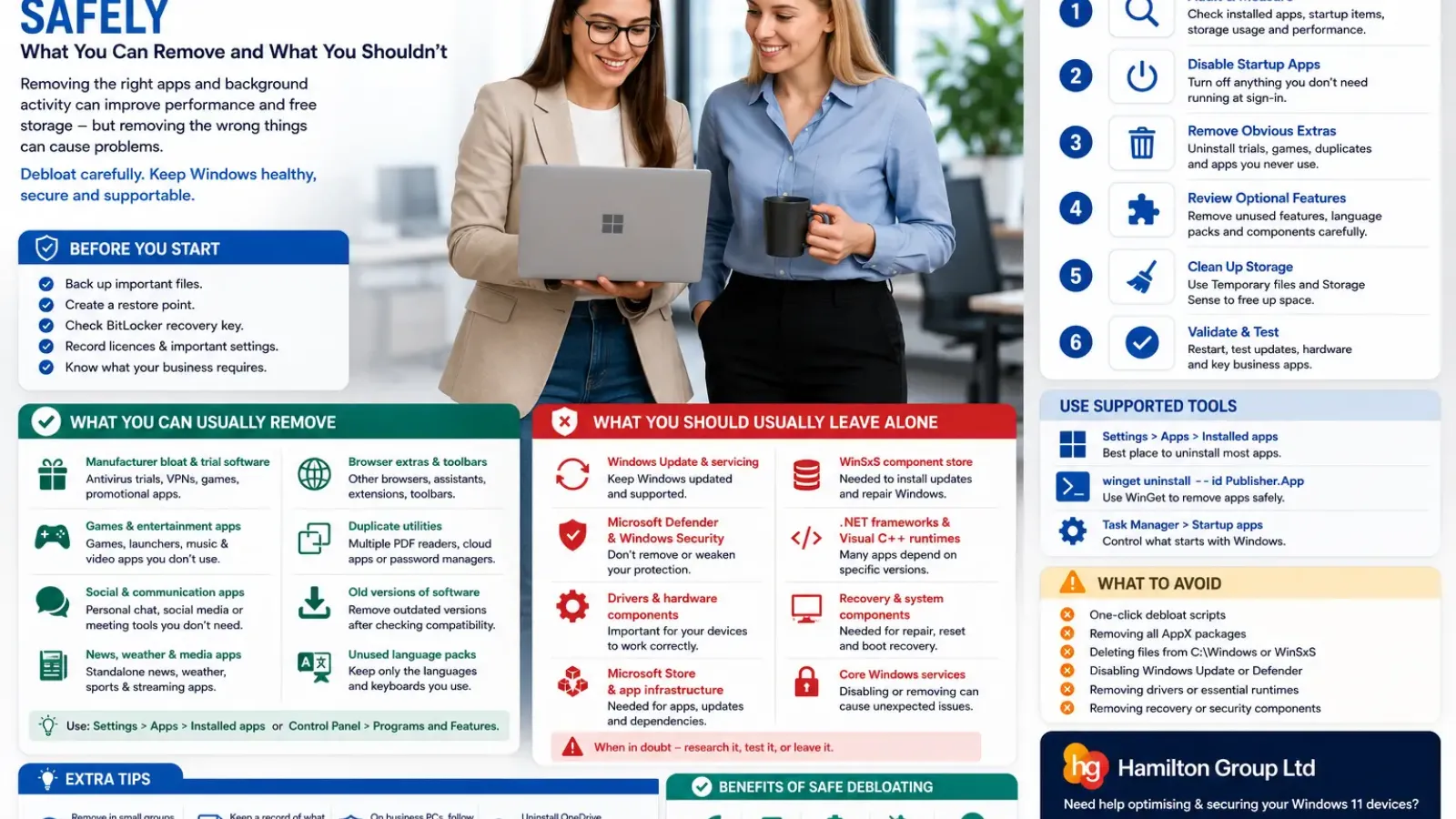
A new Windows 11 computer can arrive with far more software than you expected.
Alongside Windows itself, you may find manufacturer utilities, trial antivirus software, gaming applications, communication tools, news widgets, cloud services and applications you never intend to open.
Removing some of this software can reduce startup activity, free storage and make the Start menu easier to manage. Removing the wrong components can create a different set of problems, including broken updates, missing drivers, failed device features and applications that return after the next Windows upgrade.
The safest approach is not to run an aggressive “debloat” script that removes everything with one command.
Instead:
- Back up the device.
- Identify what is genuinely unnecessary.
- Disable startup activity before uninstalling software.
- Use Windows’ supported removal controls.
- Remove applications in small groups.
- Restart and test after each change.
- Leave core Windows, security, servicing and hardware components alone.
What Does “Debloating” Windows Mean?
Debloating usually means reducing software and background activity that you do not need.
This can involve:
- Uninstalling unused applications
- Removing manufacturer trials
- Disabling unnecessary startup programs
- Restricting background activity
- Turning off optional Windows features
- Removing unused language packs
- Clearing temporary files
- Unlinking cloud services that are not required
- Simplifying taskbar and Start menu content
Debloating should not mean deleting unfamiliar folders from C:\Windows, disabling random services or running a script that removes every built-in application.
Windows includes components that may appear unused but support:
- Updates
- Security
- File previews
- Application installation
- Printing
- Device management
- Authentication
- Recovery
- Microsoft Store applications
- Optional Windows features
Microsoft notes that some applications and programs are built into Windows and cannot be removed through the ordinary uninstall interface.
Will Debloating Make Windows Dramatically Faster?
Sometimes, but expectations should be realistic.
The greatest improvements usually come from removing or disabling software that:
- Starts automatically
- Runs background services
- Displays persistent notifications
- Performs constant scans
- Uses significant memory
- Installs browser extensions
- Regularly checks for updates
- Duplicates another installed security or cloud service
Removing a small built-in application that never runs may save some storage but make little measurable difference to performance.
Microsoft identifies startup applications as a potential source of slower boot times and increased background activity. Disabling applications that do not need to start automatically is therefore often more useful than removing harmless built-in apps.
Before You Remove Anything
Create a recovery path first.
At minimum:
- Back up important files.
- Confirm OneDrive or other cloud folders have finished syncing.
- Create a restore point where appropriate.
- Record any important application licences.
- Confirm the BitLocker recovery key is available.
- Check whether the computer is managed by your employer.
- Note which applications were installed by the manufacturer.
- Export or record any specialist application settings.
For business computers, do not remove software merely because you do not recognise it. It may have been installed by Microsoft Intune, Group Policy, an endpoint-security platform or your IT provider.
Start With an Inventory
Open:
Settings > Apps > Installed apps
Sort by:
- Size
- Installation date
- Name
Also open Task Manager with:
Ctrl + Shift + Esc
Then select:
Startup apps
Record:
- Application name
- Publisher
- Startup impact
- Whether you use it
- Whether it supports hardware
- Whether your organisation manages it
Microsoft supports uninstalling applications through Settings > Apps > Installed apps and configuring startup applications through either Settings or Task Manager.
The Safest First Step: Disable Startup Apps
Before uninstalling anything, disable applications that do not need to launch every time Windows starts.
Open:
Settings > Apps > Startup
or:
Task Manager > Startup apps
Common candidates may include:
- Music applications
- Game launchers
- Chat applications you rarely use
- Update assistants for unused software
- Manufacturer advertising tools
- Cloud clients you do not use
- Creative applications that preload launchers
- Printer utilities that are not required for printing
Disabling a startup entry does not normally uninstall the application. It simply prevents it loading automatically when you sign in.
This makes it a low-risk way to test whether removing background activity improves performance. Microsoft recommends disabling unnecessary startup applications to reduce boot and background load.
What You Can Usually Remove Safely
The exact application list varies by computer, but the following categories are often removable when you know you do not use them.
Manufacturer Trial Software
New computers may include:
- Trial antivirus products
- Trial VPN applications
- Promotional shopping tools
- Game trials
- Cloud-storage trials
- Manufacturer advertising applications
- Subscription prompts
- Partner applications
Trial security software deserves particular attention because two active antivirus products can create performance and compatibility problems.
Before removing a trial antivirus package:
- Confirm Microsoft Defender or your business endpoint protection is active.
- Use the security vendor’s official uninstaller.
- Restart Windows.
- Check Windows Security > Virus & threat protection.
Do not leave a business device without its approved protection.
Games and Entertainment Applications
You can generally remove games or entertainment apps that you do not use, such as:
- Preinstalled casual games
- Gaming launchers
- Music or video services
- Xbox applications on a non-gaming business PC
- Promotional gaming components
However, some users rely on Xbox services for Game Pass, controller support, cloud gaming or Microsoft Store games. Remove only what is genuinely unnecessary for that user.
Social and Communication Applications
Applications such as consumer chat, social-media or meeting tools can usually be removed when the organisation uses a different platform.
Examples might include:
- Consumer messaging apps
- Personal video-call tools
- Social-network applications
- Duplicate meeting applications
Do not remove Microsoft Teams or another collaboration tool from a company computer without checking whether it is required for meetings, telephony or internal communication.
News, Weather and Media Applications
Standalone applications for news, weather, films, music or sports can normally be removed when unused.
You may also choose to hide or disable Widgets rather than removing related packages.
These applications are unlikely to transform system performance on their own, but removing them may simplify the interface and reduce notifications.
Third-Party Browser Trials
Manufacturers sometimes install:
- Alternative browsers
- Browser assistants
- Shopping extensions
- Search toolbars
- Password-manager trials
Remove unwanted browser extensions as well as the parent application.
Review every installed browser before removing it, as it may contain bookmarks, saved passwords or business web applications.
Duplicate Utilities
A computer may have several programs that perform the same role, such as:
- Multiple PDF readers
- Several cloud-sync clients
- Two password managers
- Duplicate screenshot tools
- Several media players
- Multiple meeting applications
- Competing backup tools
Choose the approved application and remove the duplicates after confirming that no files or workflows depend on them.
Old Versions of Applications
Remove obsolete versions when:
- A newer supported version is installed.
- No specialist plugin requires the old version.
- Data has been migrated.
- The application licence allows removal.
- The business has tested compatibility.
Do not remove old accounting, database or design software merely because its version number is lower. It may contain or control access to important data.
Unused Language Packs
Open:
Settings > Time & language > Language & region
Remove languages you do not use, but retain:
- The Windows display language
- Required keyboard layouts
- Languages used by employees
- Proofing languages needed by Microsoft 365
Removing an unfamiliar keyboard layout is different from removing the language required by an application or user.
Optional Windows Features You Do Not Use
Open:
Settings > System > Optional features
or search for:
Turn Windows features on or off
Possible removable features may include:
- Legacy media components
- Old printing components
- Internet Information Services on a non-development PC
- Windows Sandbox when unused
- Hyper-V on systems that do not use virtualisation
- OpenSSH Server when not required
- Legacy protocols installed for an old system
- Extra handwriting or speech components
Do not untick optional features without understanding their purpose.
For example:
- Hyper-V may support virtual machines, security products or developer tools.
- .NET components may be required by older business software.
- Printing features may support specialist printers.
- Windows Subsystem for Linux may be required by developers.
- SMB-related features may support older storage, although obsolete protocols should be removed rather than retained casually.
Recall is also an optional Windows feature on supported devices and can be removed through Turn Windows features on or off; Microsoft states that removing it also deletes saved Recall snapshots.
OneDrive, When It Is Truly Not Needed
OneDrive can be unlinked, disabled at startup or uninstalled.
Microsoft states that uninstalling OneDrive from Windows 10 or 11 does not delete the files stored online; they remain accessible through OneDrive on the web.
Before removing it, check whether the computer uses OneDrive for:
- Desktop backup
- Documents backup
- Pictures backup
- Microsoft 365 AutoSave
- SharePoint libraries
- Business document protection
- Files On-Demand
- Known Folder Move
On a business PC, OneDrive may be an essential part of backup, collaboration and ransomware recovery.
Manufacturer Applications: Remove With Care
Not every manufacturer application is bloatware.
A Dell, HP, Lenovo, Microsoft Surface or other OEM device may include utilities for:
- BIOS updates
- Driver updates
- Battery charging limits
- Dock firmware
- Warranty diagnostics
- Thermal profiles
- Function keys
- Audio controls
- Camera privacy
- Pen configuration
- Display colour profiles
Removing an advertising application may be safe. Removing the software that controls battery charging or hotkeys may reduce device functionality.
A useful test is to search the exact application name on the manufacturer’s official support site before uninstalling it.
Background Permissions Instead of Removal
Some Microsoft Store applications can remain installed while being prevented from running in the background.
Open:
Settings > Apps > Installed apps
Select the application’s menu, then:
Advanced options > Background apps permissions
Choose the most restrictive suitable option where available.
Microsoft documents that background permissions can be changed from an app’s Advanced options page.
This is useful when:
- You use the app occasionally.
- You do not need notifications from it.
- You want to reduce background activity.
- You are unsure whether removing it is appropriate.
What You Should Usually Leave Alone
The following areas should not be removed through broad scripts or manual file deletion.
Microsoft Store and App Installer
The Microsoft Store and App Installer support modern application installation and management.
Windows Package Manager, or WinGet, also depends on supported Windows app infrastructure. Microsoft describes WinGet as a command-line tool for discovering, installing, upgrading, removing and configuring applications.
Removing Store infrastructure may affect:
- Application updates
- WinGet
- Microsoft applications
- Codec installation
- App dependencies
- Future Windows features
You may restrict Store access through business policy without deleting its underlying components.
Windows Security and Microsoft Defender
Do not attempt to remove:
- Windows Security
- Microsoft Defender Antivirus
- Firewall services
- SmartScreen
- Core security-health services
- Credential protection
- BitLocker components
Business endpoint-security software may manage or partially replace some Defender functions, but the change should be performed through supported security-product deployment rather than a debloat script.
Windows Update Components
Do not remove or permanently disable:
- Windows Update
- Update Orchestrator
- Windows Modules Installer
- Servicing Stack components
- Delivery and servicing infrastructure
- The Windows component store
Disabling updates may temporarily reduce background activity, but it leaves the device vulnerable and often causes larger repair problems later.
Windows reserves some storage for temporary files, caches and update operations so that servicing can complete reliably. This reserved storage is a system feature rather than ordinary disposable bloat.
The WinSxS Component Store
Do not manually delete files from:
C:\Windows\WinSxS
Windows uses the component store to:
- Install updates
- Enable optional features
- Repair protected system files
- Maintain component versions
Deleting from this folder manually can break updates and Windows repairs.
Use supported DISM servicing commands where component-store cleanup is genuinely required.
Microsoft Visual C++ Runtimes
You may see several Microsoft Visual C++ Redistributable entries with different:
- Years
- Versions
- Architectures
- Update levels
Do not assume they are duplicates.
Different applications may require specific versions, including both x86 and x64 packages. Removing one can cause programs to stop launching with missing DLL errors.
.NET Runtimes and Frameworks
Leave installed .NET components alone unless you know that no application depends on them.
Business applications may require:
- .NET Framework 3.5
- .NET Framework 4.x
- Modern .NET Desktop Runtime
- ASP.NET components
- Particular runtime versions
Applications often install their required runtime alongside the program. Removing it may break the application while leaving no obvious clue about the cause.
Hardware Drivers
Do not remove drivers simply because their names are unfamiliar.
Drivers support:
- Graphics
- Audio
- Network adapters
- Bluetooth
- Chipset
- Storage
- Touchpads
- Cameras
- Docking stations
- Fingerprint readers
- Windows Hello
- USB controllers
- Power management
Removing a companion app may be safe; removing the driver beneath it may disable the device.
Chipset and System Interface Components
Leave components from Intel, AMD and the computer manufacturer alone when they relate to:
- Chipset
- Management Engine
- Platform Security Processor
- Serial IO
- Dynamic tuning
- Power management
- System interface
- USB-C
- Thunderbolt
- Hotkeys
- ACPI
These may not have a visible user interface, but they can be essential to sleep, battery, thermal and hardware behaviour.
Windows Shell Components
Avoid removing or heavily modifying components connected to:
- Start menu
- Search
- File Explorer
- Taskbar
- Settings
- Notifications
- Shell Experience Host
- Web Experience components
- Sign-in experience
Debloat scripts sometimes remove packages because they appear to power only one visible feature. In reality, the same package may support several parts of the interface.
Edge WebView2 Runtime
Microsoft Edge WebView2 allows applications to display web-based content inside their own windows.
Removing it may break:
- Microsoft 365 features
- Teams components
- Manufacturer applications
- Sign-in pages
- Business software
- Windows panels
The browser and its WebView runtime are not necessarily the same thing. Even when another browser is your default, applications may still depend on WebView2.
Recovery and Reset Components
Do not remove:
- Windows Recovery Environment
- Recovery partitions
- Reset infrastructure
- Boot files
- EFI partitions
- OEM recovery tools without a replacement plan
These may be needed when Windows no longer starts.
The space recovered by deleting recovery components is rarely worth losing straightforward repair options.
Windows Installer and Package Services
Leave services and components related to:
- MSI installation
- AppX deployment
- Package servicing
- Licensing
- TrustedInstaller
- Cryptographic services
Removing or disabling these can stop applications and updates from installing, repairing or uninstalling correctly.
Avoid “Remove All AppX Packages” Commands
Commands that remove every AppX package for all users are commonly shared as Windows debloating solutions.
They may remove:
- Store infrastructure
- Calculator
- Photos
- Notepad
- Terminal
- App Installer
- Shell dependencies
- Provisioned applications required by new users
They can also create inconsistent images where an app has been removed for one user but remains provisioned for another. Microsoft documents that changing Store applications in an inconsistent manner can cause Sysprep and image-preparation failures.
Remove applications individually and test them rather than using a broad wildcard command.
Safer Command-Line Removal With WinGet
WinGet can list applications installed through several installation methods:
winget list
Microsoft states that winget list displays applications installed through Windows Package Manager as well as applications installed by other means.
To remove a clearly identified application:
winget uninstall --name "Application Name"
Microsoft’s WinGet documentation recommends identifying the exact application because ambiguous names may match several packages.
Before uninstalling:
- Run winget list.
- Record the exact name and ID.
- Confirm the publisher.
- Uninstall one application.
- Restart and test.
Use:
winget uninstall --id Publisher.Application
when the package ID provides a safer exact match.
Do not paste a long online list of WinGet uninstall commands without reviewing every package.
Why One-Click Debloat Scripts Are Risky
Third-party debloat scripts can make hundreds of changes in seconds.
They may:
- Remove built-in applications
- Disable services
- Modify privacy policies
- Change Windows Update
- Alter the Start menu
- Remove scheduled tasks
- Edit the registry
- Disable telemetry
- Remove Store packages
- Change Defender settings
- Block Microsoft domains
- Add unsupported customisations
The risks include:
- No clear record of every change
- Windows updates restoring some components but not others
- Broken Microsoft Store applications
- Failed feature updates
- Missing dependencies
- Security controls being disabled
- Business-management policies being overridden
- Difficulty reversing the changes
- The script itself becoming outdated
A script written for one Windows 11 build may make inappropriate changes on a newer build.
If a script is used in a professional environment, it should be:
- Reviewed line by line
- Version-controlled
- Tested on representative hardware
- Piloted on non-critical devices
- Logged
- Reversible
- Maintained as Windows changes
Do Not Disable Services by Name Alone
Windows services may use names that sound unnecessary but support another component indirectly.
Examples include services connected to:
- Bluetooth
- Biometrics
- Cryptography
- Delivery Optimisation
- Diagnostics
- Geolocation
- Network discovery
- Printing
- Remote procedure calls
- Storage
- User profiles
- Updates
A service showing little activity is not necessarily wasting meaningful resources.
Disabling services can lead to delayed problems, such as an update failing several weeks later or a docking station no longer reconnecting after sleep.
Clean Up Storage Without Removing System Components
A full drive can make a computer feel bloated even when applications are not the main cause.
Open:
Settings > System > Storage
Review:
- Temporary files
- Cleanup recommendations
- Installed apps
- Documents
- OneDrive
- Other
- System & reserved
Storage Sense can automatically remove certain temporary files and manage Recycle Bin and cloud-file storage according to configured rules. Microsoft recommends Storage Sense and Cleanup recommendations for recovering space needed by Windows.
Review every category before deleting it.
Be especially careful with:
- Downloads
- Previous Windows installations
- Delivery Optimisation files
- Crash dumps
- OneDrive content
- Recycle Bin
- Update rollback files
Clear Temporary Files Safely
Open:
Settings > System > Storage > Temporary files
Possible categories include:
- Temporary files
- Thumbnails
- DirectX shader cache
- Delivery Optimisation files
- Windows error reports
- Recycle Bin
- Previous Windows installation
Read the description of each option.
Deleting Previous Windows installation may remove your ability to return to the earlier Windows version.
Do not use third-party registry cleaners or aggressive “junk” cleaners as a substitute for Windows’ supported cleanup controls.
Remove Applications Through Their Own Uninstallers
Some software installs:
- Services
- Drivers
- Scheduled tasks
- Browser extensions
- Shared libraries
- Update agents
Deleting its program folder leaves those components behind.
Use:
- Settings > Apps > Installed apps
- Control Panel > Programs and Features
- The manufacturer’s uninstall tool
- WinGet with an exact package match
Microsoft notes that some programs can be repaired before they are uninstalled, which may be preferable when the application is still needed but malfunctioning.
What About Microsoft Edge?
Removing Edge is not an effective general Windows performance optimisation.
Even when another browser is your default, Windows and some applications may use Microsoft web components.
A safer approach is to:
- Set your preferred default browser.
- Disable Edge startup boosting if unnecessary.
- Stop it running in the background where suitable.
- Remove unwanted extensions.
- Clear browser data.
- Unpin it from the taskbar.
Do not manually delete Edge or WebView folders.
What About Widgets?
When Widgets are unwanted, disable or hide them rather than trying to remove multiple supporting packages.
Right-click the taskbar and open:
Taskbar settings
Turn off:
Widgets
This removes the taskbar entry without making broad changes to Windows application infrastructure.
On managed devices, administrators can control Widgets using policy.
What About Copilot?
The standalone Microsoft Copilot application can be uninstalled through Settings > Apps > Installed apps where supported.
Remember that this does not automatically disable:
- Copilot in Microsoft 365 applications
- Microsoft 365 Copilot Chat
- Copilot in Edge
- Recall
- Click to Do
- AI features built into other applications
Remove or configure each feature separately.
What About Recall?
On supported Copilot+ PCs, Recall can be:
- Disabled
- Paused
- Cleared
- Removed as an optional Windows feature
Microsoft states that unchecking Recall in Turn Windows features on or off and restarting removes the feature and deletes previously saved snapshots.
For business devices, use central policy rather than relying only on each employee changing the setting manually.
What About Xbox Components?
On a computer that is never used for gaming, you may remove visible Xbox applications that Windows allows you to uninstall.
Be cautious with:
- Gaming Services
- Game Bar
- Xbox identity components
- Controller-related services
These may be needed by:
- Microsoft Store games
- Game Pass
- Xbox controllers
- Screen recording
- Game-related authentication
Disable Game Bar features first and test before removing supporting packages.
What About Phone Link?
Phone Link can normally be disabled from startup or removed where Windows offers an uninstall option.
Before removing it, confirm the user does not rely on:
- Phone notifications
- SMS access
- Photograph transfers
- Mobile calls
- Android application integration
If the application cannot be uninstalled through the supported interface, leave its package alone and simply disable startup and notifications.
What About Microsoft Teams?
A Windows computer may include different Teams-related packages:
- Microsoft Teams for work or school
- Personal Teams or Chat components
- Meeting add-ins
- Machine-wide installers
- Outlook integrations
Remove only the version that is not needed.
Uninstalling the main application may not automatically remove the Outlook meeting add-in, and removing the add-in may affect calendar functionality.
What About OneNote, Outlook and Microsoft 365 Apps?
Remove these only when the user does not need them and their data is protected.
Check:
- Outlook PST archives
- Offline mail
- OneNote notebooks
- Office templates
- Macros
- Add-ins
- Licence assignments
- SharePoint integrations
A Microsoft 365 repair may be more appropriate than uninstalling individual components when the suite is malfunctioning.
Business PCs Need a Different Approach
In a managed environment, debloating should be an application-management project rather than a collection of manual changes.
A professional process should include:
- An approved application catalogue
- Required and optional app classifications
- Standard uninstall commands
- Intune detection rules
- Pilot groups
- User communications
- Rollback plans
- Update testing
- Security review
- Reporting
Microsoft Intune can deploy, update and uninstall managed Win32 applications using defined detection and uninstall logic.
This is more reliable than asking employees to uninstall software themselves.
A Safe Debloating Order
Use this sequence:
Phase 1: Measure
- Review Task Manager startup impact.
- Check memory, processor and disk usage.
- Open Windows Storage settings.
- List installed applications.
- Record the device’s purpose and required software.
Phase 2: Reduce Activity
- Disable unnecessary startup apps.
- Restrict unnecessary background permissions.
- Turn off unused notifications.
- Hide unwanted taskbar features.
- Restart and measure again.
Phase 3: Remove Obvious Extras
- Uninstall trials and promotional apps.
- Remove unused games and media applications.
- Remove duplicate software.
- Remove obsolete versions after compatibility checks.
- Restart and test.
Phase 4: Review Optional Components
- Remove unused language packs.
- Review Optional features.
- Disable or remove Recall where appropriate.
- Unlink or remove OneDrive only when it is genuinely unnecessary.
- Keep hardware, security and servicing components.
Phase 5: Clean Storage
- Review Temporary files.
- Use Cleanup recommendations.
- Configure Storage Sense.
- Check Downloads and Recycle Bin manually.
- Review large application data before deleting it.
Phase 6: Validate
- Run Windows Update.
- Restart several times.
- Test printing, audio, networking and docking.
- Check Windows Security.
- Test key business applications.
- Confirm Microsoft Store and WinGet still work.
- Create a record of what was removed.
How to Test Whether a Removal Was Safe
After each small group of changes, test:
- Windows sign-in
- Start menu
- Search
- File Explorer
- Windows Update
- Microsoft Store
- Audio
- Wi-Fi and Ethernet
- Bluetooth
- Printing
- Webcam and microphone
- Windows Hello
- Sleep and wake
- External monitors
- VPN
- Microsoft 365
- Specialist applications
Do not wait until 40 applications have been removed before testing.
When something breaks, small change groups make the cause much easier to identify.
If You Removed Too Much
Possible recovery options include:
Reinstall the application
Use:
- Microsoft Store
- WinGet
- The manufacturer’s website
- Microsoft 365 portal
- Your organisation’s Company Portal
Re-enable the startup entry
Open:
Task Manager > Startup apps
Select the application and choose Enable.
Re-enable an optional feature
Open:
Settings > System > Optional features
or:
Turn Windows features on or off
Use System Restore
Search for:
Create a restore point
Then open System Restore and select a restore point created before the changes.
Repair Windows
Run:
DISM.exe /Online /Cleanup-Image /RestoreHealth
Then:
sfc /scannow
These can repair Windows component and protected-file corruption but will not automatically reinstall every application you deliberately removed.
Reinstall the current Windows version
Windows 11 may offer:
Settings > System > Recovery > Fix problems using Windows Update
This can reinstall the current version of Windows while preserving files, settings and applications on supported systems.
Reset the PC
Use Reset this PC only after backing up data and understanding which applications will be removed.
Common Debloating Mistakes
Avoid:
- Running an unreviewed script from a forum
- Removing all AppX packages
- Disabling Windows Update
- Removing Microsoft Defender without replacement protection
- Deleting files from WinSxS
- Removing every Visual C++ runtime
- Removing .NET components blindly
- Deleting recovery partitions
- Disabling services based only on their names
- Removing chipset or power-management software
- Assuming every manufacturer tool is unnecessary
- Uninstalling OneDrive before checking folder backup
- Removing Store infrastructure
- Making dozens of changes before restarting
- Treating a business PC like a personal gaming machine
- Assuming debloating will compensate for insufficient RAM or a failing SSD
When Debloating Is Not the Real Solution
Removing software will not fix:
- A failing SSD
- Insufficient memory
- Overheating
- Malware
- A damaged Windows profile
- Corrupted Windows components
- Slow business broadband
- An ageing processor
- A faulty driver
- A hard drive that should have been replaced years ago
If the computer remains slow after startup software and storage have been reviewed, diagnose:
- Disk health
- RAM usage
- CPU temperature
- Windows Update
- Drivers
- Event Viewer
- Reliability Monitor
- Malware protection
- Hardware age
A clean Windows installation or hardware upgrade may provide a more reliable result than increasingly aggressive debloating.
How Hamilton Group Can Help
Windows debloating should improve usability without damaging security, updates or business applications.
Hamilton Group can help with:
- Windows 11 performance assessments
- Startup and background-app reviews
- Safe application removal
- Manufacturer software evaluation
- Microsoft Intune application management
- Standard business device builds
- Windows Autopilot deployments
- Storage cleanup and upgrades
- OneDrive and Microsoft 365 configuration
- Copilot and Recall controls
- Driver and firmware management
- Endpoint-security validation
- Windows repair and reinstallation
- Device replacement planning
We can identify what is genuinely unnecessary, remove it safely and leave the components that keep Windows secure, supportable and reliable.
Remove the Clutter, Not the Foundations
Safe Windows 11 debloating is less dramatic than the one-click scripts suggest.
Begin by disabling unnecessary startup applications and background activity. Remove trials, promotional apps, unused games and duplicate utilities through supported uninstall methods. Review optional features carefully and use Windows Storage settings for cleanup.
Leave Windows Update, Defender, the component store, drivers, runtimes, recovery tools and core application infrastructure intact.
For help cleaning up slow or cluttered Windows 11 devices without breaking updates or business applications, call Hamilton Group on 0330 043 0069 or book a call with one of our experts today.